
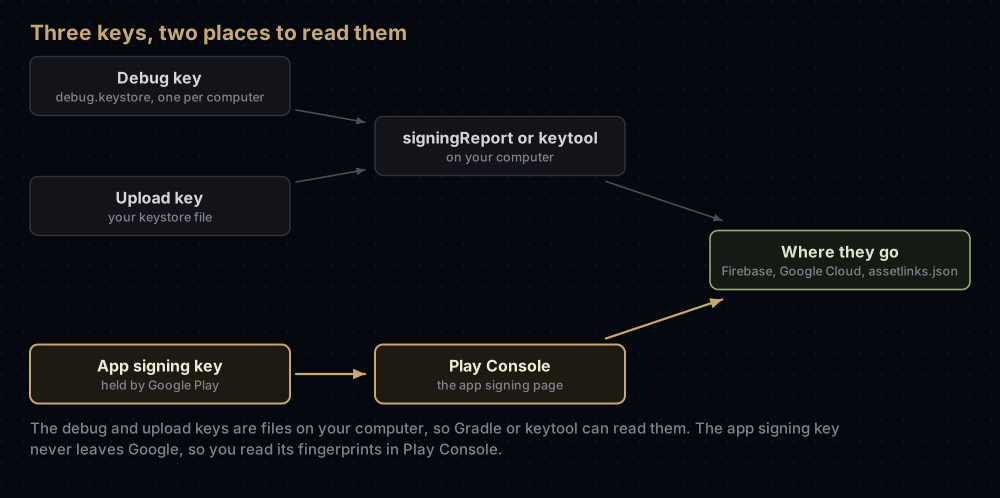
For the keys on your computer, run ./gradlew signingReport in your Android project: it prints the SHA-1 and SHA-256 of the debug key and of any release key Gradle is set up to use. For an app on Google Play, open the app signing page in Play Console: Google re-signs your app, and that key is not in any file on your computer.
That is the short version. An Android app has at least three signing keys, each with its own fingerprints, and most "SHA-1" problems come from copying the right kind of fingerprint from the wrong key. This guide covers every way to read them, for every key, and where each one needs to go.
What a fingerprint is
A fingerprint is a short code worked out from a certificate, a bit like a barcode printed on it. Services such as Firebase use it, together with your package name, to recognise which key signed your app.
Fingerprints are public. They are not keys and cannot sign anything, so it is safe to paste them into a console, a ticket or a config file.
Each certificate has several fingerprints, one per hash algorithm:
| Type | Length | Example (placeholder) | Who asks for it |
|---|---|---|---|
| SHA-1 | 20 bytes, 59 characters with colons | AA:BB:CC:DD:EE:FF:00:11:22:33:44:55:66:77:88:99:AA:BB:CC:DD | Firebase, Google Sign-In, Android OAuth clients, API keys restricted to Android apps |
| SHA-256 | 32 bytes, 95 characters with colons | AA:BB:CC:...:88:99, 32 pairs | assetlinks.json, Firebase phone sign-in with Play Integrity |
| MD5 | 16 bytes | Printed by signingReport and Play Console | None of the Google services in this guide |
You cannot convert a SHA-1 into a SHA-256. Both are worked out from the certificate, so to get the other one, go back to the certificate.
Three keys, three sets of fingerprints
| Key | Who holds it | What it signs |
|---|---|---|
| Debug key | Every computer makes its own debug.keystore | Builds you run from Android Studio or with flutter run |
| Upload key | You, in a keystore file | The app bundle you upload, and any release APK you build yourself |
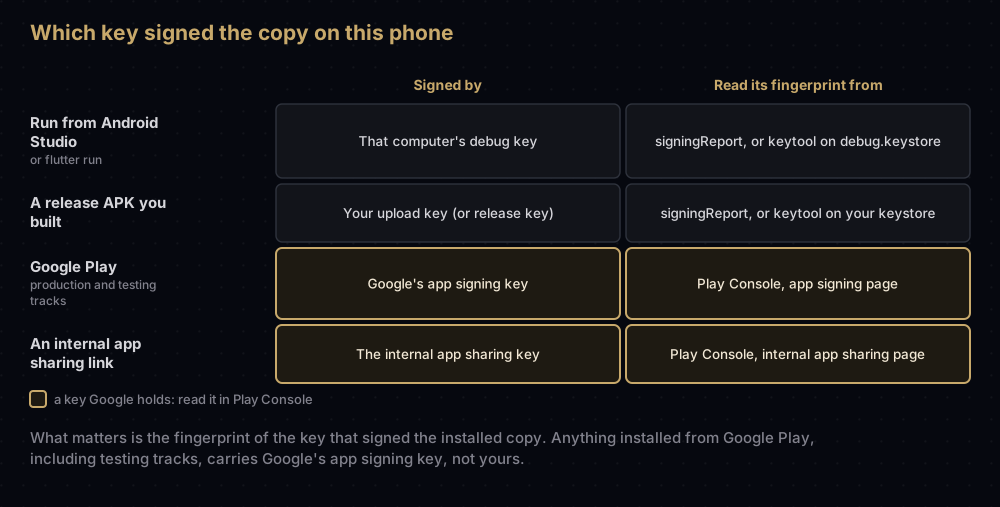
| App signing key | Google, through Play App Signing | Every copy installed from Google Play |
There can be more. Each teammate's computer has a different debug key. Internal app sharing re-signs apps with its own key. And Play's quantum-ready hybrid signing, which new apps get by default, means the app signing page lists fingerprints for three keys instead of one. Play's hybrid signing explains why.
Method 1: Gradle's signingReport
This is the quickest way to see the debug key and your release key together, and it shows which keystore file each build uses.
In Android Studio: open the Gradle tool window and run app → Tasks → android → signingReport. If the task list does not show it, Android's docs say to open Settings, go to Experimental, and clear the options under Gradle that limit which tasks are listed.
From a terminal, in the folder that contains gradlew:
./gradlew signingReportOn Windows, run gradlew signingReport. In a Flutter project, run it inside the android folder. If android/gradlew does not exist yet, build the Android app once with the flutter tool, which adds the wrapper script.
The report lists every build variant. A trimmed example, with fingerprints replaced:
Variant: debug
Config: debug
Store: /Users/you/.android/debug.keystore
Alias: AndroidDebugKey
MD5: AA:BB:CC:DD:EE:FF:00:11:22:33:44:55:66:77:88:99
SHA1: AA:BB:CC:DD:EE:FF:00:11:22:33:44:55:66:77:88:99:AA:BB:CC:DD
SHA-256: AA:BB:CC:DD:EE:FF:00:11:22:33:44:55:66:77:88:99:AA:BB:CC:DD:EE:FF:00:11:22:33:44:55:66:77:88:99
Valid until: Saturday, September 9, 2056
----------
Variant: release
Config: release
Store: /Users/you/keys/upload-keystore.jks
Alias: upload
MD5: 11:22:33:44:55:66:77:88:99:AA:BB:CC:DD:EE:FF:00
SHA1: 11:22:33:44:55:66:77:88:99:AA:BB:CC:DD:EE:FF:00:11:22:33:44
SHA-256: 11:22:33:44:55:66:77:88:99:AA:BB:CC:DD:EE:FF:00:11:22:33:44:55:66:77:88:99:AA:BB:CC:DD:EE:FF:00
Valid until: Monday, February 2, 2054
----------
Two outputs look like failures but are not:
Error: Missing keystoreunder the debug variant means this computer has not run a debug build yet, sodebug.keystoredoes not exist. The report never creates it. Run the app once and try again.Config: null,Store: nullandAlias: nullunder release mean the release build has no signing configuration. Gradle cannot show a key it has not been told about; use keytool on the keystore instead. (A fresh Flutter project's release build points at the debug config, so it will show the debug fingerprint there until you set up release signing.)
Method 2: keytool on a keystore file
keytool ships with Java, including the copy inside Android Studio. For the debug key, Google gives these commands; the password is android. On macOS and Linux:
keytool -list -v -alias androiddebugkey -keystore ~/.android/debug.keystoreOn Windows, in Command Prompt:
keytool -list -v -alias androiddebugkey -keystore %USERPROFILE%\.android\debug.keystoreFor your upload key, point it at your keystore and alias, then type the store password when asked:
keytool -list -v -keystore upload-keystore.jks -alias uploadThe fingerprints are near the top of the output:
Certificate fingerprints:
	 SHA1: AA:BB:CC:DD:EE:FF:00:11:22:33:44:55:66:77:88:99:AA:BB:CC:DD
	 SHA256: AA:BB:CC:DD:EE:FF:00:11:22:33:44:55:66:77:88:99:AA:BB:CC:DD:EE:FF:00:11:22:33:44:55:66:77:88:99
If the shell says keytool: command not found, or you forgot the alias, the keytool commands post covers both. The debug keystore post explains why the debug fingerprint changes from one computer to the next.
Method 3: Play Console, for the key Google holds
When Play App Signing is on, which it is for every app published as an app bundle, users install copies signed by Google's app signing key. That key is not in any keystore you have, so signingReport and keytool -list cannot show it. Play Console can, and so can any copy Google signed (method 4).
The page is the Play app signing page. Play Console has moved it more than once, and Google's own documents disagree on the path:
- Play Console Help currently says Protected with Play, then Play app signing.
- Android's App Links guide and Studio documentation still say Release → Setup → App signing.
- Google's client authentication guide says Release → Setup → App Integrity.
If none of those matches what you see, use Play Console's search and type "app signing".
On that page:
- The app signing key section shows the MD5, SHA-1 and SHA-256 of Google's key. These are the ones Google services need for copies installed from Play.
- The Upload key certificate section shows the same for your upload key. It should match what
signingReportprinted for your release build. - With hybrid signing, Play Console Help says to copy the fingerprints for three keys: a new classical key and a post-quantum key used on newer devices, and a classical key used on older ones. Register all three.
- For App Links, the same page offers a ready-made Digital Asset Links snippet with the right SHA-256 already filled in.
Upload key and app signing key are supposed to differ. Seeing two different SHA-1 values here is normal, not a sign that something is wrong.
Method 4: apksigner on an APK that Google signed
Sometimes you want the fingerprint from a copy Google actually signed, not from a settings page. Play Console lets you download a signed, universal APK from the app bundle explorer: Play Console Help describes the path as Test & release → Latest releases and bundles, then your bundle, then the Downloads tab. That APK is signed with the app signing key.
Read it with apksigner, which lives in the Android SDK's build-tools folder (for example ~/Library/Android/sdk/build-tools/36.1.0/apksigner on a Mac):
apksigner verify --print-certs universal.apkSigner #1 certificate DN: <the certificate's owner name>
Signer #1 certificate SHA-256 digest: aabbccddeeff00112233445566778899aabbccddeeff00112233445566778899
Signer #1 certificate SHA-1 digest: aabbccddeeff00112233445566778899aabbccdd
Signer #1 certificate MD5 digest: aabbccddeeff00112233445566778899The first line names the certificate's owner. The digests below it are the fingerprints.
apksigner prints fingerprints in lower case without colons. keytool and signingReport print them in upper case with colons, and the Digital Asset Links documentation asks for upper case. This one-liner converts a digest on macOS or Linux:
echo aabbccddeeff00112233445566778899aabbccdd | sed 's/../&:/g; s/:$//' | tr 'a-f' 'A-F'AA:BB:CC:DD:EE:FF:00:11:22:33:44:55:66:77:88:99:AA:BB:CC:DDIf apksigner lists more than one signer, each labelled with a minSdkVersion range, the app's key has been rotated or upgraded, and each range has its own fingerprint. APK signature schemes explains that output.
Method 5: keytool on an app file
keytool can also read the certificate inside an app, with no password:
keytool -printcert -jarfile app-release.aabThis works on app bundles, which are signed the old JAR way, and it shows the key that signed the bundle: normally your upload key. It also works on APKs that carry a v1 signature. On a modern APK signed only with v2 or newer, it prints Not a signed jar file even though the APK is signed; in a test build with minSdk 24 that was exactly what happened. Use apksigner for APKs.
Internal app sharing has its own key
Play Console Help says apps uploaded to internal app sharing are re-signed with an internal app sharing key that Google creates for your app, whatever key you signed them with. So a tester who installs from an internal sharing link has a copy with yet another fingerprint.
The certificate is on the internal app sharing page in Play Console, in the Internal test certificate section, where you can download it or copy each fingerprint. Add it wherever your debug and release fingerprints go if sign-in has to work for those testers.
Where each fingerprint goes
Firebase
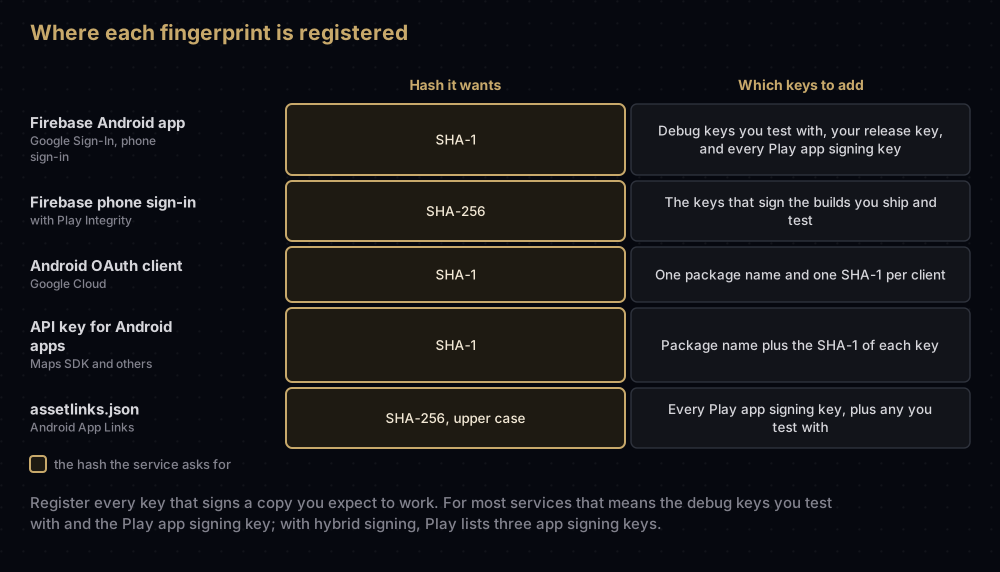
Open the project settings, find your Android app in the Your apps card, and use Add fingerprint. The field is called SHA certificate fingerprints and accepts several values, so add one per key.
Firebase's FAQ says SHA-1 is required for Firebase Authentication when you use Google sign-in or phone number sign-in. Its phone sign-in guide adds that using Play Integrity also needs the SHA-256. After enabling Google sign-in, Firebase's guide says to download the updated google-services.json, which now contains the OAuth client information sign-in needs, and replace the old file in your project. What google-services.json holds explains the file.
Google Cloud OAuth clients
If you use Sign in with Google without Firebase, you create an Android OAuth client in the Google Cloud console with your package name and a SHA-1. Each client holds one package name and one SHA-1, so a key that is not registered on any client will not work. When sign-in fails because of this, the error people most often report is Google Sign-In error 10.
API keys restricted to Android apps
Google's Maps SDK guide recommends restricting the API key to Android apps and adding your package name with the SHA-1 fingerprint. Add an entry for each key that signs a copy you want to work. A key restricted to only the debug SHA-1 is one reason a map works in development and stays blank for real users.
assetlinks.json
Android App Links need the SHA-256, in upper case with colons, of every key that signs a copy that should open your links. For apps on Google Play, that means the app signing key, and with hybrid signing Play Console Help says to add those fingerprints too. The assetlinks.json guide covers the file.
Android developer verification
Google's Android developer verification asks developers to register package names with the SHA-256 of the app's signing key, and apps on Google Play are mostly registered automatically. Enforcement begins on 30 September 2026 in a first group of countries. Android developer verification covers the details.
Common mistakes
- Registering only the upload key. It works for your own release builds and fails for everyone who installs from Google Play. Add the app signing key from Play Console.
- Forgetting the extra hybrid fingerprints. With quantum-ready signing, Play lists three app signing keys. Register every one.
- Pasting a SHA-256 where a SHA-1 is expected, or the reverse. Count the pairs: 20 for SHA-1, 32 for SHA-256.
- Registering one developer's debug SHA-1 for the whole team. Each computer has its own debug key unless the project ships a shared one.
- Deleting
debug.keystore. The next build makes a new key with new fingerprints. - Keeping an old
google-services.json. After adding fingerprints for Google sign-in, download the updated file. - Using lower-case, colon-free digests from apksigner as they are. Convert them before pasting into
assetlinks.json. - Ignoring internal app sharing. Its copies carry a separate key.
Questions people ask
Is my SHA-1 fingerprint a secret?
No. A fingerprint is worked out from the public certificate, so sharing it is safe. It cannot sign anything or reveal your private key.
Why is the SHA-1 in Play Console different from my keystore?
Because Google re-signs your app with its own app signing key. Your keystore holds the upload key, which only signs what you upload. Both appear on the app signing page, and both are correct.
How do I get the SHA-1 in Android Studio?
Open the Gradle tool window and run app → Tasks → android → signingReport. The report appears in the panel at the bottom of the window, with SHA1 lines for each build variant.
How do I get the SHA-1 for a Flutter app?
Run ./gradlew signingReport inside the project's android folder, or use keytool on ~/.android/debug.keystore and your upload keystore. For the Play copy, use Play Console.
How do I get the release SHA-1?
If Gradle has a release signing configuration, signingReport shows it. Otherwise run keytool -list -v on your upload keystore. For copies installed from Google Play, the release SHA-1 that matters is the app signing key's, in Play Console.
Can I convert a SHA-1 fingerprint to SHA-256?
No. Both are one-way codes worked out from the certificate. Read the SHA-256 from the same place you got the SHA-1.
Why does signingReport show MD5 too?
It prints MD5, SHA-1 and SHA-256 for every variant. Google's services ask for SHA-1 or SHA-256; you can ignore the MD5 line unless something specifically asks for it.
What does "Error: Missing keystore" mean in signingReport?
The debug keystore has not been created yet on this computer. Run a debug build once, then run the report again.
Where this comes from
- Authenticating your client from Google Play services
- Sign your app from Android Developers
- Use Play App Signing, Share app bundles and APKs internally and Obtaining your app's SHA-256 certificate fingerprint from Play Console Help
- Firebase Android troubleshooting FAQ and phone authentication on Android
- Using API keys from the Maps SDK for Android
Keep reading
- Google Sign-In error 10: what happens when the right fingerprint is missing.
- assetlinks.json: putting the SHA-256 on your website for App Links.
- Play App Signing: upload key vs app signing key: why there are two release keys.
- The Android debug keystore: the fingerprint that changes with every computer.
- keytool commands Android developers actually use: the rest of what keytool can do.