Play App Signing splits one job between two keys. Google keeps the app signing key, which signs the APKs your users actually install. You keep the upload key, which signs the bundle you send to Play Console so Google knows the upload came from you.
The split matters because the two keys fail in different ways. Lose the upload key and Google can reset it for you. Lose the signing key of an app that signs itself and that app can never be updated again. New apps have had to use app bundles since August 2021, and a bundle cannot be published without Play App Signing, so every app created since then works this way.
The first part below is the plain picture. After that come the setup paths for new and older apps, where to find the fingerprints, and what a key upgrade involves.
The two keys in one picture
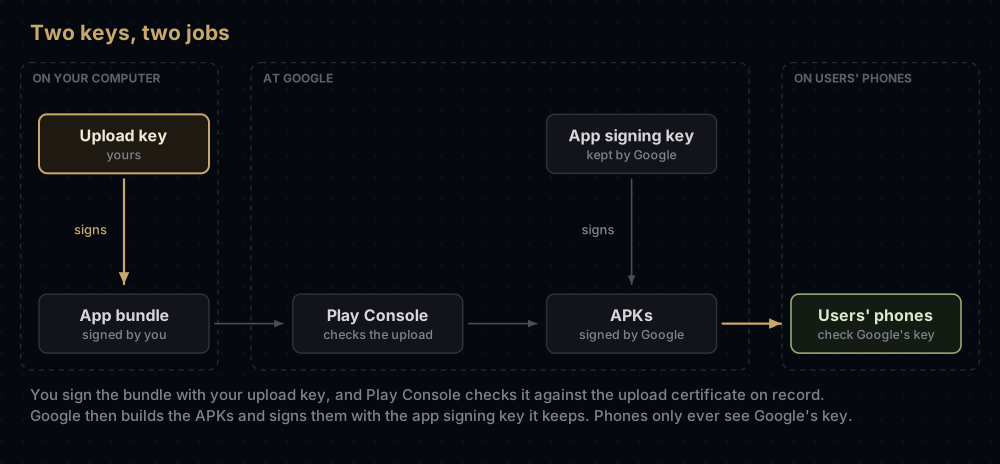
Think of a book publisher. You send in a manuscript with your own signature on it (the upload key). The publisher checks that signature against the sample it holds, then prints the books under its own imprint (the app signing key). Readers only ever see the imprint. If your pen goes missing, the publisher can register a new one for you, and the books on the shelves are not affected.
The picture breaks at one point. A publisher edits what you send, and Google does not rewrite your code. It does build the APK files from your bundle, though, and Play's help page says it adds two small stamps to the manifest (com.android.stamp.source and com.android.stamp.type) so the APKs can be traced back to their signer.
What the phone cares about is simple. Android has no certificate authority for apps. It checks that every update is signed with the same key as the version already installed. Under Play App Signing, that key is the one Google holds.
The three keys you will meet
Most Android developers deal with three keys, and mixing them up is the root of many fingerprint bugs.
| Key | Who holds it | What it signs | If you lose it |
|---|---|---|---|
| Debug key | Created automatically on each developer machine | Debug builds, such as flutter run | It is recreated, with a new fingerprint |
| Upload key | You | The .aab you upload to Play Console | Request an upload key reset. The app is safe |
| App signing key | Google, through Play App Signing | The APKs users download | Nothing to lose on your side: Google holds it |
The debug key has its own post. The rest of this one is about the other two.
What Google holds, and what it will not hand back
Google stores app signing keys in its Key Management Service, on the same infrastructure it uses for its own keys. A few rules follow from that.
- You cannot download the key later. Android Studio's signing guide says that once Play App Signing is set up, you cannot retrieve a copy of the app signing key. Google may keep a backup for disaster recovery.
- The two keys should differ. Play's help page puts it plainly: for maximum security, the upload key and the app signing key should be different.
- Only admins can set it up. Configuring Play App Signing needs admin permission on the developer account.
Play also sets minimum sizes:
| Key | Requirement |
|---|---|
| Upload key | RSA, 2048 bits or more, stored in a Java keystore (.jks or .keystore) |
| App signing key generated by Google | RSA 4096-bit |
| App signing key you provide | RSA 2048-bit or more |
| Any key used to sign for Google Play | Valid until after 22 October 2033 |
Shipping to other stores too? Plan this before your first release. If Google generates the key, the only way to ship the same signature elsewhere is to download a Google-signed universal APK, either through the Play Developer API or in Play Console (under Test and release, Latest releases and bundles, then the Downloads tab for a bundle). The other route is to create the app signing key yourself and give Google a copy during setup. Android Studio's guide recommends that second route if you want one key across several stores.
Setting it up for a new app
For a new app there is almost nothing to set up. The steps are:
- Create an upload key. Use Android Studio (Build, then Generate Signed Bundle/APK, then Create new) or
keytoolfrom the command line. Flutter projects have their own walkthrough. - Sign your release bundle with it and create a release in Play Console.
- Upload the bundle. Play enrols the app and generates the app signing key. The key that signed your first upload becomes your upload key from then on.
New apps are now enrolled in Play's quantum-ready hybrid signing by default, which means Google creates more than one app signing key. That changes how many fingerprints you register, and the hybrid signing post covers it.
If you need a specific app signing key, you can change the default, but only before any release has rolled out on the open testing or production track. On the Play app signing page, choose Change the app signing key, then pick one of these:
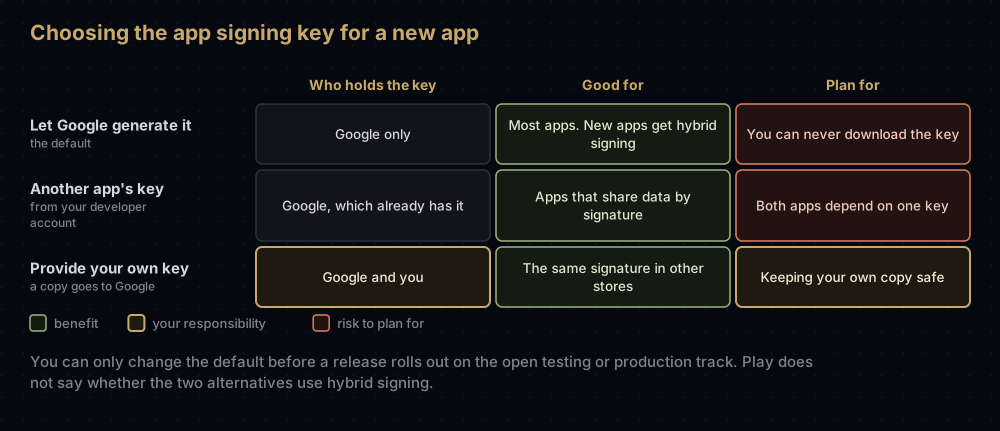
Play's page does not say whether the two alternatives also get hybrid signing, so do not assume they do.
Moving an older app onto Play App Signing
Apps created before August 2021 may still sign their own APKs. If yours does, the key on your machine is the app signing key, and losing it ends the app's update path. Enrolling gives Google a copy, so losing yours stops being fatal.
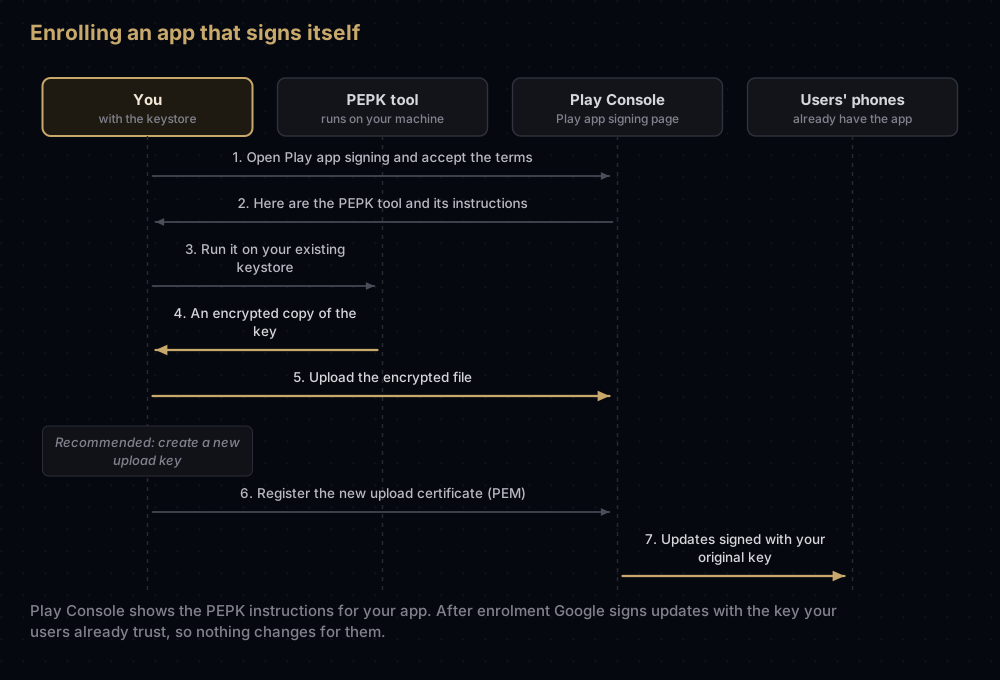
- Open the Play app signing page for the app and accept the terms of service if asked.
- Choose to transfer a copy of your original key. Play Console links to the PEPK tool and shows step-by-step instructions for running it. Follow those rather than a command copied from a forum, because Play Console is where Google keeps them current.
- Upload the encrypted file the tool produces.
- Create a new upload key and register its certificate. Google recommends this. Until you do, your original app signing key also acts as your upload key.
To register the new upload key, export its certificate (not the private key) as a PEM file. This is the command Google's documentation gives:
keytool -export -rfc -keystore upload-keystore.jks -alias upload \
  -file upload_certificate.pem
Android Studio's guide says the "Export encrypted key" option in its signing dialog is being deprecated in favour of this process.
Because Google keeps signing with the key your users already trust, the move is invisible to them. Updates install exactly as before.
Where to find the fingerprints
A fingerprint is a short hash of a certificate. It is public, and services such as Firebase, Google Cloud API keys and Android App Links use it to recognise your app. The fingerprints that matter for Play installs are the ones for Google's key, not yours.
They live on the Play app signing page in Play Console:
- The App signing key section lists the SHA-1 and SHA-256 fingerprints of Google's key. For a hybrid-signed app, Play asks you to copy the fingerprints of all three keys it shows.
- The Upload key certificate section lists your upload key's fingerprints.
- You can download the certificates themselves, and the same page shows a ready-made Digital Asset Links snippet for App Links.
Finding the page is the hard part, because Google's documents disagree about the route:
| Document | Route it gives |
|---|---|
| Play Console Help, setting up and finding fingerprints | Protected with Play, Play Store distribution, Go to Play app signing |
| Play Console Help, upload key reset | Protected with Play, Play Store protection, Manage Play app signing |
| Android Studio signing guide | Release, Setup, App signing |
| Google Play services client guide | Release, Setup, App Integrity |
Play Console's menus move, so if none of these match what you see, search Play Console for "app signing".
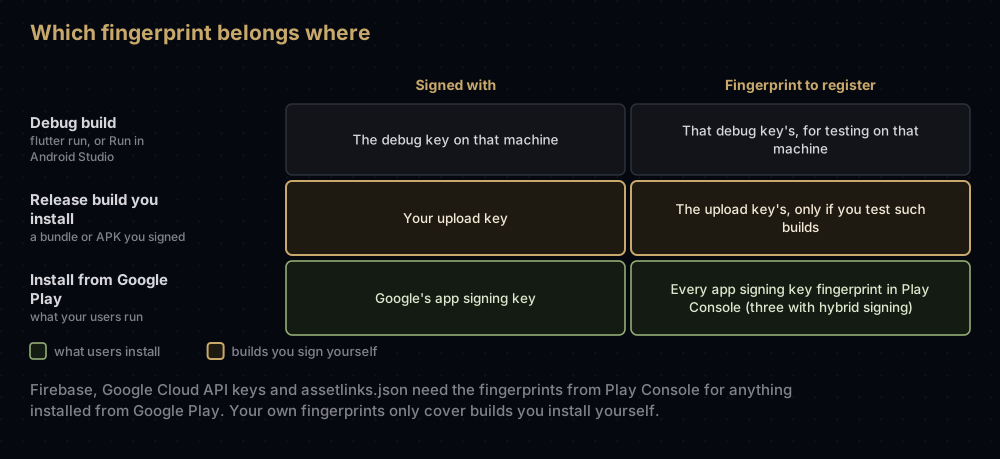
The classic bug is registering only the upload key's fingerprint. Everything works in your own release build and fails for people who install from the Play Store, often as Google Sign-In error 10. This guide shows how to read every fingerprint, and the assetlinks.json post covers App Links.
Upgrading the app signing key
Sometimes the app signing key itself has to change: it leaked, or you want a stronger one. Play calls this a key upgrade. Its help page describes an annual upgrade that applies to installs on Android 17 (API level 37) and above, and it lists how each Android version treats the upgraded key:
| Android version | How the upgraded key is enforced |
|---|---|
| Android 17 and above | Strictly enforces the upgraded quantum-ready hybrid key (APK Signature Scheme v3.2) |
| Android 13 to 16 | Strictly enforces your latest classical key (v3.1) |
| Android 7 to 12 | Does not enforce the upgraded key. Google Play Protect checks that updates are signed with your latest classical key, unless the user has turned it off |
The upgrade starts from the Upgrade key button in the App signing key section. You can let Google generate the new key (Play's recommendation), reuse another app's key from the same account, or provide your own. Afterwards, register the new fingerprints everywhere you registered the old ones. For a hybrid-signed app that means two new keys: the new classical key and the new post-quantum key.
One caution from Play's page: if several of your apps share a key to share data, devices on Android 12L (API level 32) and lower will still only recognise the old key for things like custom permission sharing.
Google's own pages are not in step here. Android Studio's signing guide still says an upgraded key signs installs and updates on Android 13 and higher. Play's help page is the newer of the two and describes the Android 17 behaviour, so follow Play Console. The mechanics behind rotation are in the signature schemes post, and the post-quantum side is in the hybrid signing post.
If the upload key goes missing
This is the case Play App Signing was built for. Create a new upload key, export its certificate as a PEM file, and send a reset request from the Play app signing page. Android Studio's guide notes that resetting the upload key does not affect the app signing key, so users notice nothing. The full procedure, and what to do while you wait, is in the upload key reset post.
Common mistakes
- Registering only the upload key's fingerprint. Firebase, Maps and App Links then work for your own builds and fail for Play installs.
- Using the same key for upload and app signing. It works, but Google advises against it: if that one key leaks, both roles leak together.
- Letting Google generate the key when you also ship to another store. You cannot download the key afterwards, so decide before the first release.
- Uploading a debug-signed bundle. Google Play does not accept apps signed with a debug certificate. In a new Flutter project, release builds use the debug key until you configure signing.
- Following an old menu path. Search Play Console for "app signing" instead of hunting through menus.
- Deleting the old fingerprints after an upgrade. Play tells you to add the new ones. It does not tell you to remove the old ones, and Android 12L and lower do not enforce the upgraded key, so leave the old entries in place.
- Committing the upload keystore. Keep the
.jksfile and its passwords out of version control. A leaked upload key can be reset, but it is still a leak.
Questions people ask
What is the difference between the upload key and the app signing key?
The upload key is yours. You sign bundles with it before uploading, and Google uses it to check the upload came from you. The app signing key is held by Google and signs the APKs that users install. Phones only ever see the app signing key.
Is Play App Signing mandatory?
For new apps, in practice yes. Since August 2021 new apps must be published as app bundles, and app bundles require Play App Signing. Apps created before then may still ship self-signed APKs.
Can I download my app signing key from Play Console?
No. You can download its certificate and read its fingerprints, but not the private key. If you need the same signature in another store, either download a Google-signed universal APK or supply your own key at setup.
What happens if I lose my upload key?
Nothing breaks for users. You create a new key and request an upload key reset in Play Console. Until the reset goes through, you cannot publish updates.
Can the upload key and the app signing key be the same?
They can: if you supply your own app signing key and never register a separate upload key, that key does both jobs. Google recommends keeping them different.
Where do I find the SHA-1 of my app signing key?
On the Play app signing page in Play Console, in the App signing key section. Search Play Console for "app signing" if the menu has moved.
Can I change the app signing key after publishing?
Yes, through a key upgrade on the Play app signing page. Play describes it as an annual upgrade for installs on Android 17 and above, with older Android versions checking the latest classical key as shown in the table above.
Does Play App Signing change my app?
Your code is not changed. Google builds optimised APKs from your bundle, signs them with the app signing key, and adds two source stamps to the manifest.
Where this comes from
Checked against Google's own documentation on 17 September 2026:
- Use Play App Signing from Play Console Help
- Sign your app from the Android Studio guide
- Latest releases and bundles from Play Console Help, for the app bundle requirement
- Client authentication from Google Play services
Keep reading
- Lost your upload key? The reset, step by step.
- Play's quantum-ready hybrid signing: why a new app now has three app signing keys.
- Getting SHA-1 and SHA-256 fingerprints for all three Android keys.
- Flutter release signing: creating and wiring up the upload key.
- App signing explained: how Android signing compares with Apple's.