Android has six APK signature schemes: v1, v2, v3, v3.1, v3.2 and v4. They are layers rather than rivals. v1 signs the files inside the APK, v2 signs the whole file, v3 and v3.1 let an app move to a new key, v3.2 adds a post-quantum signature, and v4 is a separate file for incremental installs.
You rarely pick one by hand. The build tools choose from your minSdk, and Google Play adds its own when it re-signs your app. The rule that matters most: if your minSdk is 24 or higher, v2 is the signature that gets your app installed, and v1 is not needed. Below 24, you need both.
This post explains each scheme in plain terms first, then shows how to check an APK with apksigner and how to control the schemes in Gradle.
What a signature scheme is
A signature is a tamper-proof seal. When a phone installs an APK, it checks the seal. If anyone changed the app after it was sealed, the check fails and Android refuses the install. The seal also records which key made it, so later updates must come from the same key.
A scheme is the format of that seal: what exactly gets sealed, and where the seal is stored in the file. Android has added new formats over the years to close gaps in the old ones, while keeping the old ones so that older phones can still install new apps.
| Scheme | Added in | API level | What it added | Where it lives |
|---|---|---|---|---|
| v1 | Android 1.0 | 1 | JAR signing: signs the files inside the APK | Files in META-INF/ |
| v2 | Android 7.0 | 24 | Signs the whole APK, so any change is caught, and installs verify faster | APK Signing Block |
| v3 | Android 9 | 28 | A proof-of-rotation record, which makes key rotation possible | APK Signing Block |
| v3.1 | Android 13 | 33 | Key rotation that can target specific Android versions | APK Signing Block |
| v3.2 | Android 17 | 37 | A hybrid classical plus post-quantum signature | APK Signing Block |
| v4 | Android 11 | 30 | A signature for incremental installs, which needs v2 or v3 alongside it | A separate .apk.idsig file |
v1: JAR signing
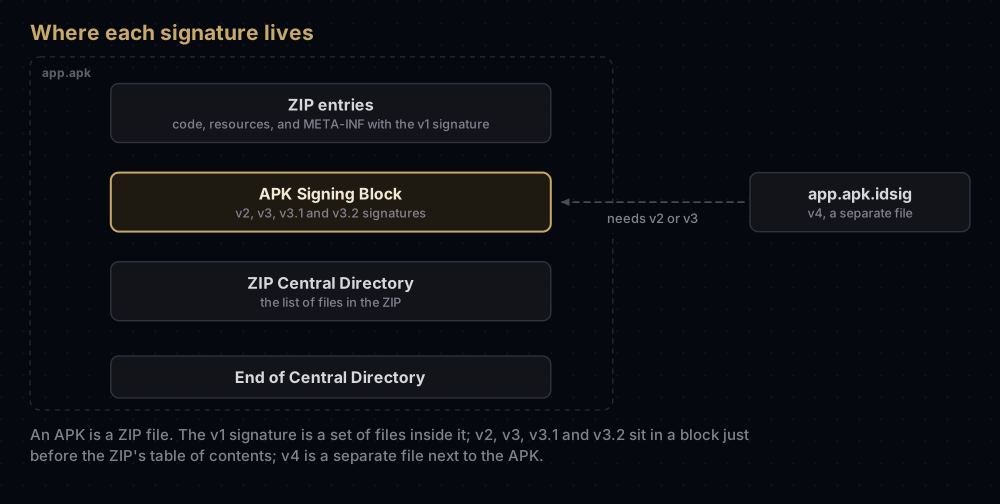
v1 is the signing format of Java JAR files, which Android has used since the beginning. The signature is a set of files in the APK's META-INF folder: a manifest listing a digest of every file, a signature file, and a signature block with the certificate. You can see them in any v1-signed APK, named after the key's alias, such as META-INF/UPLOAD.SF and META-INF/UPLOAD.RSA.
Its weakness is that it seals the files inside the ZIP, not the ZIP itself. Android's security documentation lists the problems: v1 does not protect parts of the APK such as ZIP metadata, the verifier has to process a lot of untrusted data before it can check anything, and it must uncompress every compressed entry, which costs time and memory.
v2: the whole file
v2, introduced in Android 7.0, treats the APK as one block of bytes and signs all of it. Any change, including a change to ZIP metadata, breaks the signature. Android's documentation says verification is also substantially faster.
The signature lives in a new container called the APK Signing Block, placed just before the ZIP Central Directory near the end of the file. Android's specification says the block exists to keep v2 backward-compatible with the v1 format, so an APK can carry both.
Two consequences matter in practice:
- Nothing may touch the APK after signing.
zipalignmust run beforeapksigner, not after. Android's apksigner page says so directly. - A broken v2 signature is final. If an APK has a v2 block and it fails, Android must not fall back to v1. An APK signed both ways also records inside its v1 signature that a v2 signature exists, so deleting the v2 block does not trick a newer phone into settling for v1.
v3: changing keys
v3 arrived in Android 9. Its format is the same as v2's, with one addition: a proof-of-rotation record. That record is a chain of certificates, oldest first, in which each certificate signs the next. It lets an app switch to a new signing key while proving that the old key approved the switch, so phones that installed the old version accept the update.
Android 9 and later look for a v3 block first, then v2, then v1. Android's documentation adds two cautions. Key rotation is not recommended for Android 12 and earlier, and Google Play does not publish apps signed with multiple certificates, so rotation is the way to change keys, not signing with two at once. Apps enrolled in Play App Signing request the change as a key upgrade in Play Console.
v3.1: rotation for Android 13 and later
v3.1, from Android 13, lets the rotated key apply only from a chosen Android version. The APK carries both blocks: phones on Android 13 or later use the rotated signer in the v3.1 block, and older phones ignore it and use the original signer in the v3 block.
Google Play's key upgrade relies on it. Play's help page says that on Android 13 to 16 "the Android platform strictly enforces the usage of your latest classical key", and points to v3.1 as the reason.
v3.2: hybrid, post-quantum
v3.2 arrives with Android 17 (API level 37). It is a hybrid signature: one classical signer (RSA or ECDSA) and one post-quantum signer using ML-DSA, a signature algorithm designed to resist future quantum computers. Both must be present and cover the same Android versions.
Android 16 and lower do not understand the v3.2 block and skip it, so the APK must still carry a v3.0 or v3.1 block signed by a single classical key. Android's documentation also requires new key material for the hybrid block: existing keys are not reused.
For most developers this happens on Google Play's side. Play now enrols new apps in "quantum-ready" hybrid signing by default, and the visible effect is more fingerprints to register. Play's hybrid signing covers that.
v4: incremental installs
v4, from Android 11, is a streaming-compatible scheme for incremental installs with adb install --incremental. The signature is a hash tree over the whole APK, stored in a separate file named after the APK with .idsig added, such as app-release.apk.idsig.
A v4 signature is never used on its own. It needs a v2 or v3 signature in the APK, and adb expects the .idsig file to sit next to the APK when you run an incremental install. apksigner writes the file by default.
Google Play applies v4 automatically for eligible apps, with one exception: its help page says apps using quantum-ready hybrid signing are excluded because hybrid signing is not yet compatible with v4.
Which version checks which signature
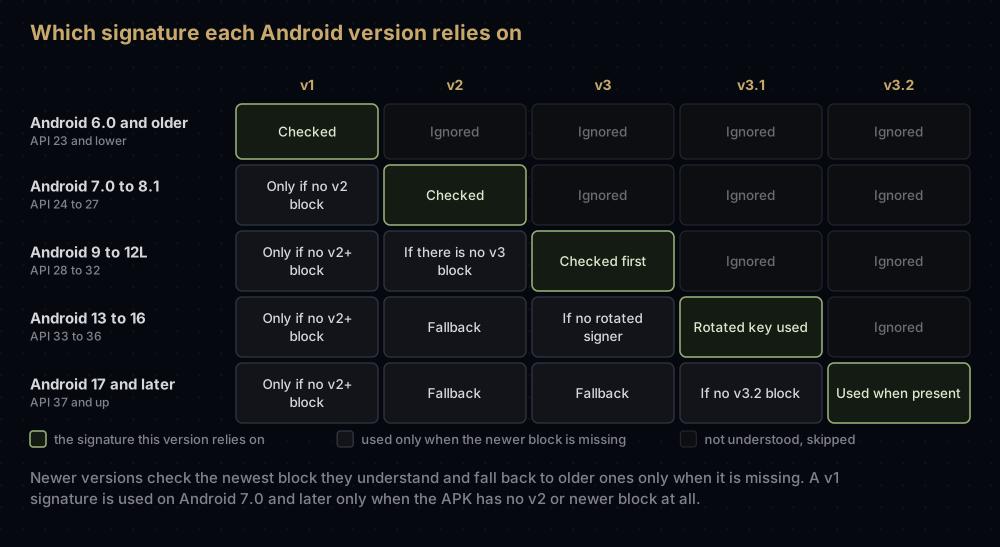
The pattern is simple. Each Android version checks the newest block it understands. Older blocks matter only when the newer one is absent, and v1 matters on Android 7.0 or later only for an APK with no v2 or newer block at all.
What your minSdk means
Your minSdk is the oldest Android version your app installs on, so it decides which schemes the oldest supported phone can read.
Your minSdk | What the oldest phone reads | What to sign with |
|---|---|---|
| 23 or lower | v1 only | v1 and v2 |
| 24 to 27 | v2 | v2 (v1 is never checked) |
| 28 or higher | v3, then v2 | v2 is enough; v3 when you rotate keys |
Android's own advice, for maximum compatibility, is to sign with v1, then v2, then v3. The build tools do the sensible thing without being asked. In a test with Android Gradle Plugin 9.0.1 and no signing options set, a release APK with minSdk 21 carried v1 and v2 signatures. With minSdk 24, 28 or 33 it carried only v2: no v1, no v3 and no .idsig file.
A related rule from Android 11: apps that target API level 30 or higher and are signed only with v1 cannot be installed or updated on Android 11 devices. They need v2 or newer as well.
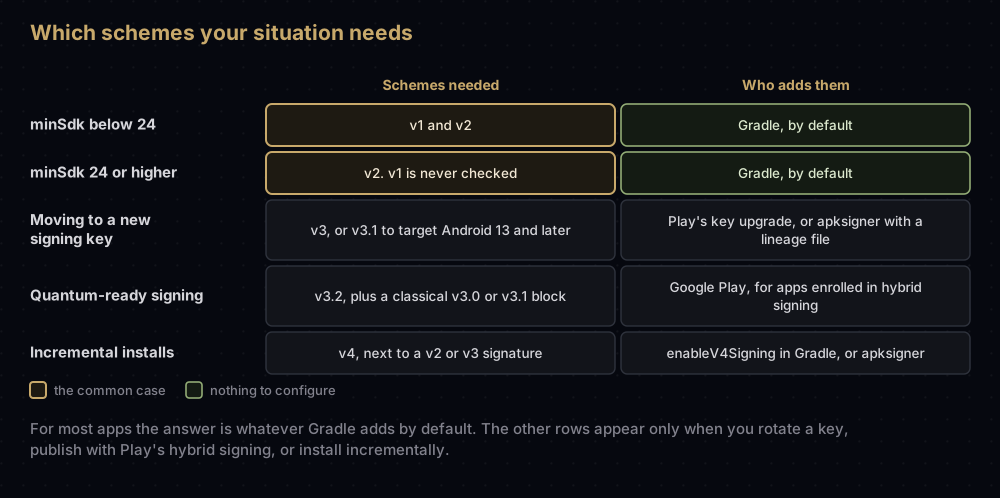
Checking an APK with apksigner
apksigner ships with the Android SDK Build Tools (revision 24.0.3 and later). It lives in a versioned folder, for example ~/Library/Android/sdk/build-tools/36.1.0/apksigner on a Mac. The examples below were run with build tools 36.1.0.
The basic check prints nothing when the APK is fine:
apksigner verify app-release.apkAdd -v to see each scheme, and --print-certs to see the certificate:
apksigner verify -v --print-certs app-release.apkVerifies
Verified using v1 scheme (JAR signing): false
Verified using v2 scheme (APK Signature Scheme v2): true
Verified using v3 scheme (APK Signature Scheme v3): false
Verified using v3.1 scheme (APK Signature Scheme v3.1): false
Verified using v4 scheme (APK Signature Scheme v4): false
Verified for SourceStamp: false
Number of signers: 1
Signer #1 certificate DN: CN=Example Dev, O=Example, C=US
Signer #1 certificate SHA-256 digest: aabbccddeeff00112233445566778899aabbccddeeff00112233445566778899
Signer #1 certificate SHA-1 digest: aabbccddeeff00112233445566778899aabbccdd
Signer #1 certificate MD5 digest: aabbccddeeff00112233445566778899
Signer #1 key algorithm: RSA
Signer #1 key size (bits): 2048That is a typical modern release APK: minSdk 24 and a v2 signature only. How to read the lines:
Verifiesmeans the signatures will check out on every Android version from the APK'sminSdkup. A failure printsDOES NOT VERIFYand the reason.falsedoes not always mean "missing". apksigner only checks what the APK's supported Android versions would check. In testing, an APK withminSdk24 that did contain a v1 signature still showed v1 asfalse, because no supported phone reads it.- The v4 line reads
falsewhen you verify the APK on its own, even with the.idsigfile beside it. - The SourceStamp line is a separate stamp, not one of the numbered schemes. It was
falsefor every APK signed in testing. - The digests are fingerprints, printed in lower case without colons. keytool prints the colon-separated upper-case form, which
assetlinks.jsonneeds; the SHA-1 guide shows how to convert them.
Checking older Android versions
--min-sdk-version asks what an older phone would think:
apksigner verify --min-sdk-version 21 app-release.apkFor the v2-only APK above, that prints:
DOES NOT VERIFY
ERROR: Missing META-INF/MANIFEST.MF
The missing file is the v1 signature. The APK is fine for its real minSdk of 24; its signature just would not verify on Android 5.0 (API level 21). If you ever lower minSdk below 24, this is the check that catches a build without v1.
What a rotated key looks like
After a key rotation, apksigner lists one signer per range of Android versions. In a test APK signed with a rotated key and minSdk 24:
Verified using v3 scheme (APK Signature Scheme v3): true
Verified using v3.1 scheme (APK Signature Scheme v3.1): true
Signer (minSdkVersion=33, maxSdkVersion=2147483647) certificate DN: CN=Example New, O=Example, C=US
Signer (minSdkVersion=24, maxSdkVersion=32) certificate DN: CN=Example Dev, O=Example, C=US
Android 13 and later see the new key; Android 7.0 to 12L see the original. Google Play's key upgrade is built on the same mechanism, and its help page asks you to register the new key's fingerprints with your API providers afterwards.
Why keytool gets this wrong
keytool -printcert -jarfile app.apk reads only v1 signatures. On the v2-only APK above it prints Not a signed jar file, although the APK is signed. Use apksigner for APKs. App bundles are the opposite case: they are signed the JAR way, apksigner cannot read them, and keytool can. The keytool commands post has the details.
Choosing schemes in Gradle
The Android Gradle Plugin exposes one switch per scheme on a signing configuration. Each one is optional; left unset, the plugin uses its default.
android {
    signingConfigs {
        create("release") {
            // storeFile, storePassword, keyAlias and keyPassword as usual
            enableV1Signing = true
            enableV2Signing = true
            enableV3Signing = true
            enableV4Signing = true
        }
    }
}
In testing, adding enableV3Signing = true to a minSdk 24 app added a v3 signature, and enableV4Signing = true wrote app-release.apk.idsig next to the APK. Most apps never need these lines. Set them only when you have a reason, such as producing an .idsig file for incremental installs, and check the result with apksigner.
For apps on Google Play, remember that users never get the APK you build. You upload an app bundle signed with your upload key, and Google builds and signs the APKs that phones download, choosing the schemes itself. Play App Signing explains that split.
Common mistakes
- Running
zipalignafter signing. Any change afterapksignerbreaks v2 and newer. Align first, then sign. - Lowering
minSdkbelow 24 while forcingenableV1Signing = false. Android 6.0 and older phones cannot install the result. Check withapksigner verify --min-sdk-version. - Reading "Not a signed jar file" as unsigned. That is keytool failing to see a v2 signature.
- Reading
v1 ... falseas a problem. ForminSdk24 and above it is expected. - Signing with two independent keys to "keep both". Google Play does not publish apps signed with multiple certificates. Rotation is the supported route.
- Reusing existing keys for a v3.2 block. Android's specification requires new key material for hybrid signing.
- Trying to sign an app bundle with apksigner. Bundles are signed with
jarsigneror by Gradle.
Questions people ask
Do I still need v1 signing?
Only if your minSdk is 23 or lower. Phones on Android 7.0 and later use v2 or newer whenever it is present.
What is APK signature scheme v2?
The signature format introduced in Android 7.0. It signs the entire APK file rather than the files inside it, so any change is detected, and installs verify faster.
What does "Verified using v1 scheme (JAR signing): false" mean?
Either the APK has no v1 signature, or it has one that no supported Android version would check. With minSdk 24 or higher, both are normal.
What is the .idsig file next to my APK?
The v4 signature, used for incremental installs with adb install --incremental. It only works together with a v2 or v3 signature inside the APK.
Can I sign an app bundle with apksigner?
No. Android's documentation says to use jarsigner for bundles, and apksigner cannot read them either. Gradle signs bundles for you when a signing configuration is set.
Which signature scheme does Android 17 use?
The v3.2 hybrid block when the APK has one, which is the case for apps using Google Play's quantum-ready signing. Otherwise it falls back to v3.1, v3 and v2 like earlier versions.
Does Google Play sign my app with v4?
For eligible apps, yes, automatically, according to Play Console Help. Apps using quantum-ready hybrid signing are excluded for now.
Why does apksigner show signers with minSdkVersion and maxSdkVersion?
Because the app's signing key was rotated. Each signer line shows the range of Android versions that sees that key.
Where this comes from
- App signing and the scheme pages for v2, v3, v3.1, v3.2 and v4 from the Android Open Source Project
- apksigner and Android 11 behaviour changes from Android Developers
- Play Console Help's page on using Play App Signing
- Test builds made with Android Gradle Plugin 9.0.1 and build tools 36.1.0 in September 2026
Keep reading
- Play's quantum-ready hybrid signing: what v3.2 means for your fingerprints.
- Play App Signing: upload key vs app signing key: why the APK on a phone is not the one you built.
- keytool commands Android developers actually use: creating and inspecting the keys behind these signatures.
- How to get SHA-1 and SHA-256 fingerprints: reading fingerprints from keystores, Play Console and APKs.
- "App not installed as package conflicts": what a user sees when signatures do not match.