Your phone already has an app with the same internal name as the file you just tapped (an APK, the file format Android apps come in), and Android refuses to let the file replace it. Most often, the two copies were sealed with different signing keys, so Android cannot tell whether the new one is a genuine update or an impostor.
The quick fix is to uninstall the app that is already there, then install the file again. Before you do, know two things: uninstalling deletes that app's data, and if the file is a "modded" copy of a well-known app, this message is Android doing its job.
What the message is telling you
Every Android app carries two labels you normally never see:
- A package name, such as
com.example.app. It is the app's permanent internal name, and a phone holds only one app per name. - A signature, made with the developer's private signing key. Think of it as a wax seal that only the developer's ring can press.
When the file you open has a package name that is already on the phone, Android treats it as an update. Its developer documentation describes the rule: the system compares the certificates in the new version with those in the installed one, and allows the update only if they match. If the seals differ, you get the message this page is about.
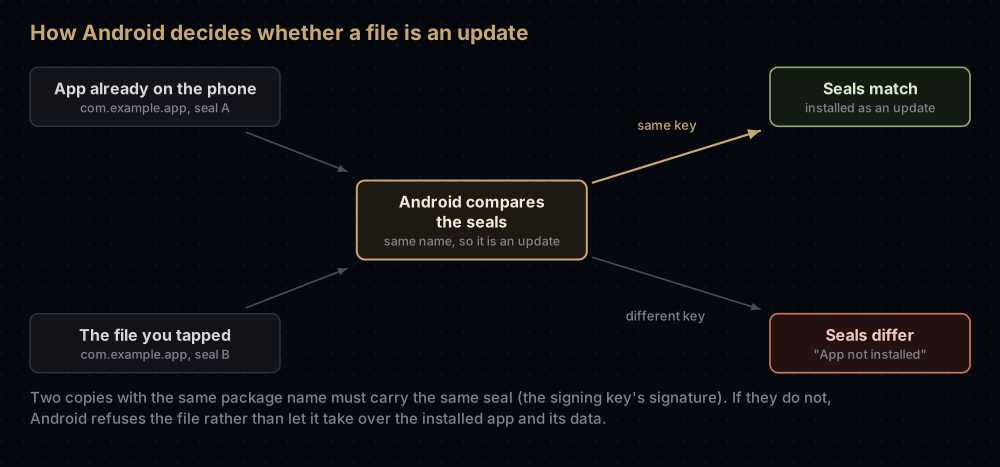
Why so strict? An app's data (chats, logins, saved progress) belongs to the app with that name. If any file with that name could slip in as an "update", a fake could take over the real app's data.
The usual cause: two copies with different seals
These are the everyday ways it happens:
| What you did | Why the seals differ |
|---|---|
| Installed a modified ("modded" or "cracked") APK over the Play Store version | Whoever changed the app had to re-seal it with their own key. The original key stays with the developer, or with Google for apps using Play App Signing |
| Installed the developer's own download over the Play Store copy | Google Play re-signs apps with a key Google keeps, so a copy the developer signed and posted elsewhere can carry a different seal |
| Installed a copy from one website over a copy from another | The two files were not necessarily signed by the same person |
| Installed a developer's debug build over the store version | Debug builds are sealed with a key made on the developer's own computer, not the release key |
Other clashes that show the same words
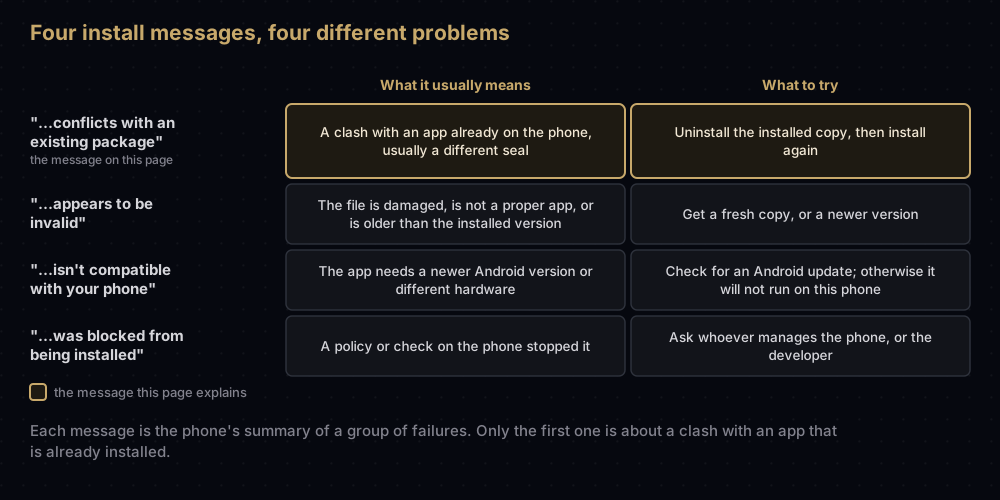
Android's source code sends several problems to this one message. The seal mismatch is the common one:
| What Android found | In plain words |
|---|---|
| The installed app has a different signature | The case above |
| Another installed app already defines the same custom permission | Two apps both claim the same permission name |
| Another installed app already uses the same content provider authority | Two apps both claim the same named channel that other apps use to request their data |
| The file asks to share an identity with another app, and that app is missing or sealed with a different key | Some app families ask to run as one; the partner has to be present and carry the same seal |
| The file would have to remove an app that came with the phone | The install was not allowed to remove a built-in app |
Android's own notes for this kind of failure say you may be able to fix it by uninstalling another app. The other install messages mean something different, so read yours carefully:
What to do, step by step
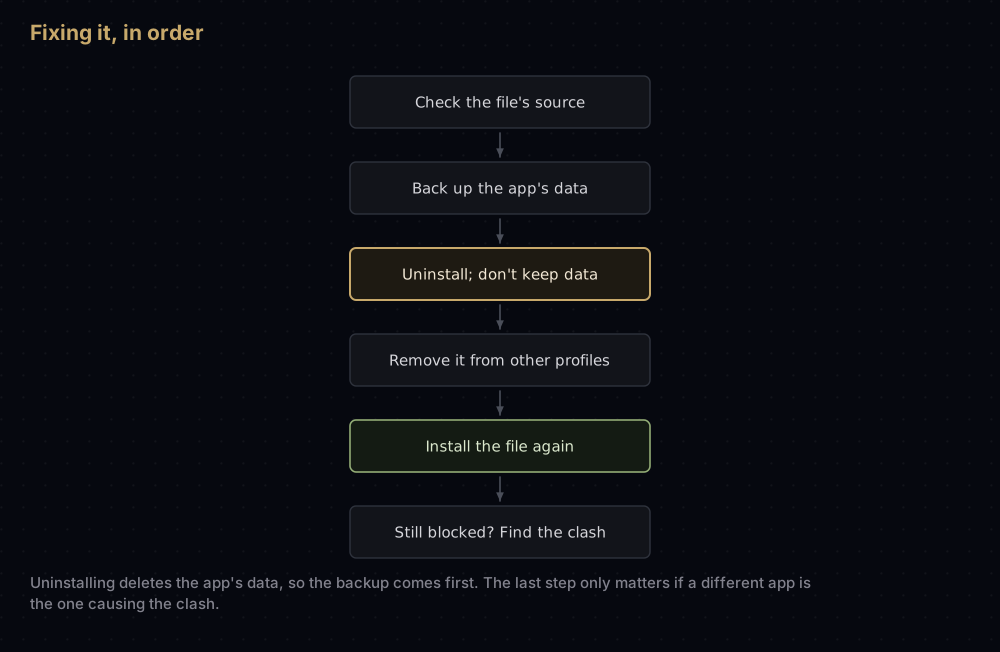
- Check where the file came from. If it is the developer's official download or an app store you trust, carry on. If it is a patched or cracked copy of an app you know, stop and read the next section first.
- Save what matters from the installed app. If the app has its own backup or export option, use it now. Do not count on your phone's Google backup to bring back one app's data: Google says not all apps can back up or restore all their settings and data, and its help pages describe restoring that backup while setting up a phone.
- Uninstall the installed copy. In the Play Store app, tap your profile icon, then Manage apps & devices, then Manage, pick the app and tap Uninstall. You can also open the app's App info screen in Settings and tap Uninstall.
- Do not keep its data, and do not archive it. If the uninstall screen offers to keep the app's data, leave that box unticked. Android's notes describe this error as applying when the old app's data was not removed. Archive is not the same as uninstall either: it saves your data and leaves a small placeholder of the app on the phone.
- Check other profiles. If your phone has a work profile, a private space or more than one user, the old copy may still be installed there. Remove it from those too; the uninstall screen may ask whether to remove it for all users.
- Install the file again.
- Still blocked? Then the clash may be with a different app, one that claims the same permission or data channel. Look for another version of the same app under a different name, such as a lite, beta or cloned copy, and remove it.
Be careful with modified APKs
A modified app cannot be sealed with the original key, because only the developer holds it (or Google, for apps that use Play App Signing). So it can never install as an update to the real app. The only way in is for you to delete the real app first, and at that point the seal check has nothing left to protect. Whatever you sign in to next goes through an app nobody can vouch for.
Google gives a sense of scale: in March 2026 it said its analysis found over 90 times more malware from sideloaded sources than on Google Play.
Three habits help:
- Keep Google Play Protect turned on. It is on by default, checks your phone for harmful apps from other sources, and Google recommends leaving it on.
- Prefer the developer's own website or a store you know over a download site you found through a search.
- Be wary of any app that asks you to remove the official version so it can be installed.
From 30 September 2026, certified Android phones in Brazil, Indonesia, Singapore and Thailand also start checking that apps from participating stores come from a verified developer. Android developer verification explains what that changes.
For developers: debug and release builds
The same message shows up on your own test phone. Android Studio creates a debug key on each machine the first time you run a project (it lives at $HOME/.android/debug.keystore), and debug builds are sealed with it. Release builds are sealed with your upload key, and copies installed from Google Play carry the app signing key that Google holds for any app using Play App Signing. Builds sealed with different keys clash when one is installed over the other under the same application ID, and a teammate's debug build will not update yours either, because their machine made a different debug key. Underneath, the failure code is INSTALL_FAILED_UPDATE_INCOMPATIBLE.
While testing, remove the installed copy first. This command removes the app and its data for every user on the device; leave out the -k option, which keeps the data:
adb shell pm uninstall com.example.appA tidier fix is to give debug builds their own application ID, for example applicationIdSuffix = ".debug" on the debug build type, as Android's build-variants guide shows. The two builds then install side by side as separate apps. Build content provider authorities and custom permission names from the ${applicationId} placeholder too. If both builds hard-code the same authority, they collide with INSTALL_FAILED_CONFLICTING_PROVIDER, and the person holding the phone sees this same message.
Questions people ask
Will uninstalling the app delete my data?
Yes, for that app. Messages, settings and anything stored only inside the app go with it. Export or back up first, using the app's own option if it has one.
Can I fix it without uninstalling?
Not when the seals differ. Only a copy signed with the same key as the installed one can update it. If you need to keep the installed app, get the matching file from wherever that copy came from.
Why does this happen with an update from the developer's own website?
The copy on your phone may have come from Google Play, which re-signs apps with a key Google holds. A file the developer signed and posted on their site can carry a different seal. Ask the developer which source to stick with.
The app is not on my phone. Why do I still see it?
It may still be installed in a work profile, a private space or for another user, or it was archived rather than uninstalled. If none of those apply, the clash is with another app, for example one claiming the same permission or data channel.
Does clearing the app's storage fix it?
No. Clear storage deletes the app's data but leaves the app installed, and the installed copy still carries its original seal.
Is the file I am installing dangerous?
The message cannot tell you that. It only says the file and the installed app were sealed differently. Where the file came from is what decides whether to trust it.
Where this comes from
- Sign your app, Android Developers: how updates are matched to the installed app's certificate
- PackageInstaller strings and PackageManager install codes, Android Open Source Project
- Android Debug Bridge, Android Developers
- Use Google Play Protect, Google Play Help
Keep reading
- App signing explained: the keys, certificates and profiles behind every installed app.
- Play App Signing: why a Play Store copy is sealed with a key Google holds.
- The Android debug keystore: where each machine's debug key lives, and its password.
- Android developer verification: the identity check that starts on 30 September 2026.
- "Untrusted Enterprise Developer" on iPhone: the iPhone message people hit when installing apps outside the App Store.