
The Android debug keystore is a file called debug.keystore inside the .android folder of your home directory. Its store password and its key password are both android, and the single key inside it sits under the alias androiddebugkey.
Android will not install an app that has not been signed, so the build tools sign every debug build for you with this key. The file is created on your own computer the first time you build and run a debug version of an app. Nobody gives it to you, and you never need to download one.
It exists for testing only. The password is public, the key was generated by the build tools, and Google Play will not accept an app signed with it.
The short answer
| Question | Answer |
|---|---|
| File name | debug.keystore |
| Location on macOS and Linux | ~/.android/debug.keystore |
| Location on Windows | %USERPROFILE%\.android\debug.keystore, usually under C:\Users\ and your user name |
| Store password | android |
| Key alias | androiddebugkey |
| Key password | android |
| File format on current tools | PKCS12 (keytool -list tells you) |
| Certificate owner | CN=Android Debug, O=Android, C=US |
| Key | RSA, 2048 bits |
| Lifetime | 30 years from the day the file was made |
If a project uses a different file, the Gradle signing report will say so. That is covered below.
What the debug key is for
Every Android app carries a signature, a bit like a wax seal on a letter. The seal shows that nobody changed the app after it was sealed, and Android only accepts an update that carries the same seal as the version already installed.
While you are writing an app, you do not want to type a password each time you press Run. So the Android build tools generate a throwaway key on your computer and use it without asking. That throwaway key is the debug key.
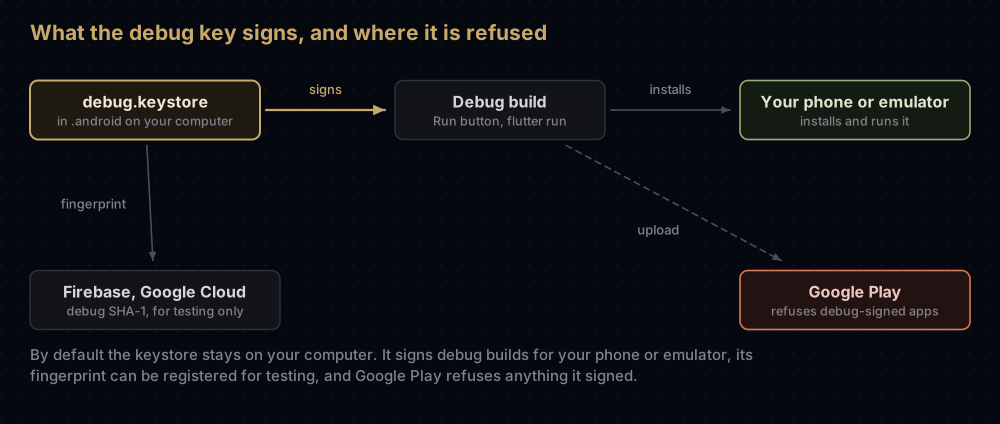
Three things follow from how it is made:
- It is different on every computer. Your teammate's machine made its own file, so their debug builds carry a different fingerprint from yours.
- It is not a secret. The password is
androidon every machine in the world. - It proves nothing about you. Android's own documentation calls the debug certificate "insecure by design", which is why Google Play and most other stores refuse apps signed with it.
Where the file lives
On macOS and Linux the path is ~/.android/debug.keystore, where ~ is your home folder. The folder name starts with a dot, so Finder and a plain ls hide it. In Finder, use Go to Folder and type the path; in a terminal, use ls -a ~.
On Windows the path is %USERPROFILE%\.android\debug.keystore. That usually means the .android folder inside your user folder under C:\Users\.
Two settings can move it somewhere else:
- The
ANDROID_USER_HOMEenvironment variable. It sets the folder that the Android SDK tools use for per-user files, and it defaults to$HOME/.android/. If it is set, the debug keystore is created there instead. Android Studio 4.3 and earlier ignore it and read an older variable,ANDROID_SDK_HOME, which names the folder that contains.android. - The project. A module can point its debug signing configuration at any file. React Native's app template does exactly this: it ships its own
debug.keystoreinsideandroid/app/and points the debug build at it.
Asking Gradle which file a project uses
The Gradle signingReport task prints the keystore, alias and fingerprints for every build variant. In Android Studio, open the Gradle tool window and run app → Tasks → android → signingReport. From a terminal, run it from the folder that holds gradlew:
./gradlew signingReportIn a Flutter project that folder is android/. If android/gradlew is missing in a new Flutter project, build the Android app once with the flutter tool; it adds the wrapper script when it runs Gradle.
The debug section of the report looks like this (fingerprints replaced):
Variant: debug
Config: debug
Store: /Users/you/.android/debug.keystore
Alias: AndroidDebugKey
MD5: AA:BB:CC:DD:EE:FF:00:11:22:33:44:55:66:77:88:99
SHA1: AA:BB:CC:DD:EE:FF:00:11:22:33:44:55:66:77:88:99:AA:BB:CC:DD
SHA-256: AA:BB:CC:DD:EE:FF:00:11:22:33:44:55:66:77:88:99:AA:BB:CC:DD:EE:FF:00:11:22:33:44:55:66:77:88:99
Valid until: Saturday, September 9, 2056
----------
The Store line is the file in use. The report spells the default alias AndroidDebugKey; keytool matches aliases without caring about upper or lower case, so it is the same key as androiddebugkey.
If the report shows Error: Missing keystore instead of fingerprints, the file does not exist yet. The report only reads the keystore; it never creates one. Run a debug build once and ask again.
Looking inside with keytool
keytool comes with every Java installation, including the one bundled with Android Studio. These are the commands Google gives, with the alias and password filled in. On macOS and Linux:
keytool -list -v -alias androiddebugkey -keystore ~/.android/debug.keystore -storepass androidOn Windows, in Command Prompt (in PowerShell, write $env:USERPROFILE in place of %USERPROFILE%):
keytool -list -v -alias androiddebugkey -keystore %USERPROFILE%\.android\debug.keystore -storepass androidTyping a password on the command line is normally a bad habit, because it ends up in your shell history. Here the password is public, so it does no harm. Leave out -storepass and keytool asks for it.
The useful part of the output looks like this:
Keystore type: PKCS12
Alias name: androiddebugkey
Entry type: PrivateKeyEntry
Owner: C=US, O=Android, CN=Android Debug
Issuer: C=US, O=Android, CN=Android Debug
Valid from: Thu Sep 17 10:00:00 UTC 2026 until: Sat Sep 09 10:00:00 UTC 2056
Certificate fingerprints:
	 SHA1: AA:BB:CC:DD:EE:FF:00:11:22:33:44:55:66:77:88:99:AA:BB:CC:DD
	 SHA256: AA:BB:CC:DD:EE:FF:00:11:22:33:44:55:66:77:88:99:AA:BB:CC:DD:EE:FF:00:11:22:33:44:55:66:77:88:99
Signature algorithm name: SHA256withRSA
Subject Public Key Algorithm: 2048-bit RSA key
Owner and Issuer are the same because the certificate is self-signed: nobody vouches for it. For every other keytool command you are likely to need, see keytool commands Android developers actually use.
When it is created, and when it changes
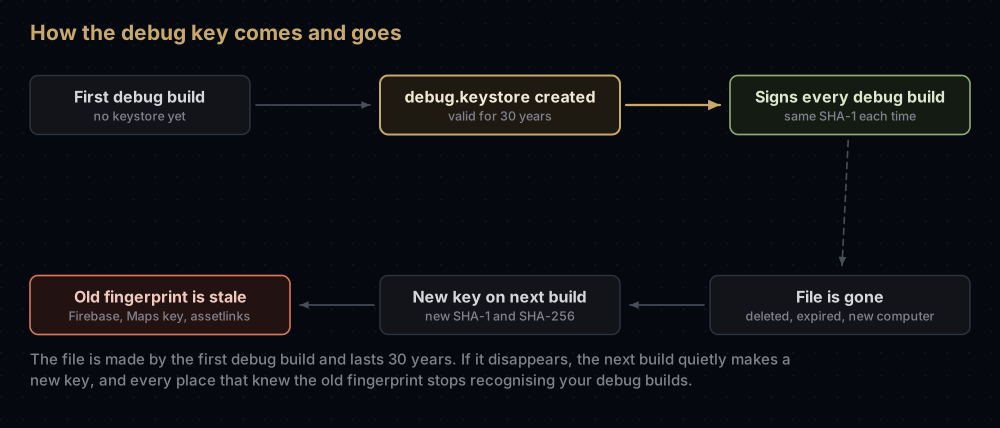
Creation. Android Studio creates the file the first time you run or debug a project, and sets both passwords. More precisely, the Gradle debug build creates it when it is missing, so flutter run and ./gradlew assembleDebug do the same.
Lifetime. The certificate expires 30 years after it was made. The build tools count those years as 30 × 365 days, so the end date lands about a week before the calendar anniversary. When it does expire, debug builds fail. Android's fix is to delete debug.keystore and build again.
Replacement. Deleting the file, moving to a new computer or wiping your home folder all have the same result: the next debug build creates a brand new key. Nothing warns you. The new key has a new SHA-1 and a new SHA-256, and every service that knew the old ones stops recognising your debug builds.
| Where the old fingerprint was registered | What you notice after the key changes |
|---|---|
| Firebase Android app (Google Sign-In, phone sign-in) | Google Sign-In fails in debug builds, often as error 10 |
| Android OAuth client in Google Cloud | The same failure, outside Firebase |
| API key restricted to Android apps (Maps and others) | Requests from debug builds stop working |
assetlinks.json with the debug SHA-256 | App Links open the browser in debug builds |
| A debug build already installed on a test phone | Installing the new build over it fails with INSTALL_FAILED_UPDATE_INCOMPATIBLE, Android's code for "same package, different signature". Uninstall the old one first |
There are two fixes. Register the new fingerprints (the SHA-1 guide lists every way to read them), or put back a copy of the old file. The key lives entirely inside that file, so a backup restores the exact same fingerprint.
Sharing a debug key across a team
Each developer's machine makes its own debug key. That is fine until a feature needs the fingerprint registered, such as Google Sign-In or a restricted Maps key. There are two ways to handle that.
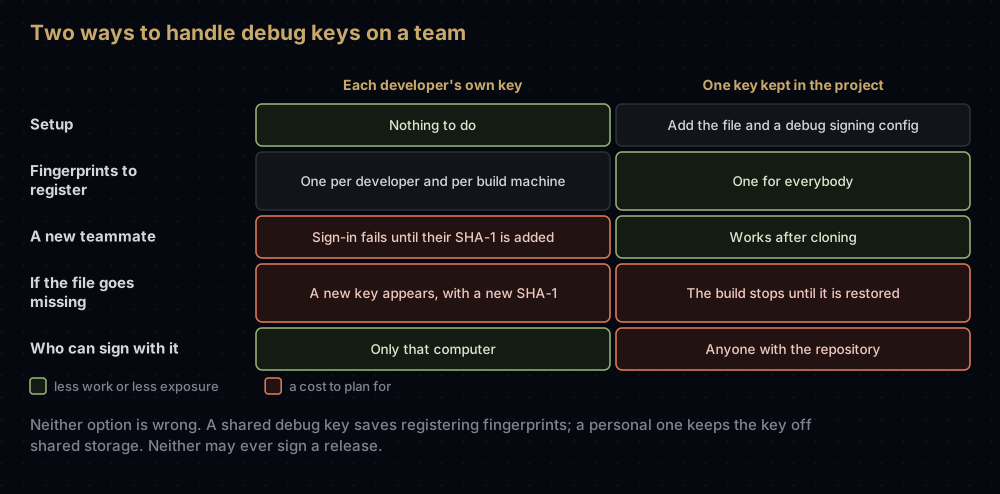
Option 1: everyone keeps their own
Nothing changes in the project. Each person runs the signing report and adds their debug SHA-1 to the same place. Firebase lets one Android app hold many fingerprints: in the project settings, open the app in the Your apps card and use Add fingerprint. A fresh build machine makes its own key too, so a continuous integration server needs its fingerprint added as well if its debug builds must pass those checks.
Option 2: the project carries one key
Put one keystore in the project and point the debug build at it. Every checkout then signs with the same key, and you register one fingerprint. This is how React Native's template works.
Create the file with the same alias, passwords and owner name as a normal debug key:
keytool -genkeypair -v -keystore debug.keystore -storepass android \
  -alias androiddebugkey -keypass android -keyalg RSA -keysize 2048 \
  -validity 10950 -dname "CN=Android Debug,O=Android,C=US"
-validity 10950 is 30 years of 365 days, matching what Android Studio would have made. Move the file into the app module (usually android/app/ or app/) and add a debug signing configuration to that module's build.gradle.kts:
android {
    signingConfigs {
        getByName("debug") {
            storeFile = file("debug.keystore")
            storePassword = "android"
            keyAlias = "androiddebugkey"
            keyPassword = "android"
        }
    }
}
file() resolves the path from the module's own folder. Run signingReport afterwards and check that the Store line points at the project file.
Three things to plan for:
- A missing file stops the build. Gradle does not create a keystore at a custom path. It fails with
Keystore file '.../app/debug.keystore' not found for signing config 'debug'.This is the error people hit when a React Native project'sandroid/app/debug.keystorewas deleted or never committed. - Ignore rules may skip it. The
.gitignorein Flutter's Android template ignores every*.keystoreand*.jksfile, so a shared debug keystore will not be committed until you add an exception for that one file. Keep the rule for everything else, above all your upload keystore. - Everyone with the repository can sign as that key. That is acceptable for a key that only ever signs test builds. Google Cloud's help goes further and suggests a separate production project with its own OAuth client for the released app, which keeps debug fingerprints away from production altogether.
Never use it to sign a release
Google Play refuses apps signed with the debug certificate. The trap is that two popular templates quietly do it for you:
- Flutter's app template signs release builds with the debug key, with a comment that says this is "for now, so
flutter run --releaseworks". - React Native's template also points the release build at the debug keystore, next to a comment starting "Caution! In production, you need to generate your own keystore file."
So an untouched release build from either template is signed with a debug key. Before your first upload, create an upload key and point the release build at it. The Flutter steps are in Flutter release signing, and Play App Signing explains how the upload key relates to the key Google uses.
Common mistakes
- Registering one teammate's debug SHA-1 and expecting it to work for everyone. Each machine has its own key unless the project ships a shared one.
- Deleting
debug.keystoreto "fix" a build and forgetting the fingerprint. The next build makes a new key, and Google Sign-In or a restricted API key stops working in debug builds. - Assuming the file is in
~/.android. Check theStoreline of the signing report, especially in React Native projects and on machines whereANDROID_USER_HOMEis set. - Reading an empty signing report as a broken setup.
Error: Missing keystoreonly means no debug build has run yet on that machine. - Typing the wrong password. It is
androidfor both the store and the key, in lower case. A JKS file with the wrong password answers "Keystore was tampered with, or password was incorrect"; a PKCS12 file answers "keystore password was incorrect". - Shipping the template's release config. A release build signed with the debug key will be refused by Google Play.
Questions people ask
What is the default password for the Android debug keystore?
android. The store password and the key password are both android, and the alias is androiddebugkey.
Where is debug.keystore on Windows?
In the .android folder inside your user folder: %USERPROFILE%\.android\debug.keystore. If the ANDROID_USER_HOME environment variable is set, it is in that folder instead.
Where is the debug keystore on a Mac?
At ~/.android/debug.keystore. The .android folder is hidden, so use Finder's Go to Folder or ls -a in Terminal.
Can I download a debug keystore?
There is nothing official to download. Each computer creates its own the first time it runs a debug build, and a missing one is created again automatically. If a project needs a specific file, such as React Native's android/app/debug.keystore, get it from the project's template or repository, or create one with the keytool command above.
Is it safe to commit debug.keystore to Git?
You can, as long as it only ever signs debug builds; React Native's template ships one. Anyone who can read the repository can sign apps with that key, so never use it for a release and never commit your upload keystore.
Why did my debug SHA-1 change?
Because the debug keystore was recreated. That happens after the file is deleted or expires, on a new computer, or when ANDROID_USER_HOME points somewhere new. Register the new fingerprint or restore the old file.
Does Flutter use a different debug keystore from Android Studio?
No. flutter run builds with Gradle, and a Flutter project that has not changed its debug signing uses the same ~/.android/debug.keystore as any other Android project on that computer.
Can I publish an app signed with the debug key?
No. Google Play and most other stores refuse apps signed with the debug certificate. Sign releases with your own upload key.
Where this comes from
Checked against the tools' own documentation and source in September 2026, and against a debug keystore created by Android Gradle Plugin 9.0.1 in a scratch folder:
- Sign your app from Android Developers, including the section on debug certificate expiry
- Authenticating your client, Google's guide to the debug keystore commands
- Environment variables for
ANDROID_USER_HOME - React Native's app template and Flutter's Android template
Keep reading
- How to get SHA-1 and SHA-256 fingerprints for all three Android keys: the debug key is only the first of them.
- Google Sign-In error 10: the error a changed debug fingerprint usually causes.
- keytool commands Android developers actually use: listing, exporting and converting keystores.
- Flutter release signing: replacing the template's debug signing before you upload.
- What's inside a .jks keystore: aliases, passwords and file formats.