
keytool is the key and certificate tool that comes with Java. Android developers use it to create the keystore that signs their app, to read the SHA-1 and SHA-256 fingerprints that Firebase and Google Cloud ask for, and to export the certificate Google Play needs when an upload key is replaced.
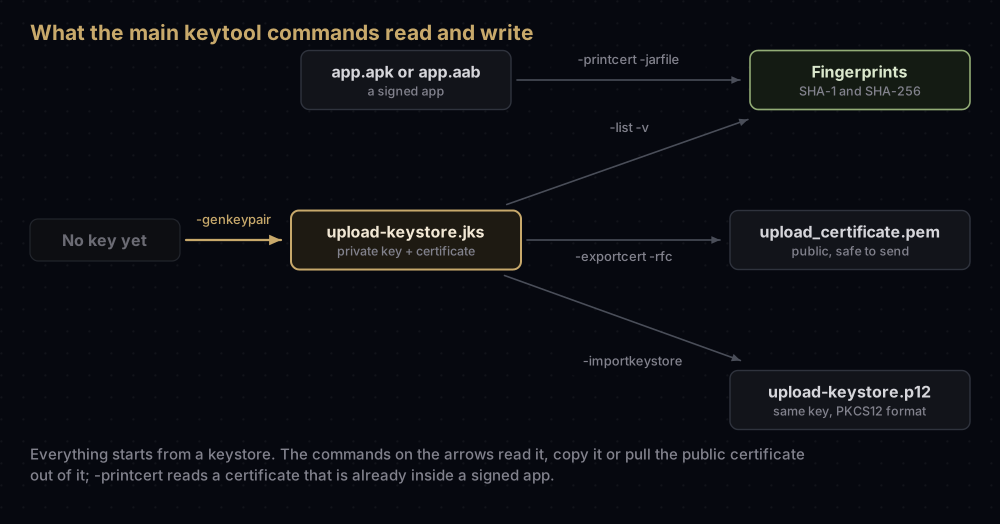
You only need about a dozen of its commands. They are all below, each with a plain explanation of what it does and the output it prints.
Every command here was run with the keytool from JDK 21 on throwaway keys. The output is copied from those runs, with fingerprints swapped for obvious placeholders. The examples use a keystore called upload-keystore.jks with one key under the alias upload; change both to match yours.
The commands at a glance
| Job | Command |
|---|---|
| Create a new signing key | keytool -genkeypair -v -keystore upload-keystore.jks -keyalg RSA -keysize 2048 -validity 10000 -alias upload |
| List what is in a keystore | keytool -list -keystore upload-keystore.jks |
| Show SHA-1 and SHA-256 | keytool -list -v -keystore upload-keystore.jks -alias upload |
| Export the certificate as PEM | keytool -exportcert -rfc -keystore upload-keystore.jks -alias upload -file upload_certificate.pem |
| Read a certificate file | keytool -printcert -file upload_certificate.pem |
| Read the certificate inside an app | keytool -printcert -jarfile app-release.aab |
| Convert JKS to PKCS12 | keytool -importkeystore -srckeystore upload-keystore.jks -destkeystore upload-keystore.p12 -deststoretype PKCS12 |
| Change the store password | keytool -storepasswd -keystore upload-keystore.jks |
| Change a key password (JKS only) | keytool -keypasswd -keystore upload-keystore.jks -alias upload |
| Rename an alias | keytool -changealias -keystore upload-keystore.jks -alias upload -destalias release |
| Delete an entry | keytool -delete -keystore upload-keystore.jks -alias old-key |
| Add someone else's certificate | keytool -importcert -keystore truststore.p12 -alias partner -file partner.pem |
Four words keytool assumes you know
- A keystore is a password-protected file that holds keys. Android signing keystores usually end in
.jksor.keystore, but the ending is only a name. - An alias is the label of one entry inside the keystore. Gradle's
keyAliasmust match it. - The store password opens the file. A key password opens one entry. In the older JKS format the two can differ; in PKCS12 they cannot.
- An entry is either a
PrivateKeyEntry(a key plus its certificate, which can sign) or atrustedCertEntry(a certificate on its own, which cannot).
What's inside a .jks keystore covers the file itself in more depth. This post is about the commands.
When the terminal says "keytool: command not found"
keytool lives in the bin folder of every Java Development Kit. You do not need to install Java separately if you have Android Studio: it ships its own JDK, the JetBrains Runtime, in a folder called jbr inside the Android Studio installation.
On a Mac with Android Studio in Applications, the full path is:
"/Applications/Android Studio.app/Contents/jbr/Contents/Home/bin/keytool" -helpOn Windows and Linux, look for jbr\bin or jbr/bin inside the folder where Android Studio is installed. If you have Flutter installed, its documentation gives a shortcut: run flutter doctor -v, find the line that starts with "Java binary at:", and replace java at the end of that path with keytool.
Either add that folder to your PATH, or type the full path each time.
Create a signing key
This makes a new keystore file containing one private key and a self-signed certificate:
keytool -genkeypair -v -keystore upload-keystore.jks -storetype JKS \
  -keyalg RSA -keysize 2048 -validity 10000 -alias upload
What each part means:
| Option | What it does |
|---|---|
-genkeypair | Generate a key pair. -genkey is the older name for the same command; Flutter's and Android's docs still use it |
-v | Print what it did |
-keystore upload-keystore.jks | The file to create or add to. Without it, keytool uses a file called .keystore in your home folder |
-storetype JKS | Write the older JKS format. Leave it out and current keytool writes PKCS12. Flutter's documented command includes it |
-keyalg RSA -keysize 2048 | An RSA key of 2048 bits. Google Play requires upload keys to be RSA with at least 2048 bits |
-validity 10000 | Days until the certificate expires, about 27 years. Google Play needs the key to be valid until after 22 October 2033 |
-alias upload | The name of this entry |
Always pass -validity. keytool's own default is 90 days, which is far too short for an app signing key.
keytool then asks for a password twice, six questions for the certificate's name (your name, organisational unit, organisation, city, state and a two-letter country code) and a confirmation. For a JKS file it also asks for a key password; press Return to reuse the store password. To skip the name questions in a script, add -dname "CN=Your Name, O=Your Company, C=US".
The output ends like this:
Generating 2,048 bit RSA key pair and self-signed certificate (SHA384withRSA) with a validity of 10,000 days
	for: CN=Example Dev, O=Example, C=US
[Storing upload-keystore.jks]

Warning:
The JKS keystore uses a proprietary format. It is recommended to migrate to PKCS12 which is an industry standard format using "keytool -importkeystore -srckeystore upload-keystore.jks -destkeystore upload-keystore.jks -deststoretype pkcs12".
The warning is only advice: Gradle signs with JKS files without complaint. What matters now is that you back up the file and both passwords somewhere safe. For how this key fits into Google Play, see Play App Signing; for wiring it into a Flutter build, see Flutter release signing.
List what is in a keystore
keytool -list -keystore upload-keystore.jkskeytool asks for the store password and prints one line per entry:
Keystore type: JKS
Keystore provider: SUN

Your keystore contains 1 entry

upload, Sep 17, 2026, PrivateKeyEntry,
Certificate fingerprint (SHA-256): AA:BB:CC:DD:EE:FF:00:11:22:33:44:55:66:77:88:99:AA:BB:CC:DD:EE:FF:00:11:22:33:44:55:66:77:88:99
This is the quickest way to answer three common questions: which format the file really is (the first line), what the alias is called (the start of the entry line), and whether the entry can sign (PrivateKeyEntry). You do not need -storetype; keytool recognises both JKS and PKCS12 files on its own.
Print the SHA-1 and SHA-256 fingerprints
Add -v for the full certificate, and -alias to show just one entry:
keytool -list -v -keystore upload-keystore.jks -alias uploadAlias name: upload
Creation date: Sep 17, 2026
Entry type: PrivateKeyEntry
Certificate chain length: 1
Certificate[1]:
Owner: CN=Example Dev, O=Example, C=US
Issuer: CN=Example Dev, O=Example, C=US
Serial number: 1a2b3c4d5e6f7a8b
Valid from: Thu Sep 17 10:00:00 UTC 2026 until: Mon Feb 02 10:00:00 UTC 2054
Certificate fingerprints:
SHA1: AA:BB:CC:DD:EE:FF:00:11:22:33:44:55:66:77:88:99:AA:BB:CC:DD
SHA256: AA:BB:CC:DD:EE:FF:00:11:22:33:44:55:66:77:88:99:AA:BB:CC:DD:EE:FF:00:11:22:33:44:55:66:77:88:99
Signature algorithm name: SHA384withRSA
Subject Public Key Algorithm: 2048-bit RSA key
Version: 3The SHA1 line is what Firebase and Google Sign-In ask for; the SHA256 line is what assetlinks.json needs. The JDK 21 keytool prints no MD5 line, although Gradle's signingReport does.
A fingerprint from your upload keystore is only one of the fingerprints your app has. Apps on Google Play are re-signed by Google, and the debug key on each computer is different again. How to get SHA-1 and SHA-256 for all three Android keys covers the others, and the debug keystore post has the command for debug.keystore.
Export the certificate
Google Play asks for a PEM certificate when you reset a lost upload key, and some API providers ask for one too. This writes it:
keytool -exportcert -rfc -keystore upload-keystore.jks -alias upload -file upload_certificate.pemCertificate stored in file <upload_certificate.pem>-rfc makes a text file that starts with -----BEGIN CERTIFICATE-----. Without it, keytool writes the same certificate in binary (DER) form. Google's Play help uses the older spelling, keytool -export -rfc; it produced a byte-for-byte identical file in testing.
The certificate is public. It contains no private key, so sending it to Google or pasting it into a ticket is safe.
Read a certificate, an APK or an app bundle
-printcert shows a certificate that is not inside a keystore. It needs no password.
keytool -printcert -file upload_certificate.pemIt reads both PEM and binary certificate files and prints the same Owner, Issuer, validity and fingerprint lines as -list -v. Google's Digital Asset Links documentation pipes it through grep to get just the SHA-256 line:
keytool -printcert -file upload_certificate.pem | grep SHA256To see which certificate signed an app, point it at the app file:
keytool -printcert -jarfile app-release.apk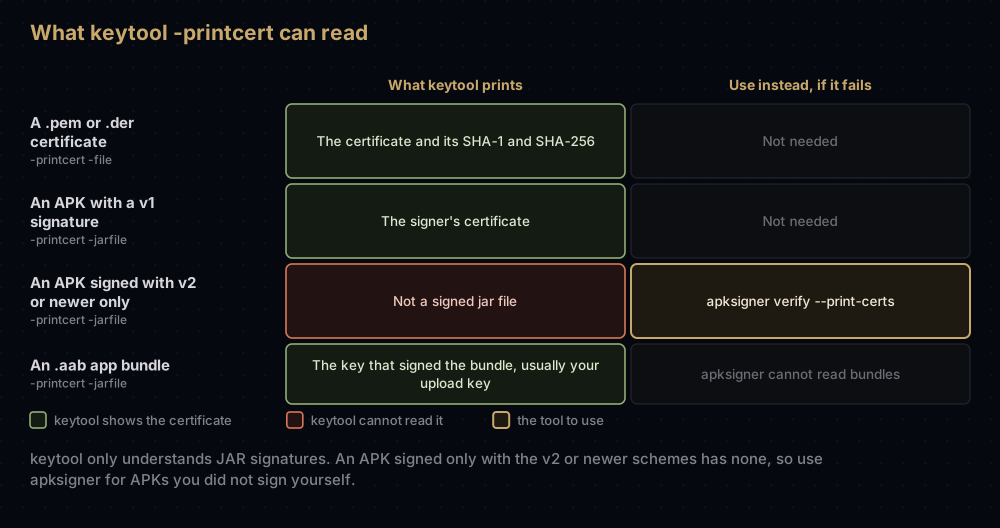
This is where keytool shows its age. -jarfile reads the old JAR signature, which Android calls the v1 scheme. An APK that carries only the newer v2 or v3 signatures makes keytool print:
Not a signed jar fileThat is the normal result for a modern app, not a rare one. In a test with Android Gradle Plugin 9.0.1, a release APK whose minSdk was 24 or higher carried a v2 signature and no v1 signature at all, and keytool printed exactly that line. The APK is signed; keytool just cannot see it. Use apksigner, from the Android SDK build tools, which reads every scheme:
apksigner verify --print-certs app-release.apkAPK signature schemes v1, v2, v3 and v4 explains the schemes and apksigner's output.
App bundles are different. They are signed the JAR way: Android's command-line guide signs .aab files with jarsigner and says apksigner cannot sign them, and the bundle Gradle built in the same test carried a JAR signature. So keytool -printcert -jarfile app-release.aab works and shows the key that signed the bundle. For a bundle you are about to upload, that should be your upload key. apksigner cannot read a bundle at all.
Convert between JKS and PKCS12
-importkeystore copies entries from one keystore into another, and the destination can use a different format:
keytool -importkeystore -srckeystore upload-keystore.jks \
-destkeystore upload-keystore.p12 -deststoretype PKCS12Importing keystore upload-keystore.jks to upload-keystore.p12...
Entry for alias upload successfully imported.
Import command completed: 1 entries successfully imported, 0 entries failed or cancelledkeytool asks for the new file's password (twice), then the source password, then the key password for any JKS entry that has its own. Swap in -deststoretype JKS to go the other way. Add -srcalias upload to copy one entry instead of all of them.
The warning you saw when creating a JKS file suggests converting the file into itself. That works too: keytool rewrites it as PKCS12 and keeps the original next to it, printing Migrated "upload-keystore.jks" to PKCS12. The JKS keystore is backed up as "upload-keystore.jks.old". The file name still ends in .jks, which is one more reason to trust keytool -list over the extension.
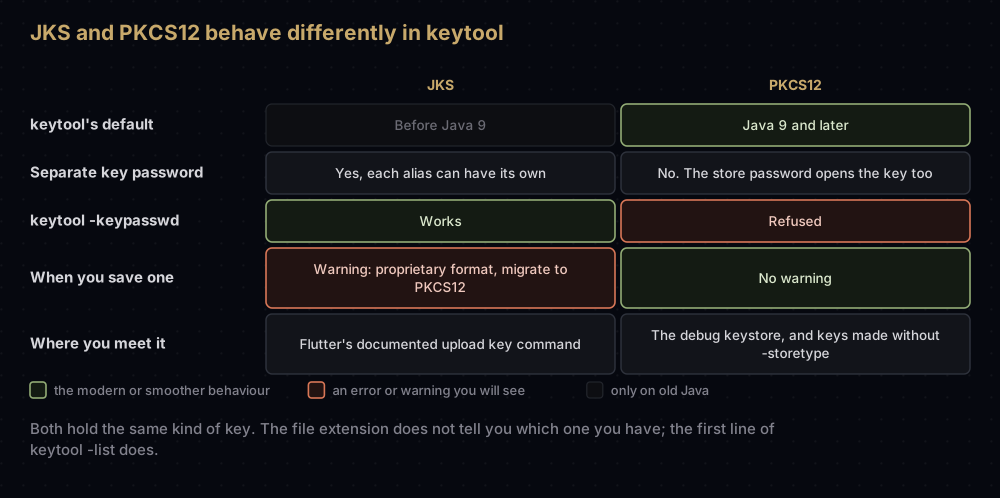
After converting, check your Gradle passwords. In a PKCS12 file the key opens with the store password. If your JKS key had a different key password, the converted key now uses the new store password, so set keyPassword in key.properties or build.gradle to match. The converted key signs exactly as before: same certificate, same fingerprints.
To turn a keystore into PEM files for other tools, see converting signing files.
Change a password
To change the store password:
keytool -storepasswd -keystore upload-keystore.jksTo change one key's password in a JKS file:
keytool -keypasswd -keystore upload-keystore.jks -alias uploadBoth prompt for the old and new values. New passwords must be at least six characters; a shorter one fails with New password must be at least 6 characters.
PKCS12 files have one password. -keypasswd refuses to run on them:
keytool error: java.lang.UnsupportedOperationException: -keypasswd commands not supported if -storetype is PKCS12Use -storepasswd instead; in testing, the key opened with the new store password afterwards. Likewise, if you pass a different -keypass when creating a PKCS12 key, keytool ignores it and says so: Different store and key passwords not supported for PKCS12 KeyStores. Ignoring user-specified -keypass value.
Whatever you change, update the passwords in your build settings or CI secrets before the next release build.
Rename or delete an alias
keytool -changealias -keystore upload-keystore.jks -alias upload -destalias releaseThis moves the entry to a new name. The key and certificate are untouched, so the fingerprints stay the same. For a JKS entry with its own password, keytool asks for that too. Update keyAlias in your build settings afterwards, or Gradle will look for an alias that no longer exists.
keytool -delete -keystore upload-keystore.jks -alias old-keyThis removes an entry for good. Be very sure it is not the only copy of a key you sign releases with: a deleted upload key means an upload key reset, and losing an app signing key that Google does not also hold means that app can never be updated.
Import a certificate
keytool -importcert -keystore truststore.p12 -alias partner -file partner.pemThis adds a certificate as a trustedCertEntry, the kind of entry Java programs consult when deciding which certificates to trust. It is rarely part of Android app signing, and it cannot replace a lost key: a certificate on its own cannot sign anything, because the private key is not in it. Importing your own upload_certificate.pem back into a keystore does not bring an upload key back.
keytool has no command that writes out a private key on its own. To move a key between formats, copy the whole entry with -importkeystore, as above.
Passwords on the command line
Most commands accept -storepass and -keypass, which saves typing. Oracle's keytool documentation warns that a password "shouldn't be specified on a command line or in a script unless it is for testing, or you are on a secure system". A typed password also ends up in your shell history. When you leave the options out, keytool prompts instead. The debug keystore, whose password is android everywhere, is the one place where typing it is harmless.
Error messages and what they mean
| keytool says | What it means |
|---|---|
Keystore was tampered with, or password was incorrect | Despite the wording, usually a wrong store password for a JKS file |
keystore password was incorrect | Wrong store password for a PKCS12 file |
Alias <upload> does not exist | No entry has that name. Run -list to see the real alias |
Keystore file does not exist: upload-keystore.jks | Wrong path, or you are in a different folder |
Unrecognized keystore format. Please load it with a specified type | The file is not a keystore. A certificate .pem passed to -keystore gives this |
-keypasswd commands not supported if -storetype is PKCS12 | PKCS12 has one password. Use -storepasswd |
Must not specify both -v and -rfc with 'list' command | Pick one of the two output styles |
Not a signed jar file | -printcert -jarfile found no v1 signature. Use apksigner for APKs |
New password must be at least 6 characters | Choose a longer password |
Common mistakes
- Forgetting
-validity. The default is 90 days. Google Play needs a key that is still valid after 22 October 2033. - Copying a fingerprint from the wrong key. Your upload keystore's SHA-1 is not the one Google Play users' devices see. Take that one from Play Console.
- Trusting the file extension. A
.jksfile can be PKCS12 inside.keytool -listprints the real type. - Treating "Not a signed jar file" as an unsigned APK. It only means there is no v1 signature. Check with apksigner.
- Converting a keystore and keeping the old key password in Gradle. After a move to PKCS12, the key opens with the store password.
- Renaming an alias without updating
keyAlias. Gradle then looks for an alias that no longer exists. - Putting real passwords in
-storepasson a shared or logged machine. Let keytool prompt. - Keeping the only copy of the keystore on one laptop. keytool cannot recreate a key. Back up the file and its passwords.
Questions people ask
Where is keytool on Windows?
In the bin folder of any installed JDK. With Android Studio, look inside its installation folder for jbr\bin. flutter doctor -v also prints the Java path; replace java at the end with keytool.
What is the default keytool password?
There is none. You choose the password when you create a keystore. The one well-known password is android, used by the Android debug keystore.
How do I get the SHA-1 fingerprint with keytool?
Run keytool -list -v -keystore your-keystore.jks -alias your-alias and copy the value on the SHA1: line. For the debug keystore, add -storepass android and use the alias androiddebugkey.
What is the difference between -genkey and -genkeypair?
None in what they do. -genkeypair is the current name, and -genkey is the older one that still works. Likewise -export and -exportcert, and -import and -importcert.
Can keytool export a private key?
Not as a file of its own. It can copy a whole entry, private key included, into a PKCS12 keystore with -importkeystore, which other tools can then read.
How do I change a keystore alias?
Use keytool -changealias -keystore your-keystore.jks -alias old-name -destalias new-name, then update keyAlias in your Gradle or key.properties settings. The fingerprints do not change.
Why does keytool warn that JKS uses a proprietary format?
Because PKCS12 is an industry standard and has been Java's default since Java 9. The warning is a recommendation. Gradle still signs with JKS files.
What does -validity 10000 mean?
The certificate is valid for 10,000 days from today, about 27 years. That clears Google Play's requirement that the key stays valid until after 22 October 2033.
Where this comes from
- The keytool command, Oracle's JDK 21 reference
- Sign your app and Build your app from the command line from Android Developers
- Use Play App Signing in Play Console Help
- Build and release an Android app from the Flutter docs
Keep reading
- What's inside a .jks keystore: aliases, passwords and formats, without the commands.
- How to get SHA-1 and SHA-256 fingerprints for all three Android keys: the keys keytool cannot see.
- Converting signing files: JKS to P12 and PEM with OpenSSL as well as keytool.
- Lost your upload key?: where the exported certificate goes.
- The Android debug keystore: the one keystore whose password everyone knows.