A lost upload key is recoverable if your app uses Play App Signing. You create a new key, export its certificate as a PEM file, and ask Google for an upload key reset from the Play app signing page in Play Console. Users notice nothing, because the key their phones check is the one Google holds.
What you cannot do is ship an update until the reset has gone through, and Google does not publish how long that takes. If your app signs its own APKs instead, there is no reset at all: the lost key was the app's identity.
This post starts by working out which of those cases you are in. Then it covers the reset itself, what happens while you wait, and how to store the new key so this is the last time.
First, work out what you have lost
"I lost my keystore" can mean three different things, and only two of them are fixable.
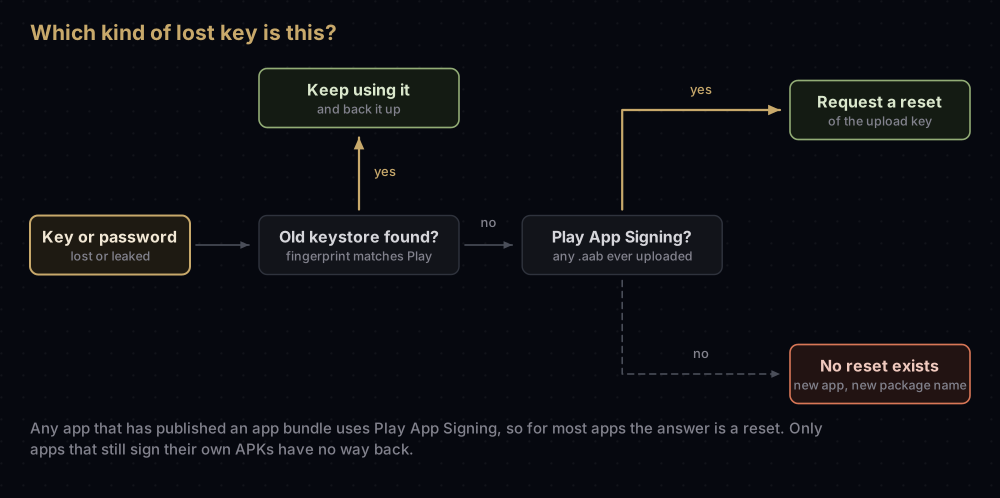
Does the app use Play App Signing? If you have ever published an app bundle (.aab) for it, yes: Google's help pages say app bundles require Play App Signing, and new apps have had to use bundles since August 2021. You can also open the Play app signing page for the app. An enrolled app shows an App signing key section and an Upload key certificate section.
Is the key really gone? Before you reset anything, look properly. Old laptops, backup drives, a teammate's machine and CI secrets are the usual hiding places. Play Console shows the fingerprint of the upload certificate it has on record, so you can test any keystore you find:
keytool -list -v -keystore found-keystore.jksIf one of the SHA-256 fingerprints it prints matches the one in Play Console, you have found your key. If you only have an old bundle, this prints the certificate it was signed with:
keytool -printcert -jarfile app-release.aabForgot the password? Treat it as lost. keytool has no command that recovers a keystore password. A wrong store password produces the message below. The same message covers a file that has been altered, so try each password you might have used before giving up:
keytool error: java.io.IOException: Keystore was tampered with, or password was incorrectHere is how the common situations map to what you can do:
| Situation | What you can do |
|---|---|
| Upload key lost, app uses Play App Signing | Request an upload key reset |
| Upload key password forgotten | The same: request a reset |
| Upload key may have leaked | Request a reset. Google's page covers keys you suspect were compromised |
| You gave Google your own app signing key and never registered a separate upload key, and that key is now lost | Google still holds the app signing key. Android Studio's guide sends you through the same reset flow to register a new, separate upload key |
| The same key as above has leaked | Reset the upload key, and look at a key upgrade, because a copy of your app signing key is now out there |
| App signs its own APKs and the key is lost | No reset exists. See the section on apps that sign themselves, below |
The reset, step by step
Google's help page lists these steps. Its wording and menu names were checked on 17 September 2026.
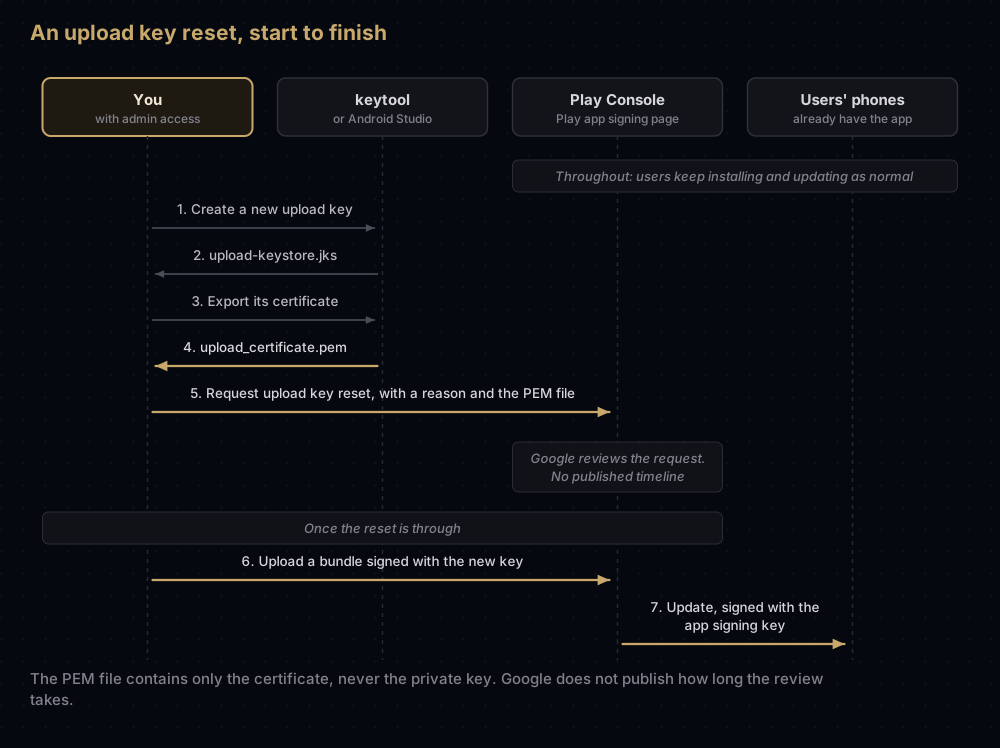
1. Create a new upload key
Play's page says to create it in Android Studio, which Android Studio's guide describes as Build, then Generate Signed Bundle/APK, then Create new. The command line works too:
keytool -genkeypair -v -keystore upload-keystore.jks -keyalg RSA \
  -keysize 2048 -validity 10000 -alias upload
That makes a 2048-bit RSA key (Play's minimum for an upload key) valid for 10,000 days. Google Play requires signing keys to stay valid until after 22 October 2033, and 10,000 days from today is well past that. Pick a strong password and write it down somewhere safe before you do anything else. The last section explains where.
Flutter developers can use the command from the Flutter signing guide instead. It adds -storetype JKS, which stores the key in the older JKS format instead of PKCS12.
2. Export its certificate as PEM
This is Google's command, unchanged:
keytool -export -rfc -keystore upload-keystore.jks -alias upload \
  -file upload_certificate.pem
The file holds only the certificate: your public key plus the name and dates. It starts with -----BEGIN CERTIFICATE-----. The private key never leaves the keystore, and Google never needs it. To double-check which key the file belongs to, print its fingerprints:
keytool -printcert -file upload_certificate.pem3. Send the request
- Open the Play app signing page. Play's reset instructions give the route as Protected with Play, then Play Store protection, then Manage Play app signing. The same help page gives a different route elsewhere (through Play Store distribution), and older Google pages say Release, Setup, App signing. If none of these match, search Play Console for "app signing".
- In the Upload key certificate section, click Request upload key reset.
- Enter the reason for the reset.
- Upload
upload_certificate.pemand click Request.
Play's help page says configuring Play App Signing needs admin permission on the developer account, so if you work under limited access, ask the account owner or an admin to send the request.
What happens while you wait
Google does not publish how long a reset takes, so do not plan around a number you read on a forum. What the documentation does let you work out is this:
- Your app stays on Google Play. People can still install the versions you have already released, because those are signed with the app signing key. Android Studio's guide says resetting the upload key does not affect that key.
- Users have nothing to do. Their installed copies keep working, and once you can publish again, your updates reach them as normal.
- You cannot publish an update yet. Play checks every upload against the upload certificate it has on record. Your old key is gone and the new certificate is not in place until the reset is through, so nothing you sign can pass that check.
- Fingerprints for Play installs do not change. Firebase, Google Cloud API keys and
assetlinks.jsonshould use the app signing key's fingerprints, and those stay the same. Only the upload key's fingerprint changes.
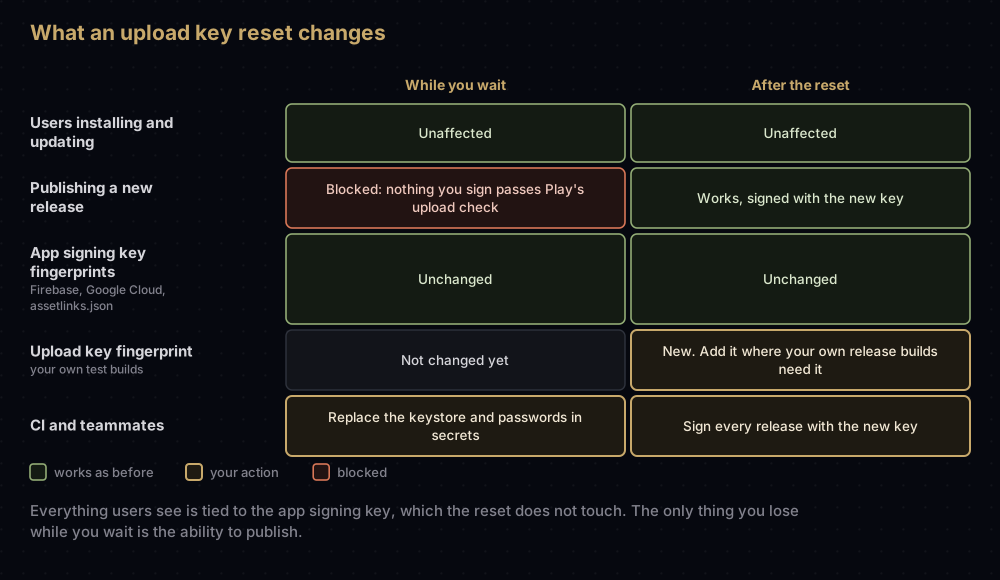
If you have an urgent fix waiting, there is nothing to speed this up from your side, so use the time to prepare. Build and test the release so it is ready to sign, update your CI secrets with the new keystore and passwords, and add the new upload key's fingerprint anywhere you test release builds you signed yourself.
Why an app that signs itself cannot do this
Apps created before August 2021 may still sign their own APKs without Play App Signing. For those apps, the key on your machine is not an upload key. It is the app signing key, the one every user's phone has recorded.
Android only installs an update when its certificate matches the one on the installed version. Android Studio's guide is blunt about the consequence: if you lose that key, Google cannot retrieve it, and you cannot release new versions as updates to the original app. A version signed with a different key needs a different package name, and users install it as a completely new app.
If your app is in that position and you still have the key, enrol it in Play App Signing now. Google then holds a copy, and a future loss becomes a routine reset. The Play App Signing post covers the enrolment.
Keeping the new key safe
An upload key is really four things, and losing any one of them locks you out again:
| Keep | Why |
|---|---|
| The keystore file | It holds the private key |
| The store password | Opens the file |
| The key password | Opens the key inside a JKS file. Often the same as the store password |
| The alias | Names the key inside the file. With the wrong one, keytool says the alias does not exist |
Some habits that make the next loss unlikely:
- Put the passwords and alias in a password manager straight away, in one entry with the keystore's file name and its SHA-256 fingerprint. The fingerprint lets you recognise the right file years from now. If your password manager accepts file attachments, attach the keystore too.
- Keep at least one backup that is not on your laptop, encrypted, and not in a code repository. An external drive in a drawer counts.
- Check the backup opens. Run
keytool -list -vagainst the backup copy, not the original, and compare the fingerprint. - Keep it out of Git. New Flutter projects already ignore
key.properties,*.jksand*.keystoreinandroid/.gitignore. Other projects need the same lines. - Treat CI secrets as a copy for the build, not as your backup.
- Turn on 2-Step Verification for everyone on the Play Console account. Play's help page recommends enforcing it, and reset requests are sent from a Play Console login.
The keystore is covered in more depth in the .jks post, and the day-to-day commands are in the keytool post.
Common mistakes
- Uploading the keystore instead of the certificate. Play asks for the
.pemfile. Never send anyone the.jksfile. - Exporting the certificate from the wrong keystore or alias. Check the fingerprint with
keytool -printcertbefore you upload. - Creating the new key with a short validity. Play requires keys to remain valid until after 22 October 2033.
- Requesting a reset for an app that signs itself. The option is for apps on Play App Signing. Without it, the key you lost was the app signing key.
- Giving up on a password too early. A wrong password and an altered file produce the same error, so test each candidate password before resetting.
- Swapping fingerprints in Firebase after the reset. Play installs use the app signing key's fingerprints, which have not changed. Add the new upload key's fingerprint only if your own test builds need it.
- Forgetting the rest of the team. Teammates and CI still hold the old keystore and passwords until you replace them.
- Storing the new passwords in the same place you lost the old ones. Use a password manager, and keep a tested backup of the file.
Questions people ask
How long does an upload key reset take?
Google does not publish a time. Prepare your next release while you wait, and do not rely on a figure from a forum post.
Can I recover a forgotten keystore password?
Not with keytool: it can only tell you the password is wrong. If you cannot remember it, treat the key as lost and request a reset.
Will users have to reinstall the app after an upload key reset?
No. Their phones check the app signing key, which Google holds and the reset does not touch.
Do I need to update the SHA-1 in Firebase after a reset?
Not for Play installs, because those use the app signing key's fingerprints. Add the new upload key's fingerprint only if you test release builds you signed yourself.
What file does Play Console want for the reset?
A PEM certificate exported from the new keystore with keytool -export -rfc. It contains no private key.
I lost the keystore and my app does not use Play App Signing. What now?
There is no reset for that case. Google cannot recover the key, so the only option is to publish a new app with a new package name.
Should I reset if my upload key might have leaked?
Yes. Play's instructions cover keys you suspect were compromised, not only lost ones. If that key also served as your app signing key, look at a key upgrade as well.
Who can request an upload key reset?
Someone with the right access to the developer account. Play's help page says configuring Play App Signing needs admin permission.
Where this comes from
Checked against Google's documentation on 17 September 2026:
- Use Play App Signing, section "Request an upload key reset", from Play Console Help
- Sign your app from the Android Studio guide
- Client authentication from Google Play services, for
keytool -printcert -jarfile
Keep reading
- Play App Signing: upload key vs app signing key: why the reset is possible at all.
- What's inside a .jks keystore: aliases, passwords and formats.
- keytool commands Android developers actually use.
- Flutter release signing: wiring the new key into a Flutter build.
- Getting SHA-1 and SHA-256 fingerprints for every Android key.