
A .jks file is a Java KeyStore: a password-protected file that holds private keys and certificates, each filed under a name called an alias. Android developers keep their app's upload key in one. To use a key from it you need the file, its store password, the key's alias and, in a JKS file, that key's own key password.
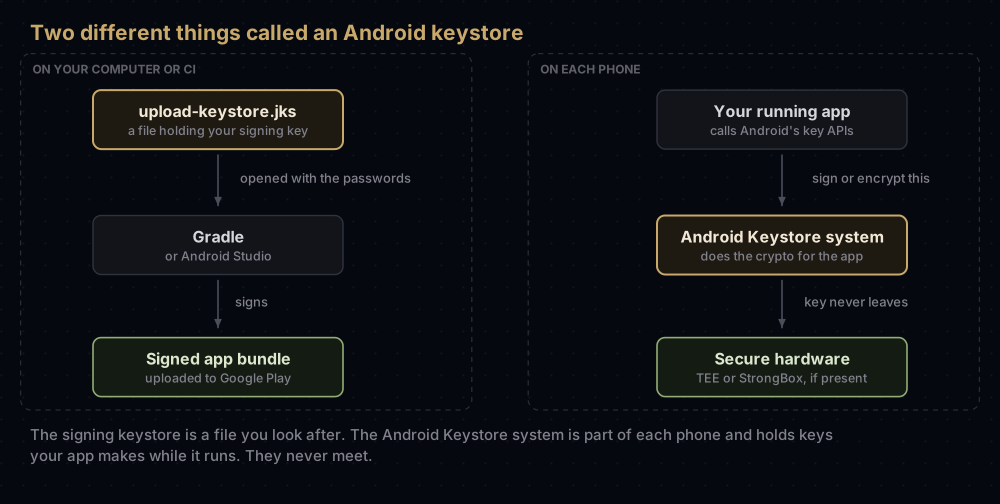
"Android keystore" can also mean something unrelated: the Android Keystore system, which keeps an app's own keys inside a phone's secure hardware at runtime. If that is what you searched for, skip to the last section before the questions.
This post opens the file up: what an entry is, why there are two passwords, how JKS differs from PKCS12, and how to inspect and convert a keystore safely.
The plain picture
Think of a small safe-deposit vault.
- The keystore file is the vault. Its door has a combination: the store password.
- Each entry is a locked box inside, with a label on the front: the alias, such as
upload. - In a JKS file, each box has its own key as well: the key password. It is often set to the same value as the combination.
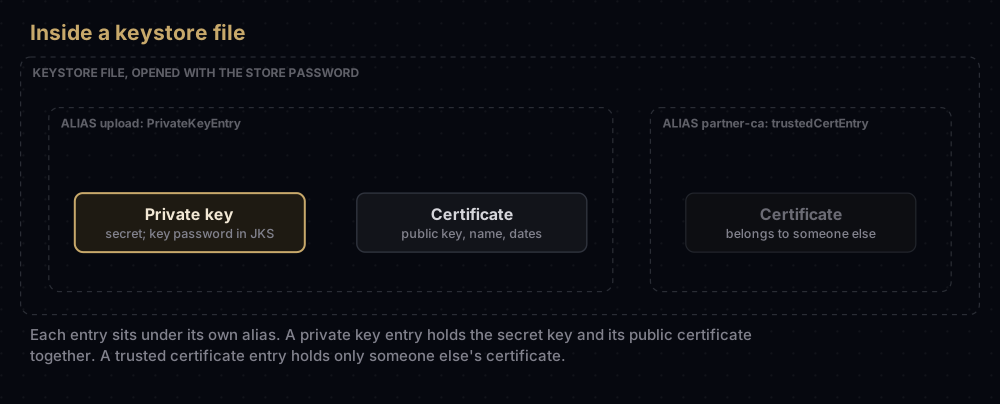
- Inside a box sits a private key, which signs your app, together with its certificate, which anyone may see.
The analogy breaks in one important way. A real vault is guarded, and a keystore is just a file. Anyone who gets a copy can try passwords on it as long as they like, and nobody will know. The password is the only lock, so make it a strong one and keep the file private.
What an entry holds
Oracle's keytool documentation groups entries into key entries and trusted certificate entries. In practice keytool -list shows three labels:
Entry type (as keytool -list prints it) | What is inside | Can JKS hold it? | Used for Android signing? |
|---|---|---|---|
PrivateKeyEntry | A private key and the certificate chain for its public key | Yes | Yes. This is your upload key |
trustedCertEntry | One certificate that belongs to someone else | Yes | Rarely |
SecretKeyEntry | A symmetric secret key, such as AES | No. keytool refuses with Cannot store non-PrivateKeys. PKCS12 can | No |
An Android signing key is a PrivateKeyEntry whose certificate is self-signed: keytool prints the same name as both Owner and Issuer. Android does not need a certificate authority, because it only checks that updates are signed with the same key as the installed app.
The certificate part is public. Its fingerprints are what you paste into Firebase or assetlinks.json, and the fingerprint guide shows how to get them. The private key is the secret, and it never needs to leave the file.
Aliases
Every entry in a keystore has a unique alias, and you choose it when you create the key with -alias. Common ones:
upload: the alias Flutter's documentation uses for an upload key.androiddebugkey: the alias of the Android debug keystore.
Gradle needs the alias (keyAlias in a signing configuration), and so does almost every keytool command. Ask for one that is not there and keytool says so plainly:
keytool error: java.lang.Exception: Alias <release> does not existOne keystore can hold several keys, each under its own alias. If you have forgotten the alias, list the entries (you only need the store password for this):
keytool -list -keystore upload-keystore.jksTwo passwords
| Password | What it opens | key.properties name | What keytool says when it is wrong |
|---|---|---|---|
| Store password | The file itself, and the check that it has not been altered | storePassword | Keystore was tampered with, or password was incorrect |
| Key password | One private key entry (JKS only) | keyPassword | Cannot recover key |
Oracle's documentation explains the design: a JKS file protects each private key with its own password and protects the integrity of the whole file with a possibly different one. When you create a key in a JKS file, keytool asks for the key password and offers a shortcut: press Return to use the store password.
PKCS12 keystores work differently. They do not support a separate key password. Given a different -keypass while creating a PKCS12 keystore, the keytool from the JDK 21 bundled with Android Studio printed this and carried on:
Warning: Different store and key passwords not supported for PKCS12 KeyStores. Ignoring user-specified -keypass value.So for a PKCS12 file, keyPassword in your Gradle setup is simply the store password. Android Studio's signing guide gives similar advice for keys made in its New Key Store dialog: use the keystore password as the key password too, because of a known issue.
Neither password can be recovered. Lose either one and the key is lost with it. For an upload key that means a reset through Play Console.
JKS vs PKCS12
Java has two keystore formats that you are likely to meet.
- JKS is Java's own format. OpenJDK's JEP 229 calls it "a custom, JDK-specific keystore type", and it was Java's default from JDK 1.2 until Java 9.
- PKCS12 is an industry standard, the same family as the
.p12files Apple developers export from Keychain. JEP 229 made it the default keystore type in Java 9, because it offers stronger cryptography and works with other tools.
Java still reads both. JEP 229 added a check that looks at a keystore's contents before loading it, so an old JKS file keeps working with a new JDK.
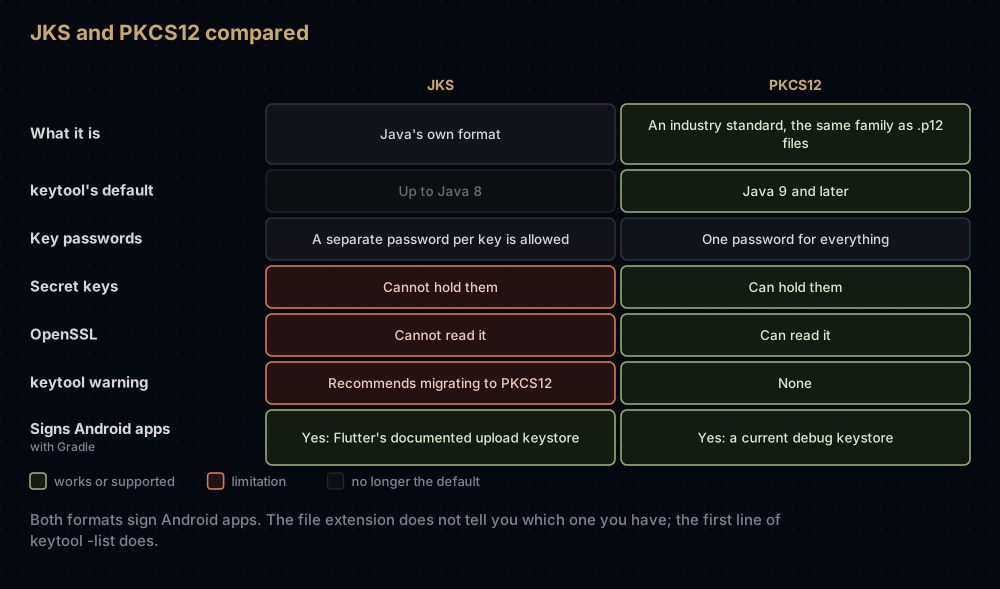
Why does Flutter's command say -storetype JKS? Flutter's documentation creates the upload keystore with that flag and notes that it is only needed on Java 9 or newer, since those versions default to PKCS12. The docs do not give a reason beyond that. Gradle signs with either format: a Flutter upload keystore is JKS, and the debug keystore on a current machine is PKCS12 inside. Whenever a current keytool opens a JKS file, it adds this:
Warning:
The JKS keystore uses a proprietary format. It is recommended to migrate to PKCS12 which is an industry standard format using "keytool -importkeystore -srckeystore upload-keystore.jks -destkeystore upload-keystore.jks -deststoretype pkcs12".
It is a recommendation, not an error. Your key works either way. The Flutter signing post walks through creating that JKS upload keystore.
The file name tells you nothing. .jks, .keystore and .p12 are conventions, and a file called upload-keystore.jks can be PKCS12 inside. Ask keytool, which prints the real type on the first line:
keytool -list -keystore upload-keystore.jksKeystore type: JKS
Keystore provider: SUN
Your keystore contains 1 entry
upload, Sep 17, 2026, PrivateKeyEntry,
Certificate fingerprint (SHA-256): AA:BB:CC:DD:EE:FF:00:11:22:33:44:55:66:77:88:99:AA:BB:CC:DD:EE:FF:00:11:22:33:44:55:66:77:88:99(The output above is shortened, and the fingerprint is a placeholder.)
Inspecting a keystore
Add -v and an alias to see everything about one key:
keytool -list -v -keystore upload-keystore.jks -alias uploadThe parts worth reading:
| Line | What to check |
|---|---|
Keystore type | JKS or PKCS12, whatever the extension says |
Entry type | PrivateKeyEntry for a signing key |
Owner and Issuer | The same for a self-signed Android key |
Valid from ... until | Google Play requires the end date to be after 22 October 2033 |
SHA1 and SHA256 | The fingerprints you register with Google services |
Subject Public Key Algorithm | Play requires an upload key to be RSA of 2048 bits or more |
With the JDK 21 bundled with Android Studio, keytool -list -v prints SHA-1 and SHA-256 fingerprints only. Play Console also lists MD5 for the keys it knows about.
To read a certificate you have exported, rather than the keystore, use keytool -printcert -file upload_certificate.pem. The full set of everyday commands is in the keytool post.
Converting JKS to PKCS12
The conversion is one command. It copies every entry into a new PKCS12 file and leaves the original untouched:
keytool -importkeystore -srckeystore upload-keystore.jks \
  -destkeystore upload-keystore.p12 -deststoretype pkcs12
keytool asks for a password for the new file and the password of the old one. If a key in the old file had its own key password, it asks for that too. After conversion, the key opens with the new store password alone.
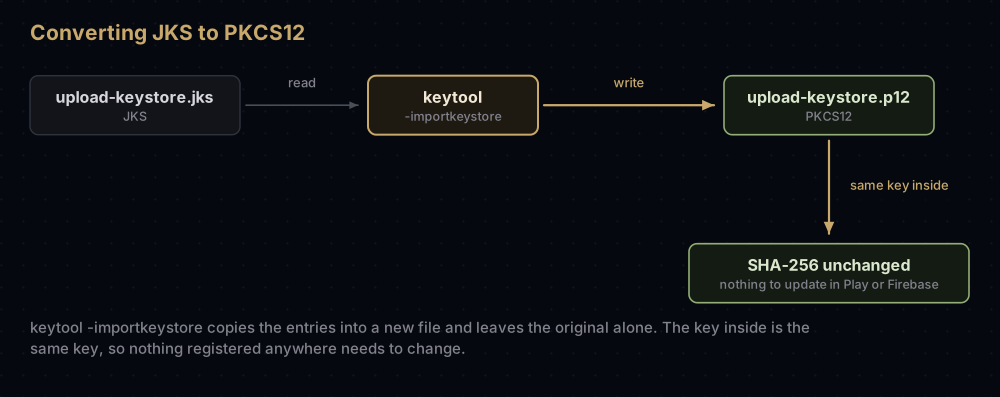
What matters for Android is that the key itself does not change. Converting a test keystore left its SHA-256 fingerprint identical, so Play Console, Firebase and assetlinks.json need no update.
The warning above suggests a variant that converts the file in place. Run that way, keytool keeps the original as upload-keystore.jks.old and writes PKCS12 under the old file name.
Before you switch a real project over:
- Convert a copy, and keep the original somewhere safe.
- Run
keytool -list -von the new file and compare the SHA-256 fingerprint with the old one. - Update
storeFile, and setkeyPasswordto the store password if they used to differ. - Build a release and check it before deleting anything.
Conversions to PEM, and between Apple's .p12 and .p8 files, are collected in the file conversion post.
The other "Android Keystore"
Search for "android keystore" and many of the results are about a different thing: the Android Keystore system, a feature of the phone itself.
The Android developer documentation describes it as a way to store cryptographic keys in a container so they are harder to extract from the device. Key material never enters the app's process, and it can be bound to secure hardware such as the Trusted Execution Environment or a Secure Element. Devices on Android 9 and higher can include StrongBox, a secure element implementation. The Android Keystore provider arrived in Android 4.3 (API level 18), and Google says Android 17 adds post-quantum ML-DSA keys to it.
Signing keystore (.jks, .keystore) | Android Keystore system | |
|---|---|---|
| Where it lives | A file on your computer or CI | Inside each Android device |
| What it holds | The key that signs your app | Keys your app creates or imports while running |
| Who uses it | keytool, Gradle, Android Studio | Your app's code, through Android's APIs |
| Can the key be copied out? | Yes, it is just a file. Protect it | Designed so it cannot be extracted |
| What to search for | "upload keystore", "jks" | "Android Keystore provider", AndroidKeyStore |
Your signing key never goes into a phone's Android Keystore. The phone only sees the certificate that is packed inside the APK.
Common mistakes
- Trusting the extension. Check
Keystore typeinkeytool -listoutput before choosing commands or Gradle settings. - Forgetting the alias.
keytool -listshows every alias with only the store password. - Giving a PKCS12 key its own password.
keytoolignores it with a warning, but other tools do not. Given a PKCS12 store and a different key password,jarsignerfailed with the unhelpfulkey associated with upload not a private key. KeepkeyPasswordequal tostorePassword. - Deleting the original after converting. Keep it until a signed release built from the new file has been checked.
- Sending someone the keystore so they can read a fingerprint. Fingerprints are public. Export the certificate or copy the fingerprint instead.
- Committing the keystore or
key.properties. A public repository turns a private file into a public one. - Reading the Android Keystore system docs to fix a signing problem, or the reverse. They are different subjects.
Questions people ask
What is a .jks file?
A Java KeyStore: a password-protected file of private keys and certificates, each under an alias. Android developers use one to hold the key that signs their app.
Is a .keystore file the same as a .jks file?
Often, but not always. Both names are conventions. The file inside can be JKS or PKCS12, and keytool -list tells you which.
How do I open a .jks file?
With keytool, which comes with Java and is bundled with Android Studio. keytool -list -v -keystore file.jks shows its entries after you enter the store password. It is not a file you open in an editor.
What is the difference between the store password and the key password?
The store password opens the file. The key password opens one key inside a JKS file. PKCS12 files have only the store password.
Should I convert my JKS keystore to PKCS12?
You do not have to: Gradle signs with both, and the key is the same either way. If you want to stop the warning or use OpenSSL on the file, convert a copy and check the fingerprint matches.
Can I recover a forgotten keystore password?
No. keytool can only report that it is wrong. If the file holds an upload key, Play Console can reset it.
Is the Android Keystore the same as my .jks file?
No. The Android Keystore system lives on the phone and holds keys your app creates at runtime. Your .jks file lives on your computer and holds the key that signs the app.
Can OpenSSL read a keystore?
It can read PKCS12. OpenSSL 3.6 read a PKCS12 keystore made by JDK 21 and rejected a JKS file. Older PKCS12 files may need the -legacy option.
Where this comes from
Checked on 17 September 2026, with every command run against throwaway keystores:
- JEP 229: Create PKCS12 Keystores by Default from OpenJDK
- The keytool command from Oracle's JDK 21 documentation
- Sign your app from the Android Studio guide
- Android Keystore system from Android Developers
- Build and release an Android app from the Flutter documentation
Keep reading
- Converting signing files: every JKS, P12, P8 and PEM conversion.
- keytool commands Android developers actually use.
- Flutter release signing: creating a keystore and wiring it into Gradle.
- Lost your upload key? What to do when the passwords are gone.
- The Android debug keystore: the keystore you already have.