
assetlinks.json is a small public file on your website that tells Android which apps may open your web links. It lives at https://your-domain/.well-known/assetlinks.json and lists, for each app, its package name and the SHA-256 fingerprint of the certificate that signs it.
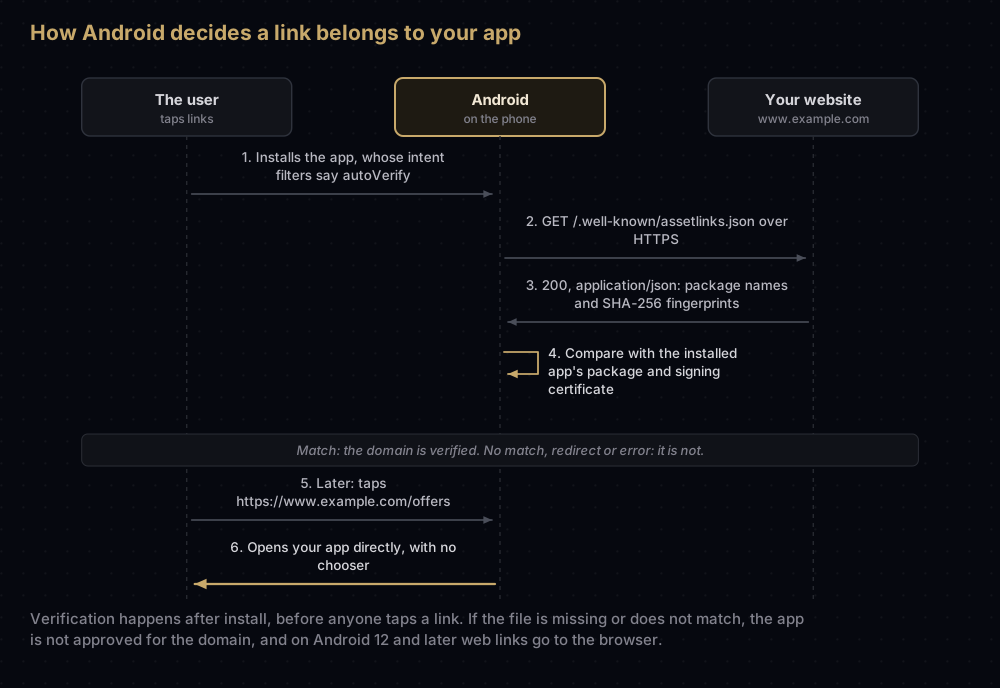
When an app's manifest asks for verified links (android:autoVerify="true"), Android fetches that file and compares it with the installed app. If they match, a tap on a link to your site opens the app straight away, with no "open with" chooser. That is an Android App Link.
If your links open the browser only for people who installed the app from Google Play, the usual reason is that the file lists your upload key's fingerprint instead of the key Google signs with. The fix is in the section on fingerprints below; the rest of this guide covers the format, the hosting rules and how to test.
What App Links do
Android has had deep links for a long time: an app can say "I can open links to example.com". But any app can say that, so Android used to ask the user which app to use, or fall back to the browser.
App Links add proof. Your website publishes assetlinks.json, saying which apps it trusts. Your app asks Android to check. Once Android has confirmed that both sides agree, links to your site go straight to your app.
A few facts from Android's documentation frame the rest:
- App Links work on Android 6.0 and later, on devices with Google services.
- From Android 12, a plain web link opens in an app only if that app is approved for the link's domain. Otherwise it opens in the default browser. Verification through
assetlinks.jsonis how an app gets approved automatically. - On a given device, only one app at a time can be associated with a domain.
The file, field by field
This is the smallest useful file. It lets one app, com.example.app, open every link on the site that serves it:
[
  {
    "relation": ["delegate_permission/common.handle_all_urls"],
    "target": {
      "namespace": "android_app",
      "package_name": "com.example.app",
      "sha256_cert_fingerprints": [
        "AA:BB:CC:DD:EE:FF:00:11:22:33:44:55:66:77:88:99:AA:BB:CC:DD:EE:FF:00:11:22:33:44:55:66:77:88:99"
      ]
    }
  }
]| Field | What it means | What to put there |
|---|---|---|
The outer [ ] | A list of statements. One file can hold several | Always an array, even for one app |
relation | What the website allows | delegate_permission/common.handle_all_urls for App Links |
target.namespace | What kind of thing the statement is about | android_app |
target.package_name | Which app | The application ID from your Gradle build, such as com.example.app |
target.sha256_cert_fingerprints | Which signing certificates count as that app | Upper-case SHA-256 fingerprints with colons. Several are allowed |
relation_extensions | Optional extra rules | Dynamic App Links on Android 15 and later (see below) |
The Digital Asset Links documentation, which defines this format, calls the whole file a statement list. The file is plain JSON, so a missing comma or quote breaks it for everyone; run it through a JSON validator before publishing.
Several apps or several fingerprints
sha256_cert_fingerprints takes a list, so one entry can accept the app however it was signed: for example Google's app signing key for Play users and a debug key for testing.
To let two different apps open links on the same site, add a second statement to the array:
[
  {
    "relation": ["delegate_permission/common.handle_all_urls"],
    "target": {
      "namespace": "android_app",
      "package_name": "com.example.app",
      "sha256_cert_fingerprints": [
        "AA:BB:CC:DD:EE:FF:00:11:22:33:44:55:66:77:88:99:AA:BB:CC:DD:EE:FF:00:11:22:33:44:55:66:77:88:99",
        "11:22:33:44:55:66:77:88:99:AA:BB:CC:DD:EE:FF:00:11:22:33:44:55:66:77:88:99:AA:BB:CC:DD:EE:FF:00"
      ]
    }
  },
  {
    "relation": ["delegate_permission/common.handle_all_urls"],
    "target": {
      "namespace": "android_app",
      "package_name": "com.example.app.lite",
      "sha256_cert_fingerprints": [
        "AA:BB:CC:DD:EE:FF:00:11:22:33:44:55:66:77:88:99:AA:BB:CC:DD:EE:FF:00:11:22:33:44:55:66:77:88:99"
      ]
    }
  }
]
Android's guide adds a caution for that case: if two installed apps can handle exactly the same host and path, such as a lite and a full version, only the most recently installed one gets the links.
The reverse also works. Several websites can each publish a file naming the same app. Each site must serve its own copy.
Which fingerprint goes in the file
The fingerprint must belong to the certificate that signed the copy installed on the phone. Picking the wrong key is an easy mistake to make.
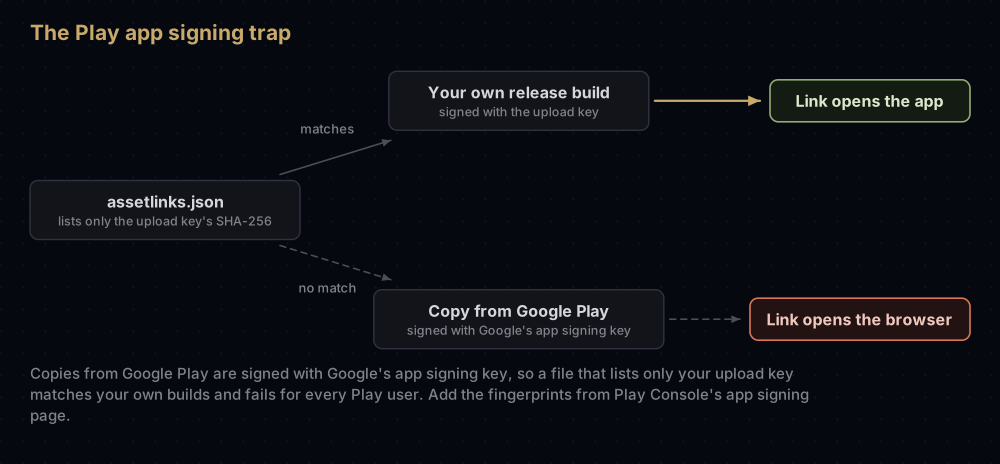
With Play App Signing, which every app bundle on Google Play uses, you sign uploads with your upload key and Google signs what users install with its app signing key. Android's guide says it plainly: the fingerprint you get by running keytool locally will usually not match the one on users' devices.
The fix is in Play Console:
- Open the Play app signing page. At the time of writing it sits under Protected with Play; older Google pages still say Release → Setup → App signing or App Integrity. Search for "app signing" if it has moved.
- Copy the SHA-256 of the app signing key. Android's guide notes that the same page also shows a ready-made Digital Asset Links JSON snippet for your app.
- If your app uses Play's quantum-ready hybrid signing, Play Console Help says to copy the fingerprints for all three keys it lists and update
assetlinks.jsonwith them. Play's hybrid signing explains the three keys.
Add other fingerprints only for copies that need working links: your debug key while developing, or the internal app sharing key for testers who install from an internal sharing link.
To read a SHA-256 yourself, the Digital Asset Links documentation gives two commands for a certificate file:
keytool -printcert -file upload_certificate.pem | grep SHA256
openssl x509 -in upload_certificate.pem -noout -fingerprint -sha256
Both print upper case with colons, which is the form the file needs. How to get SHA-1 and SHA-256 fingerprints covers every key, including reading one from an APK Google signed.
Hosting rules
When the fingerprints are right and verification still fails, look at how the file is served.
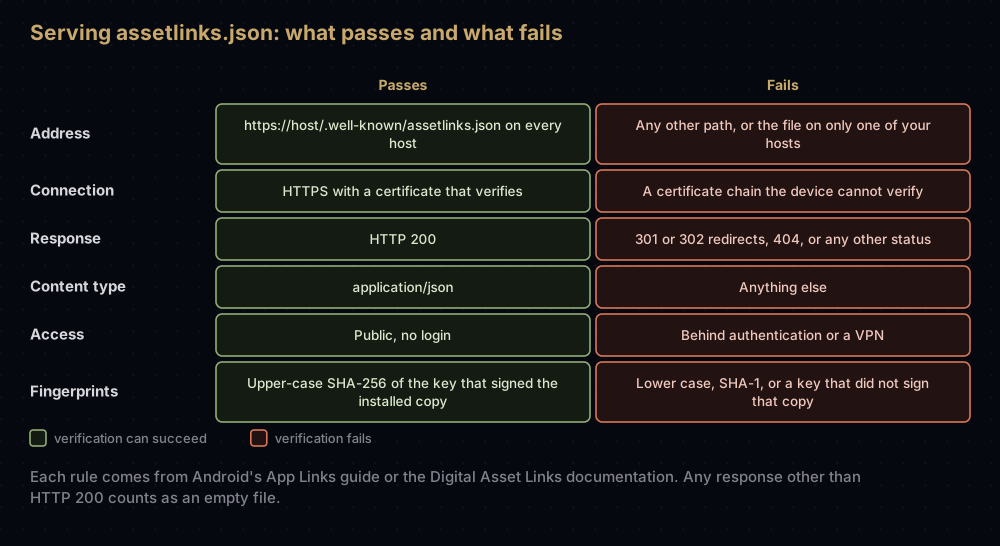
The rules, from Android's guide and the Digital Asset Links documentation:
- Exact location.
https://your-domain/.well-known/assetlinks.json, with the dot in.well-known. A file anywhere else does not count. - HTTPS, always. Even if your intent filters also accept
httplinks. A certificate chain that does not verify counts as no file. - HTTP 200, no redirects. Redirects (301 or 302) are not followed, and any other status is treated as an empty file. Android's troubleshooting page gives two examples that stop verification: a redirect from
http://example.comtohttps://example.com, and one fromexample.comtowww.example.com. - Content type
application/json. Check your server or CDN does not send it as text. - Every host. If your intent filters list
www.example.comandmobile.example.com, each must serve the file. - Wildcards use the parent domain. An intent filter host of
*.example.comis verified againsthttps://example.com/.well-known/assetlinks.json. - Public. No login, no VPN. Android's guide warns against shipping test URLs that only work inside a private network.
- The trailing-dot name. The troubleshooting page asks you to check that
example.com.(with a final dot) serves the same content asexample.com.
You can check the status and content type from any terminal:
curl -sI https://www.example.com/.well-known/assetlinks.jsonLook for 200 on the first line and content-type: application/json in the headers, and make sure there is no location: header, which would mean a redirect.
The manifest side
The website half is useless unless the app asks for verification. Android's guide gives this pattern: an intent filter with android:autoVerify="true", the VIEW action, the DEFAULT and BROWSABLE categories, and data elements for both http and https:
<activity
    android:name=".MainActivity"
    android:exported="true">
    <intent-filter android:autoVerify="true">
        <action android:name="android.intent.action.VIEW" />
        <category android:name="android.intent.category.DEFAULT" />
        <category android:name="android.intent.category.BROWSABLE" />
        <data android:scheme="http" />
        <data android:scheme="https" />
        <data android:host="www.example.com" />
    </intent-filter>
</activity>
Two version differences matter:
- Android 12 and later verify each host on its own. If one host fails, the others can still be verified.
- Android 11 and earlier verify the app only if every host in the manifest's App Links filters passes. One forgotten test domain breaks them all.
Flutter apps use the same manifest entry in android/app/src/main/AndroidManifest.xml; nothing about the website side changes.
Testing
Work from the outside in: first the file, then the app's configuration, then a real device.
The file. Google's Statement List Generator and Tester can generate a statement file and test an existing one. You can also ask the Digital Asset Links API directly, which Android's testing guide recommends:
curl "https://digitalassetlinks.googleapis.com/v1/statements:list?source.web.site=https://www.example.com&relation=delegate_permission/common.handle_all_urls"A working site returns a statements list with your package name and fingerprints. A broken one returns an empty result with a debugString explaining the problem. For a site with no file, the answer looks like this (shortened):
"debugString": "********************* ERRORS *********************\n* Error: unavailable: Error fetching statements from https://www.example.com./.well-known/assetlinks.json ... 404 Not Found ...",
"errorCode": ["ERROR_CODE_FETCH_ERROR"]
The configuration. Android Studio's App Links Assistant (in the Tools menu) lists your deep links, flags misconfiguration and can generate assetlinks.json, though Android's page says it does not yet support dynamic rules. After you upload the app, Play Console's Deep links page shows the setup and its errors. Flutter projects can use Flutter's deep link validator.
A device. From Android 12, you can re-run verification by hand. With the app installed, run these in order, replacing com.example.app:
adb shell pm set-app-links --package com.example.app 0 all
adb shell pm verify-app-links --re-verify com.example.app
adb shell pm get-app-links com.example.app
The first command resets the app's link state, the second starts verification, and the third shows the result. Android's guide says to wait a few minutes before the third. If your app targets Android 11 or lower, first run adb shell am compat enable 175408749 com.example.app to switch on the newer verification process.
The result lists a state per domain:
| State | Meaning |
|---|---|
verified | The domain passed verification for this app |
none | Nothing recorded yet. Wait a few minutes and verify again |
approved | Force-approved, usually by a shell command |
denied | Force-denied, usually by a shell command |
migrated | A result kept from the older verification process |
restored | Approved after the user restored data |
legacy_failure | Rejected by the older verifier, reason unknown |
system_configured | Approved by the device's configuration |
| A number of 1024 or more | An error code specific to the device's verifier. Check the network and try again |
On Android 17 and later, one more command explains how a single link is resolved, including which intent filters and dynamic rules matched:
adb shell am start --debug-link -a android.intent.action.VIEW -d "https://www.example.com/offers"When changes take effect
Updating the file on your server does not update phones immediately. Android's guide says:
- Android 15 and later re-verify in the background, and changes can take up to seven days to reach every device.
- Android 14 and earlier do not re-verify on their own. They pick up changes when the app is installed or updated.
While testing, uninstalling and reinstalling the app forces a fresh check, but server-side caches can still serve the old file for a few hours.
Dynamic App Links on Android 15
Android 15 added optional rules inside assetlinks.json itself, under relation_extensions and dynamic_app_link_components. They let you include or exclude paths, query parameters and fragments from the server, without shipping an app update. Three limits from the guide are worth knowing: the rules can only narrow what the manifest already allows, they are evaluated in order, and a malformed rules block is thrown away so the device falls back to the manifest. Android 14 and earlier ignore the rules entirely.
What about iOS?
iPhones do not read assetlinks.json. Universal links use a separate file named apple-app-site-association, with no extension, at https://your-domain/.well-known/apple-app-site-association. It identifies apps by Team ID and bundle ID rather than by certificate fingerprint, and it is also served over HTTPS with no redirects. The app side is an entitlement; iOS entitlements explained covers that half.
Why App Links fail
| Symptom | Usual cause |
|---|---|
| Links open the browser only for Play Store installs | The file lists the upload key, not Play's app signing key |
| Links work in release but not in debug builds | The debug key's SHA-256 is not listed |
| Verification fails although the JSON looks right | A redirect, a non-200 status or the wrong content type |
It works for www.example.com but not example.com | Only one host serves the file |
| Every host fails on Android 11 and older | One host in the manifest cannot be verified |
| The fingerprint "matches" but still fails | It is lower case, or it is a SHA-1 |
| A fixed file makes no difference | The device has not re-verified yet; reinstall while testing |
| Links open a different app of yours | Another installed app handles the same host and path |
Questions people ask
Where do I put assetlinks.json?
In a folder called .well-known at the root of your website, so it loads from https://your-domain/.well-known/assetlinks.json. Every host in your intent filters needs its own copy.
What content type should assetlinks.json use?
application/json. The file must also load over HTTPS with a 200 response and no redirects.
Does assetlinks.json need SHA-256 or SHA-1?
SHA-256, in upper case with colons, as the field name sha256_cert_fingerprints says.
Can one assetlinks.json list several apps?
Yes. Add one statement per app to the array, and list several fingerprints inside a statement if the same app is signed by more than one key.
Why do my App Links open the browser?
Usually because the file does not match the installed app's signing key, often Play's app signing key, or because the file is redirected or served with the wrong content type. Check the file with the Digital Asset Links API, then run adb shell pm get-app-links on a device.
How long do assetlinks.json changes take?
On Android 15 and later, up to seven days, according to Android's guide. On Android 14 and earlier, the change is picked up when the app is installed or updated.
Does iOS use assetlinks.json?
No. iOS reads apple-app-site-association, from the same .well-known folder, and identifies apps by Team ID and bundle ID.
Do Flutter apps need anything different?
No. The file and hosting rules are the same. The intent filter goes in the Android manifest inside the Flutter project, and Flutter offers its own deep link validator.
Where this comes from
- Configure website associations, Add App Links, Verify App Links, Test App Links and Troubleshoot App Links from Android Developers
- Creating a statement list, statement list syntax and the Statement List Generator and Tester from Google Digital Asset Links
- The Play Console Help article Use Play App Signing, for the hybrid signing note
- Supporting associated domains from Apple
Keep reading
- How to get SHA-1 and SHA-256 fingerprints for all three Android keys: finding the right SHA-256 for this file.
- Play App Signing: upload key vs app signing key: why Play users have a different certificate.
- Play's quantum-ready hybrid signing: the extra fingerprints new apps must list.
- iOS entitlements explained: the Apple side of verified links.
- keytool commands Android developers actually use: reading fingerprints from keystores and certificates.