There is no FCM server key any more. It belonged to Firebase Cloud Messaging's legacy APIs, which Google deprecated on 20 June 2023 and began shutting down on 22 July 2024. Servers now send through the HTTP v1 API, and they prove who they are with a short-lived OAuth 2.0 access token made from a service account key, not with a fixed string pasted into every request.
If a tutorial tells you to copy the "Server key" from the Cloud Messaging settings, it describes a system that has been switched off. The replacement is a JSON key file from the Service accounts page of your Firebase project settings, plus either the Firebase Admin SDK (which handles the tokens for you) or a few lines of code that mint the tokens yourself.
This post explains the change in plain terms, then shows both ways of sending, tested, and ends with a field-by-field guide for moving old legacy payloads to v1.
What changed, in plain words
The legacy API worked like a shared password. Your server sent the same long-lived server key with every request, forever, and anyone who copied that key could send notifications to your users.
HTTP v1 works more like a visitor badge:
- Your project has a service account, a robot identity in Google Cloud with its own private key.
- Your server uses that private key to ask Google for an access token, which expires after a short time.
- Your server sends each message with that token. When it expires, the server asks for a new one.
A leaked access token is only useful until it expires. The private key never travels with your messages, and what the robot may do is controlled by Google Cloud permissions.
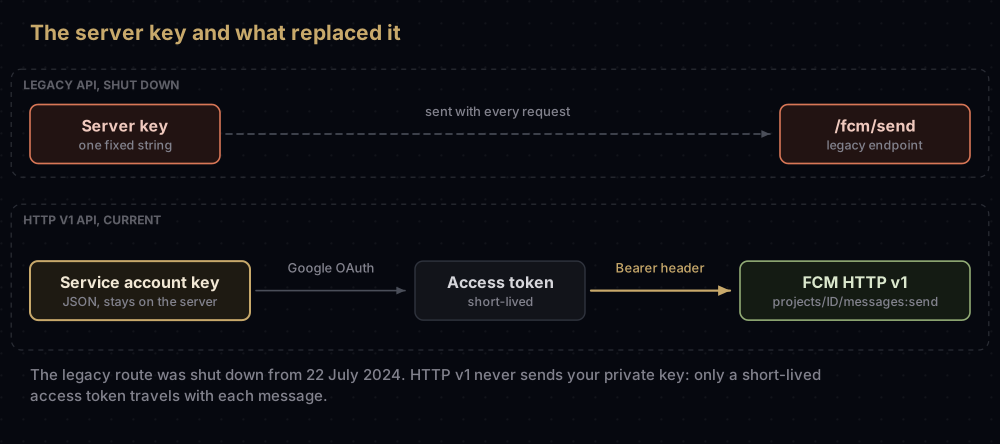
| Legacy API (shut down) | HTTP v1 API | |
|---|---|---|
| Endpoint | https://fcm.googleapis.com/fcm/send | https://fcm.googleapis.com/v1/projects/your-project-id/messages:send |
| Credential | The server key, a fixed string | A service account key (JSON), or the default service account on Google Cloud |
| What each request carries | The server key itself | Authorization: Bearer and a short-lived access token |
| Targets per request | One token, a topic, a condition, or a list of tokens | Exactly one: a token or FID, a topic, or a condition |
| Platform settings | Mostly shared top-level fields | Separate android, apns and webpush blocks |
| Status | Deprecated 20 June 2023, shutdown from 22 July 2024 | Current |
Nothing changes inside your app. The app never used the server key (it should not have contained one), and it keeps registering with FCM exactly as before. This is a server-side change.
Step 1: get the credentials
On your own server, or anywhere outside Google Cloud
- In the Firebase console, open the project's Settings and choose the Service accounts tab.
- Click Generate New Private Key, then Generate Key. A JSON file downloads.
- Store it like a password. Firebase's advice is to point the
GOOGLE_APPLICATION_CREDENTIALSenvironment variable at the file rather than loading it by path in your code, and it calls that option "more secure and is strongly recommended".
export GOOGLE_APPLICATION_CREDENTIALS="/secure/path/service-account.json"That file is a real secret. Anyone holding it can act as your project's service account. Never put it in a mobile app, a web page or a repository. (The google-services.json file inside your app is a different thing entirely; what google-services.json holds explains why that one ships publicly.)
On Google Cloud
On Cloud Functions (including Cloud Functions for Firebase), Cloud Run, App Engine, Compute Engine or Google Kubernetes Engine, you usually need no file at all. Application Default Credentials (ADC) check the environment variable first, then fall back to the default service account that those platforms provide.
Checks before your first send
- The API is on. Firebase asks you to make sure the Firebase Cloud Messaging API (V1) is enabled, on the Cloud Messaging tab of the project settings.
- You have the project ID, not the Sender ID. The URL uses the project ID (such as
your-project-id). The Sender ID shown on the Cloud Messaging tab is the project number, a different value. - Sending for another project? Give your service account the Firebase Cloud Messaging API Admin role in the target project, under IAM in the Google Cloud console, and use the target project's ID in the URL.
Step 2a: send with the Firebase Admin SDK
The Admin SDK is Firebase's recommended route. It reads the credentials, fetches and refreshes access tokens, and builds the request. This example uses the Node.js SDK (version 14 needs Node.js 22 or later and uses ES module imports). It was run against firebase-admin 14.4.0 with every network call intercepted, so nothing was sent:
import { initializeApp, applicationDefault } from "firebase-admin/app";
import { getMessaging } from "firebase-admin/messaging";

// Reads the service account file named in GOOGLE_APPLICATION_CREDENTIALS.
initializeApp({ credential: applicationDefault() });

const message = {
  token: "DEVICE_REGISTRATION_TOKEN",
  notification: {
    title: "Your order has shipped",
    body: "It should arrive on Thursday.",
  },
  data: { orderId: "A1042" }, // values must be strings
  android: { priority: "high", ttl: 3600 * 1000 }, // ttl in milliseconds here
  apns: { headers: { "apns-priority": "10" }, payload: { aps: { sound: "default" } } },
};

try {
  const id = await getMessaging().send(message);
  console.log("Sent:", id); // projects/your-project-id/messages/...
} catch (error) {
  if (error.code === "messaging/registration-token-not-registered") {
    // The app was uninstalled or the token expired: delete it from your database.
  }
  console.error(error.code, error.message);
}
What the test showed: the SDK took the project ID from the service account file, turned the millisecond ttl into the "3600s" string the API expects, and refused a numeric data value with messaging/invalid-payload ("data must only contain string values").
Three things to know about the current SDK:
- Tokens and FIDs. Firebase is moving from registration tokens to Firebase Installation IDs. From Node Admin SDK 14.1.0, the
tokenfield is marked deprecated and afidfield sits beside it; both work during the transition. Send whichever identifier your apps upload. The Flutter plugin, for one, still hands you a token fromgetToken(). - Many devices at once. Use
sendEach()for a list of messages, orsendEachForMulticast()for one message to many tokens or FIDs, up to 500 per call. The oldsendToDevice(),sendAll()andsendMulticast()were removed in version 13.0.0. - Big audiences. For "everyone who follows this team", a topic is simpler than a token list. How push notifications work covers topics and their limits.
Step 2b: send with plain HTTP
Without the Admin SDK, your code does the token work itself. The flow has one extra round trip:
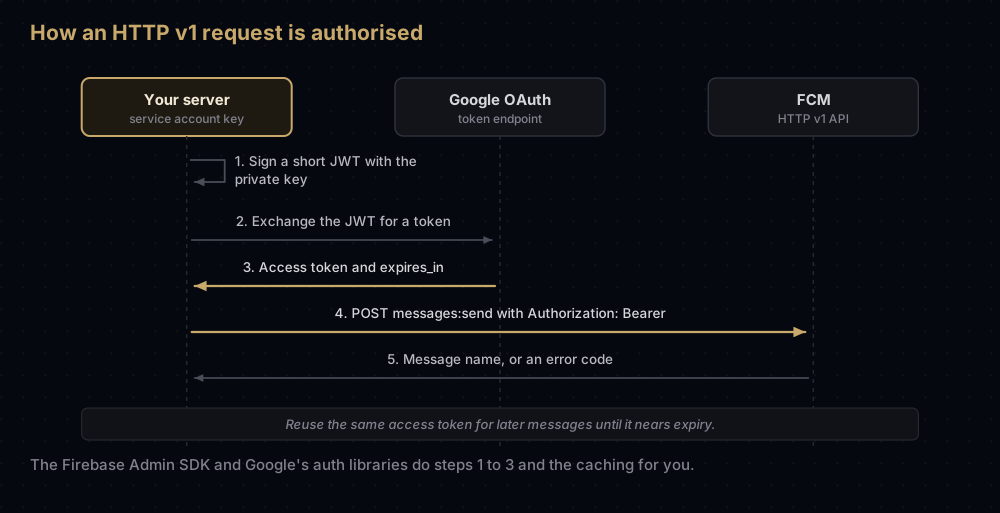
Google's auth libraries do the signing, the exchange and the caching. In Node.js, google-auth-library looks like this (also tested with the network intercepted):
import { GoogleAuth } from "google-auth-library";

const PROJECT_ID = "your-project-id";
const auth = new GoogleAuth({
  scopes: ["https://www.googleapis.com/auth/firebase.messaging"],
});

const accessToken = await auth.getAccessToken(); // cached and refreshed for you

const response = await fetch(
  `https://fcm.googleapis.com/v1/projects/${PROJECT_ID}/messages:send`,
  {
    method: "POST",
    headers: {
      Authorization: `Bearer ${accessToken}`,
      "Content-Type": "application/json",
    },
    body: JSON.stringify({
      message: {
        token: "DEVICE_REGISTRATION_TOKEN",
        notification: { title: "Your order has shipped", body: "It should arrive on Thursday." },
      },
    }),
  },
);
console.log(response.status, await response.json());
The scope https://www.googleapis.com/auth/firebase.messaging is the one Firebase names for FCM. Libraries for Python and Java follow the same pattern, and Firebase's authorisation page shows both.
For a quick test from a terminal, with a token already in $ACCESS_TOKEN and the whole request body (the outer message object included) saved in message.json:
curl -X POST \
  -H "Authorization: Bearer $ACCESS_TOKEN" \
  -H "Content-Type: application/json" \
  -d @message.json \
  "https://fcm.googleapis.com/v1/projects/your-project-id/messages:send"
A success returns the message's name:
{
  "name": "projects/your-project-id/messages/0:1500415314455276%31bd1c9631bd1c96"
}
How long does the access token last? The token response states it in expires_in; Google's own example shows 3600 seconds, and Google Cloud documents service account access tokens as lasting between 5 minutes and 12 hours. Let the library track it rather than hard-coding a number.
Testing without delivering. Add "validate_only": true beside "message" in the request body. FCM checks the request and does not send it. It is the v1 counterpart of the legacy dry_run flag.
Step 3: move legacy payloads to v1
The biggest code change is the shape of the message. Legacy requests put most settings at the top level; v1 wraps everything in message and moves platform settings into their own blocks.
Before and after
A legacy request body looked like this:
{
  "to": "DEVICE_REGISTRATION_TOKEN",
  "priority": "high",
  "time_to_live": 3600,
  "collapse_key": "order-status",
  "notification": {
    "title": "Your order has shipped",
    "body": "It should arrive on Thursday."
  },
  "data": { "orderId": "A1042" }
}
The same message in v1:
{
  "message": {
    "token": "DEVICE_REGISTRATION_TOKEN",
    "notification": {
      "title": "Your order has shipped",
      "body": "It should arrive on Thursday."
    },
    "data": { "orderId": "A1042" },
    "android": {
      "priority": "high",
      "ttl": "3600s",
      "collapse_key": "order-status"
    },
    "apns": {
      "headers": {
        "apns-priority": "10",
        "apns-collapse-id": "order-status"
      }
    }
  }
}
Field by field
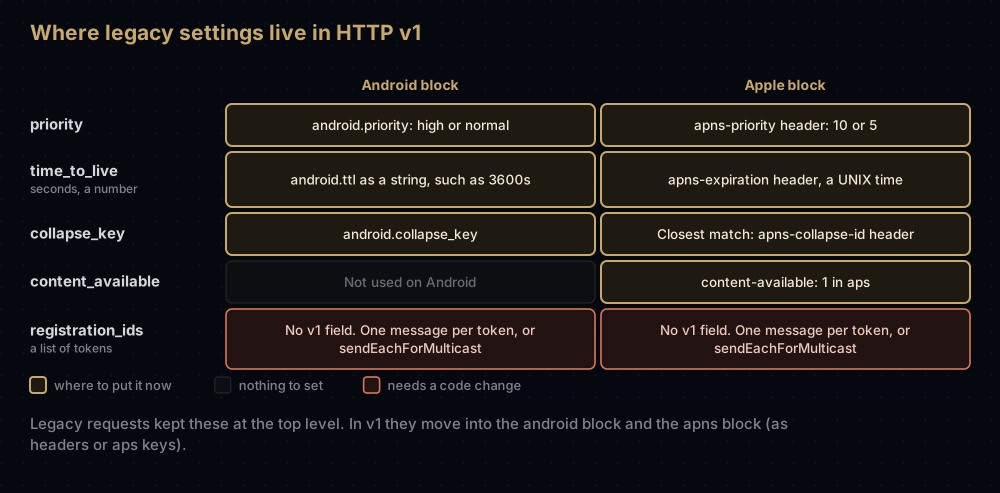
| Legacy field | HTTP v1 |
|---|---|
to with a device token | message.token, or message.fid |
to with /topics/news | message.topic set to news. v1 says not to include the /topics/ prefix |
condition | message.condition |
registration_ids | No equivalent. One message per target, or sendEachForMulticast() in the Admin SDK |
notification | message.notification for title, body and image. Platform extras go in android.notification or apns.payload.aps |
data | message.data. Every value must be a string |
priority | android.priority (normal or high), and apns-priority in apns.headers (the legacy docs mapped normal and high to APNs 5 and 10) |
time_to_live (seconds, a number) | android.ttl as a duration string such as "3600s". For Apple, apns-expiration in apns.headers, which is an absolute UNIX time |
collapse_key | android.collapse_key. For Apple devices, the closest header is apns-collapse-id in apns.headers |
content_available | "content-available": 1 inside apns.payload.aps |
mutable_content | "mutable-content": 1 inside apns.payload.aps |
notification.click_action | android.notification.click_action |
restricted_package_name | android.restricted_package_name |
dry_run | validate_only, beside message |
Two v1 defaults matter for Apple devices. If you set nothing, FCM uses an apns-expiration of 30 days and an apns-priority of 10. And a data-only message for Apple devices is accepted only with apns-priority set to 5; APNs explained covers what those headers mean on Apple's side.
Error names, old and new
| Legacy error | HTTP v1 error | What to do |
|---|---|---|
NotRegistered | UNREGISTERED (404) | Delete the token |
InvalidRegistration | INVALID_ARGUMENT (400) | Check the token was stored whole |
MismatchSenderId | SENDER_ID_MISMATCH (403) | The token belongs to another Firebase project |
InvalidApnsCredential | THIRD_PARTY_AUTH_ERROR (401) | Fix the APNs key or certificate in Firebase |
The Admin SDK's version 11 source maps each legacy name and its v1 partner to the same client error, except InvalidRegistration, which Firebase's error-code page now files under INVALID_ARGUMENT.
The migration checklist
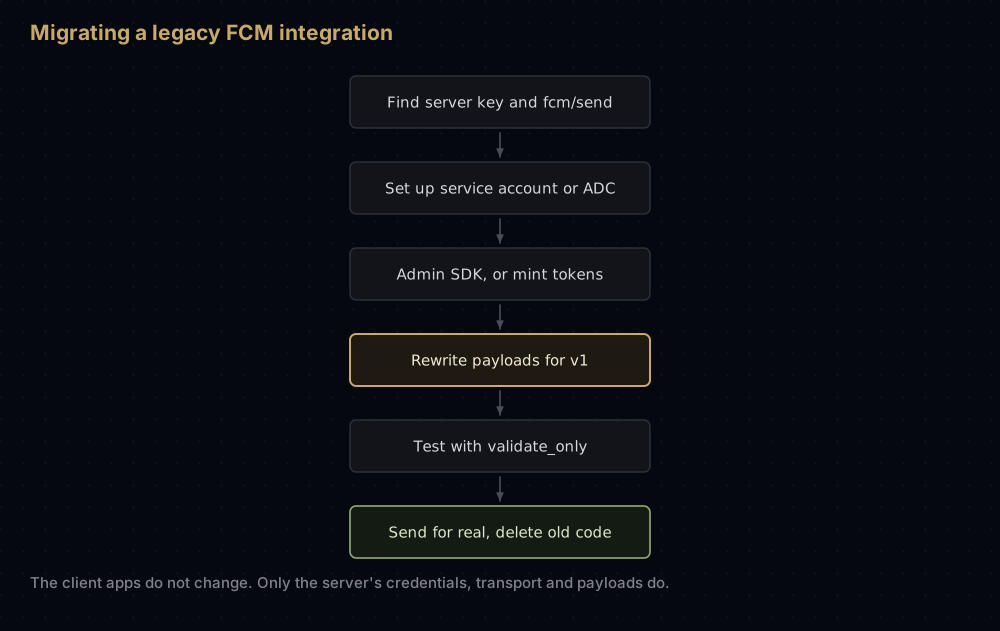
- Find the old calls. Search your code, cloud functions and third-party dashboards for
fcm/send, the server key string, and settings named "server key" or "legacy". - Set up credentials. Generate a service account key, or confirm your Google Cloud runtime's default service account will be used.
- Check the project. The FCM API (V1) enabled, the project ID to hand, IAM roles granted if you send across projects.
- Replace the transport. Move to the Admin SDK, or add token minting with a Google auth library.
- Rewrite each payload. One target per message, string-only data, platform blocks for priority, lifetime and collapsing.
- Replace lists of tokens with
sendEach()orsendEachForMulticast(), or with topics. - Update error handling to the v1 names above, and keep deleting tokens that come back
UNREGISTERED. - Test with
validate_only, then with real sends to an Android and an Apple device. - Remove the legacy code and the stored server key.
Common mistakes
- Shipping the service account JSON inside an app. It is a server credential. Anyone who extracts it can send as your project.
- Using the Sender ID in the URL. The path needs the project ID.
- Numbers in
data. v1 rejects them withINVALID_ARGUMENT; Firebase's own example error reads "Invalid value at 'message.data[0].value' (TYPE_STRING), 12". - Putting two targets in one message.
token,topicandconditionare mutually exclusive. - Setting
ttlas a number in raw JSON. The REST API wants a string ending ins. (The Node Admin SDK takes milliseconds and converts them.) - Minting a new access token for every message. Reuse it until it nears expiry; the libraries do this for you.
- Following an old tutorial for
sendToDevice(). It no longer exists in the current Node.js Admin SDK.
Questions people ask
Where is the server key in the Firebase console?
It is gone with the legacy API it belonged to. Google deprecated that API in June 2023 and began shutting it down in July 2024. Use a service account key from the Service accounts tab instead.
Can I still use the legacy FCM API?
No. Its shutdown began on 22 July 2024. Every server needs to send through HTTP v1, directly or through an Admin SDK.
What do I use instead of the FCM server key?
A service account. Your server uses its private key to get short-lived OAuth 2.0 access tokens and sends each message with one.
Is the service account JSON file secret?
Yes. It contains a private key. Keep it on the server, in a secret store, and never in an app or a repository.
How long is an FCM access token valid?
As long as the token response's expires_in says. Google's example shows 3600 seconds. Auth libraries and the Admin SDK refresh it for you.
What is the difference between the Sender ID and the project ID?
The Sender ID is your project number, a numeric value. The project ID is the text identifier that goes in the v1 URL.
Can HTTP v1 send one message to many devices?
Not in a single request. Send one message per device, use the Admin SDK's sendEachForMulticast() (up to 500 per call), or send to a topic.
Do I need to update my mobile app for HTTP v1?
No. The change is on the server. Apps keep registering and receiving messages as before.
Sources
- Send a message using FCM HTTP v1 API, Firebase
- Send a message using the Firebase Admin SDK, Firebase
- HTTP v1 message reference, Firebase
- FCM error codes, Firebase
- Node.js Admin SDK release notes, Firebase
- Using OAuth 2.0 for server to server applications, Google
Firebase's own migration guide, which listed the legacy shutdown dates, no longer loads at its old address. The dates above come from an archived copy of that page, and the legacy field names from the Admin SDK's version 11 source.
Keep reading
- How push notifications work: what FCM does with the message after you send it.
- google-services.json and GoogleService-Info.plist: the app-side config files, and why they are not secret.
- APNs auth key (.p8): the Apple credential FCM needs before iPhones receive anything.
- APNs explained: what the
apnsblock turns into on Apple's side.