An APNs auth key is a .p8 file from Apple's developer portal that lets a server, or a service like Firebase, send push notifications to your apps. You create it once under Keys, download it once, and pair it with two short codes: the key's Key ID and your Team ID. Upload all three to Firebase and iPhones can receive your notifications.
The key does not expire. It works until someone revokes it, which makes it far less work than the yearly push certificates it replaced. The price of that convenience is that Apple lets you download the file only one time, so where you keep it matters.
This guide walks through choosing the right kind of key, creating it, checking the file, adding it to Firebase and OneSignal, and replacing it later without a gap in delivery.
What the key is, in plain words
Think of the .p8 as a rubber stamp that only you hold. When you create the key, Apple keeps a copy of the stamp's imprint (the public half). Your server then stamps a small token every so often, and Apple checks the imprint before accepting any notification.
That is why nothing else is needed: no certificate, no password, no renewal. It is also why the file is precious. Anyone holding it can stamp tokens for your team's apps until you revoke the key.
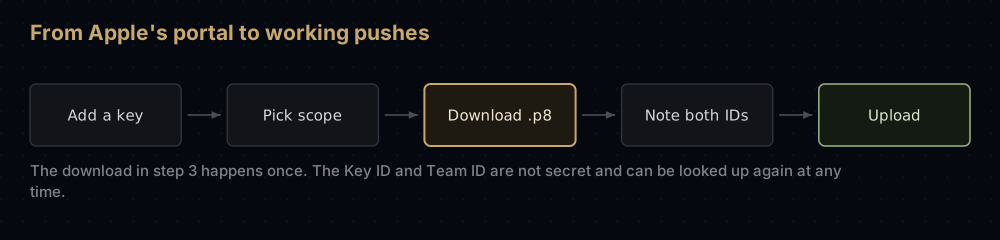
You will work with three values, and only one of them is secret:
| Value | Looks like | Secret? | Where to find it |
|---|---|---|---|
The .p8 file | A text file starting -----BEGIN PRIVATE KEY----- | Yes | Your Downloads folder, once |
| Key ID | 10 characters, such as ABC123DEFG | No | Under the key's name in Keys |
| Team ID | 10 characters, such as A1B2C3D4E5 | No | Your account's Membership details |
The Key ID and Team ID are the same length and easy to swap by mistake. Label them when you copy them.
If you are still weighing a key against a certificate, p8 vs p12 compares the two file types side by side.
Before you start
- The right role. Apple's help pages list Account Holder or Admin as the roles that can create keys.
- Push enabled for the app. The App ID needs the Push Notifications capability, and so does the Xcode target. Firebase's Flutter guide also asks you to turn on the Background fetch and Remote notifications background modes in Xcode.
- A decision about scope. Since February 2025 the portal asks what the key covers. Decide that first; the next section helps.
Choose the kind of key
Apple now offers two kinds of APNs key. Keys created before the change keep working as they always did: every app in the team, in both environments.
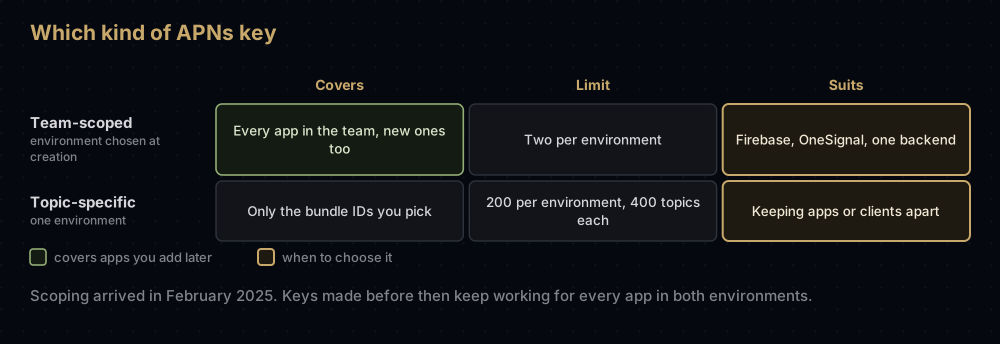
| Team-scoped | Topic-specific | |
|---|---|---|
| Covers | Every app in the team, including apps you add later | Only the bundle IDs you pick, up to 400 per key |
| Environment | Chosen when you create it | One environment per key |
| How many | Two per environment | 200 per environment |
| Extra | None | Can have one related key in the same environment |
| Good for | Firebase, OneSignal, one backend for all your apps | Keeping one app's or one client's credential separate |
Apple's documentation is not fully consistent about environments, so it is worth knowing what each page says:
- Apple's APNs reference describes team-scoped keys as limited to either Sandbox or Production, and recommends separate keys per environment.
- Apple's account help page only says to "choose the environment configuration".
- OneSignal's setup guide shows a Sandbox & Production choice on that screen and requires it.
In practice: if a service needs one key for both environments, pick that option. If you run your own backend, Apple's advice is one key per environment.
One more constraint to plan around: an APNs connection cannot mix kinds. If the first push on a connection used a team-scoped key, a topic-specific key or a key from the other environment on that same connection fails. Senders that use several keys need a connection per key.
Create the key, step by step
These steps follow Apple's help page for creating a private key. Screen names can move, so if a label differs, look for the same idea nearby.
- Open Certificates, Identifiers & Profiles and choose Keys in the sidebar.
- Click the add button (+).
- Enter a Key Name. It must be unique in your account; something like "APNs production, Firebase" saves guesswork later.
- Tick the APNs checkbox, then click Configure next to "Apple Push Notification service".
- Choose the environment configuration and the key type: Team Scoped or Topic Specific. For a topic-specific key, select the bundle IDs it should cover.
- Click Continue, review the configuration, and click Confirm.
- Click Download. The file lands in your Downloads folder with a
.p8extension. - Click Done.
Apple's warning is blunt: the key is not saved in your developer account, and you will not be able to download it again. If you skip the download in step 7, the key's page keeps a Download button for later, but it works once. A greyed-out Download button means someone already took the file.
To create a related key for a topic-specific key, open the key, click Edit next to "Apple Push Notification service", then Create Related Key, and choose its environment.
Store it before you do anything else
Move the file out of Downloads straight away, into a password manager or your cloud provider's secret store. Record the Key ID next to it. Never commit it to a repository, and never paste it into a chat or a ticket.
Check the file
A valid APNs key is an elliptic-curve key on the P-256 curve. This prints the key's size and curve without printing the secret:
openssl pkey -in apns-key.p8 -noout -text | grep -E "Private-Key|NIST CURVE"A healthy key prints exactly this:
Private-Key: (256 bit)
NIST CURVE: P-256
If OpenSSL cannot read the file, check that it arrived intact, including its first and last lines. Converting it for other tools is covered in converting signing files.
Add the key to Firebase
Firebase Cloud Messaging forwards every message for an Apple device to APNs, and it signs those requests with your key. Without the key, Android devices get notifications and iPhones get nothing.
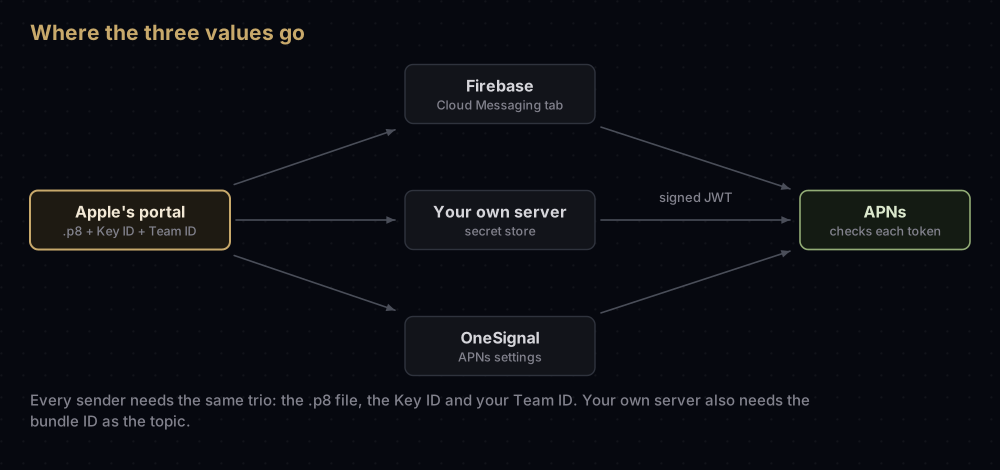
- In the Firebase console, open the project's Settings (the General page) and select the Cloud Messaging tab.
- Under iOS app configuration, find APNs authentication key.
- Click Upload for the development key, the production key, or both. Firebase requires at least one.
- Choose the
.p8file, enter the Key ID and your Team ID, and confirm.
Match each slot to the environment the key was made for. Builds run from Xcode use the development (sandbox) environment; TestFlight and App Store builds use production.
Firebase's page layout changes from time to time. If the tab has moved, search the console for "Cloud Messaging" inside project settings.
Flutter apps
The same upload applies. Two extra points from Firebase's Flutter guide:
- The Firebase SDK on iOS needs the APNs token before it can make FCM calls (from iOS SDK 10.4.0). Check with
getAPNSToken()before calling other messaging methods. - The plugin relies on method swizzling, the SDK's automatic hook into your app delegate, so leave it switched on.
final messaging = FirebaseMessaging.instance;
await messaging.requestPermission();

final apnsToken = await messaging.getAPNSToken();
if (apnsToken != null) {
  final fcmToken = await messaging.getToken();
  // Send fcmToken to your server.
}
Other places that ask for the key
OneSignal. Its APNs settings ask for the .p8 file, the Key ID, the Team ID and the app's bundle ID. OneSignal's guide says it needs a team-scoped key that works in both Sandbox and Production, and that it rejects single-environment keys when you save. If you want separate environments there, OneSignal suggests separate OneSignal apps.
Your own server. It needs the same three values plus the bundle ID (the apns-topic) and the right host for each environment. It turns the key into a signed token and sends it with every request. APNs explained shows the token format and a tested example.
App Store Connect is different. The .p8 that CI tools use to upload builds is an App Store Connect API key, made in a different place, with an Issuer ID. It is not an APNs key. See the App Store Connect API key.
Rotate the key without a gap
Rotation means moving every sender to a new key, then retiring the old one. Apple's account help page gives this order for a key you suspect is compromised: create a new key, move to it, and only then revoke the old one. The same order suits a planned rotation.
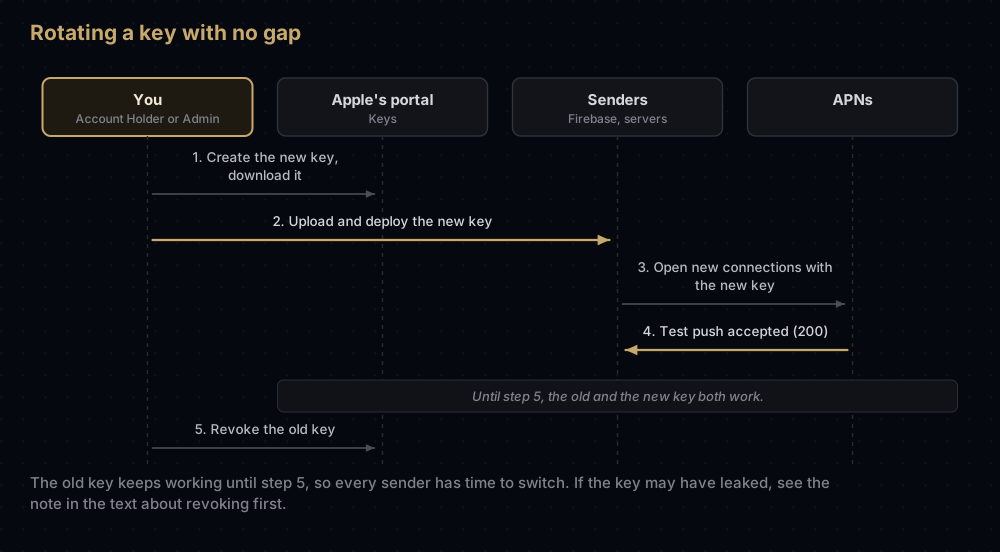
- Check you have a free slot. Team-scoped keys are limited to two per environment. If both are in use, retire the one nothing depends on first.
- Create the new key with the same scope and environment as the old one, and download it.
- Deploy it everywhere the old key lives. Upload it in Firebase's Cloud Messaging tab, update OneSignal, and update each server's secret store.
- Reconnect your own servers. APNs ties a connection to the first key it sees, and a token from an unrelated key on that connection returns
UnrelatedKeyIdInToken. Open fresh connections for the new key. - Send a test push to a sandbox and a production device, if you use both.
- Revoke the old key under Keys: select it, click Revoke, and confirm. Revoking makes it invalid for every service that used it.
If the key may have leaked, Apple's two pages disagree on the order. The account help page gives the order above. The APNs reference says to revoke a suspect key, request a new one, and close all existing HTTP/2 connections before sending again. The more certain you are that someone else holds the key, the stronger the case for revoking first and accepting a short gap.
If you have simply lost the file, you cannot download it again. Follow the rotation steps above; the old key keeps working until you revoke it, so there is no rush beyond making sure nobody else holds it.
Why it fails
| Symptom | Likely cause |
|---|---|
APNs returns 403 InvalidProviderToken | Key ID or Team ID wrong or swapped, the wrong .p8, or a revoked key. Apple's description is "not valid, or the token signature can't be verified" |
403 BadEnvironmentKeyIdInToken | A single-environment key used against the other environment's host |
403 ExpiredProviderToken | Your server reused one token for more than an hour |
429 TooManyProviderTokenUpdates | Your server makes a new token more than once every 20 minutes |
403 UnrelatedKeyIdInToken | Two keys used on one connection, often mid-rotation |
Firebase returns THIRD_PARTY_AUTH_ERROR (401) | Firebase's APNs credential is invalid or missing |
| Android works, iPhones get nothing | No key uploaded to Firebase, or the Push Notifications capability is missing in Xcode |
| Works from Xcode, not from TestFlight | Often only a development (sandbox) key is uploaded, while TestFlight builds use production |
Common mistakes
- Not downloading the key, or losing the download. There is no second chance. Store it the moment it arrives.
- Swapping the Key ID and the Team ID. Both are 10 characters.
- Confusing key types. An App Store Connect API key or a Sign in with Apple key will not authenticate pushes. The key must have APNs enabled.
- Revoking the old key before the new one is live. Every sender still using it stops working.
- Forgetting what a topic-specific key covers. It works only for the bundle IDs chosen for it, so a new app needs a key that includes it.
- Committing the
.p8. Treat a leaked key as compromised: revoke it and create a new one. - Keeping a yearly certificate out of habit. Keys do not expire. If you still run a certificate, see the renewal guide for moving off it.
Questions people ask
Does an APNs auth key expire?
No. Apple's help page says the signing key does not expire, but it can be revoked. The tokens your server makes from it last at most an hour each, which is a different thing.
Can I download my .p8 key again?
No. Apple lets you download a key once. If it is lost, create a new key, deploy it, and revoke the old one.
Can one APNs key be used for multiple apps?
Yes. A team-scoped key covers every app in your team, including ones you add later. A topic-specific key covers the bundle IDs you choose, up to 400.
How many APNs keys can I create?
Two team-scoped keys per environment, and up to 200 topic-specific keys per environment.
Where do I find my APNs Key ID and Team ID?
The Key ID appears under the key's name when you select it in Keys. The Team ID is in your developer account's membership details.
Is the Key ID secret?
No. The Key ID and Team ID identify the key; only the .p8 file must be kept private.
Should I use an APNs key or a certificate with Firebase?
A key. Firebase's current setup guides describe only the key, and a key does not need renewing. Firebase still accepts a certificate if you already have one.
Do I need separate keys for development and production?
Apple recommends environment-specific keys. Firebase has a slot for each. OneSignal, by contrast, needs one key that covers both.
Sources
- Create a private key to access a service, Apple
- Revoke, edit, and download keys, Apple
- Communicate with APNs using authentication tokens, Apple
- Establishing a token-based connection to APNs, Apple
- Get started with FCM on Apple platforms and on Flutter, Firebase
- iOS p8 token-based connection to APNs, OneSignal
Keep reading
- APNs explained: what your server does with the key on every request.
- How push notifications work: where the key sits in the full journey.
- APNs certificate expired?: moving an old certificate setup to this key.
- p8 vs p12: the key file compared with the certificate bundle.
- VoIP push on iOS: the same key sends call pushes too.