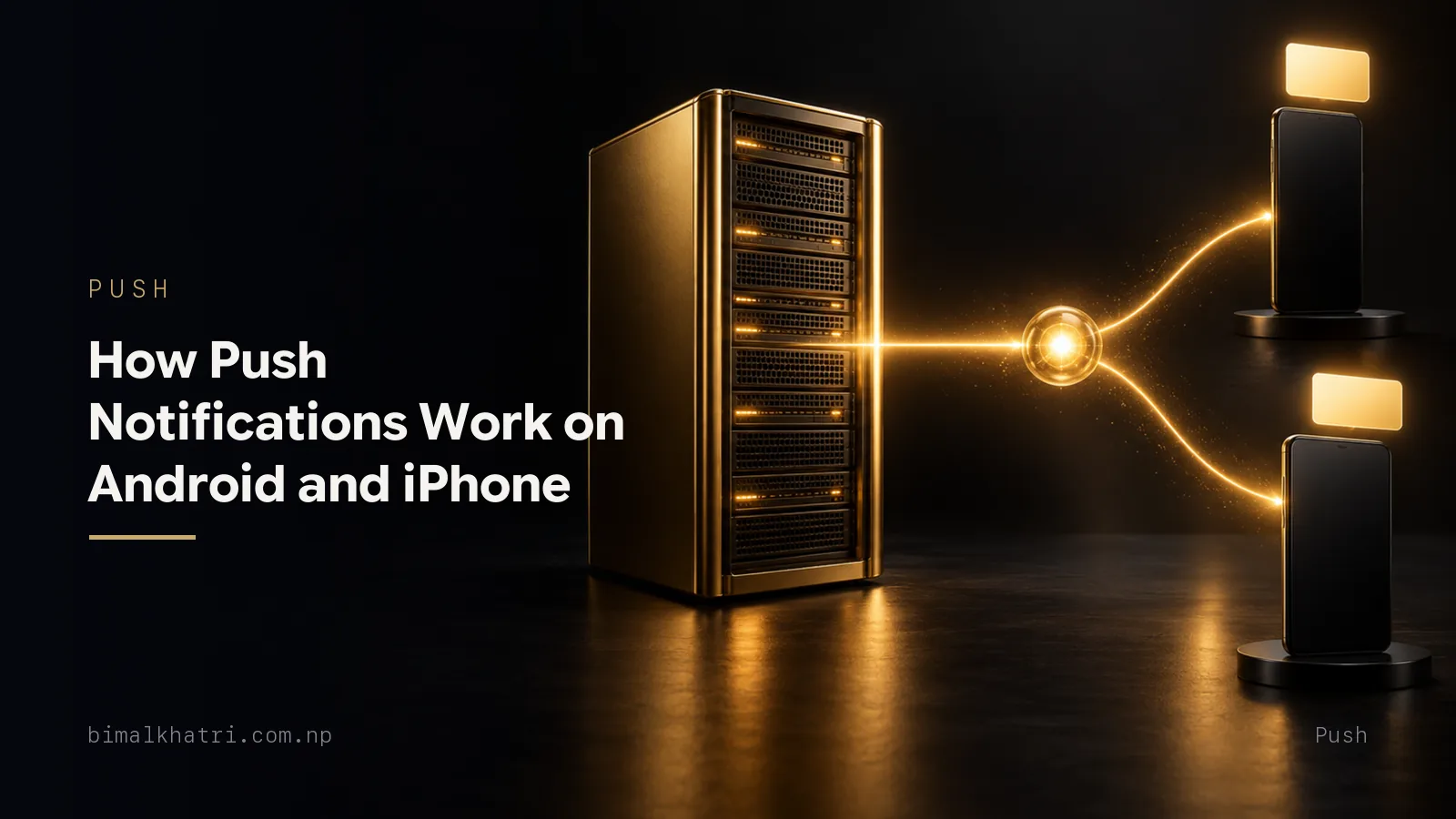
A push notification starts on the app's server, not on your phone. The server hands the message to Firebase Cloud Messaging (FCM), Google's free delivery service. On an Android phone, FCM delivers it through Google Play services. On an iPhone, FCM passes it to Apple's own delivery service, APNs, and Apple delivers it.
That is why an app can tell you "your order has shipped" while it is closed. It is not running in the background, checking for news. The phone keeps a connection open to Google or Apple, and the message arrives down that connection.
The first half of this post explains the journey in everyday terms, with diagrams. The second half is for developers: addresses, message types, priorities, and the places a notification quietly disappears.
The whole journey in one picture
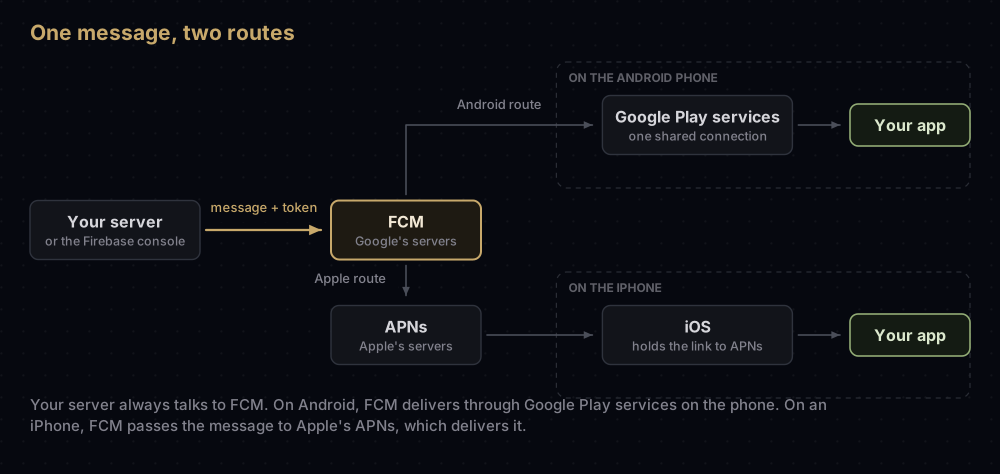
These are the parts involved. A notification for an Android phone passes through four of them, and so does one for an iPhone:
| Part | Who runs it | Its job |
|---|---|---|
| The app's server | The app's developer | Decides who gets which message, and when |
| FCM | Accepts the message and works out where the phone is | |
| Google Play services | Google, on Android phones | Keeps a connection to Google open and hands messages to apps |
| APNs | Apple | Apple's delivery service, and the only way to push to an Apple device |
| The app | The app's developer | Shows the notification, or reacts to the data inside it |
The key idea is that the server only ever talks to FCM. It does not need to know whether a person has an Android phone or an iPhone. FCM picks the route.
On an iPhone, FCM is a middleman. Apple does not let anyone else deliver to its devices, so every message for an Apple device goes through APNs in the end. FCM's job there is to translate and forward. That is why developers who use Firebase still have to set something up with Apple, which we will come to.
The post office version
If the diagram feels abstract, think of posting a letter.
- The app's server is the person writing the letter.
- FCM is the sorting office. Every letter goes there first.
- The address on the envelope is a long code that identifies one app on one phone. Developers call it a token.
- Google Play services and APNs are the local delivery vans. Android letters go in Google's van. iPhone letters are handed to Apple's van, because Apple only lets its own vans onto its streets.
- Your notification setting is the letterbox. If you have turned notifications off for an app, letters can still arrive, but nothing appears on your screen.
The analogy breaks in one useful place. When a letter is sent to someone who has moved away (the app was uninstalled), the sorting office does not quietly bin it. It tells the sender that the address no longer works, so a well-run app deletes it.
Why apps do not just check for messages themselves
Battery. If every app on a phone kept its own connection open to its own server, the radio would never rest.
Android's documentation is direct about this: FCM provides a single, persistent connection to the cloud, and all apps that need real-time messages can share it, which saves a great deal of battery. On an iPhone, Apple keeps its own persistent, encrypted connection between APNs and the device, so an app never needs one of its own.
It is also why a dozing Android phone can still wake for an urgent message: the system owns the connection, so it decides what is important enough to wake for.
Step 1: the app gets an address
Before anyone can send a message to your phone, the app has to find out its own address and tell its server.
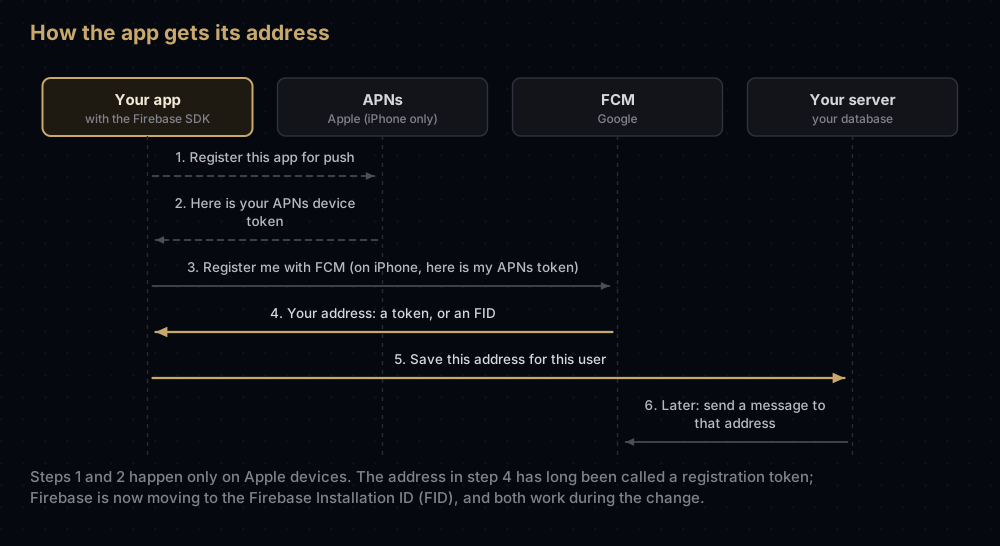
On Android, Google Play services handles the registration without the app's code seeing the details. On an iPhone, there is an extra step at the start: the app first gets an APNs device token from Apple, and the Firebase SDK hands that to FCM. By default the SDK does this automatically, by quietly hooking into the part of the app that receives Apple's token.
For years the address FCM returns has been called a registration token. In 2026 Firebase began moving to a new kind of address, the Firebase Installation ID (FID). Both are supported during the change, so older tutorials that say "token" are not wrong, just no longer the whole story.
The address changes when:
- the app is restored onto a new phone
- the app is uninstalled and installed again
- the user clears the app's data
So a well-built app sends its current address to its server every time it starts, and the server keeps the newest one. Firebase recommends storing a timestamp next to each address, updated every time the app reports in. On Android, FCM treats an address that has not connected for 270 days as expired and deletes it. It counts an installation that has not connected for a month as stale, which is a good signal to stop sending to it.
Step 2: the server sends a message
A developer can send a message from the Firebase console by hand, but most apps send them from their own server. That server calls FCM's HTTP v1 API:
POST https://fcm.googleapis.com/v1/projects/YOUR_PROJECT_ID/messages:send
Authorization: Bearer SHORT_LIVED_ACCESS_TOKEN
The access token is made from a service account, a Google Cloud identity with its own private key. The Firebase Admin SDKs create it for you. The old "server key" that many tutorials still mention belonged to the legacy API, which Google began shutting down in July 2024.
The message itself is JSON. One message can carry settings for both platforms, and FCM uses the block that matches the phone:
{
  "message": {
    "token": "THE_DEVICE_ADDRESS",
    "notification": {
      "title": "Your order has shipped",
      "body": "It should arrive on Thursday."
    },
    "data": {
      "orderId": "A1042"
    },
    "android": {
      "priority": "high",
      "notification": { "channel_id": "orders" }
    },
    "apns": {
      "headers": { "apns-priority": "10" },
      "payload": { "aps": { "sound": "default" } }
    }
  }
}
A message can be aimed at one of four targets:
| Target | Field | Reaches |
|---|---|---|
| One app on one phone | token, or the newer fid | Exactly that installation |
| A topic | topic | Every installation subscribed to it, such as football-scores |
| A condition | condition | Combinations of up to five topics, such as "news and not sport" |
| Many phones at once | Admin SDK sendEach or sendEachForMulticast | Up to 500 messages or addresses per call |
A few limits worth knowing before you design around them:
- A message can carry up to 4,096 bytes. Messages sent to a topic are limited to 2,048 bytes.
- One installation can subscribe to up to 2,000 topics.
- Topic messages are built for throughput, not speed. A big topic can take a while to reach everyone.
- The default quota is 600,000 messages per minute per project, which Firebase says covers more than 99% of apps.
- FCM itself costs nothing. Whatever you use to send messages (a server, Cloud Functions) is billed as usual.
Step 3a: delivery on Android
FCM hands the message to Google Play services on the phone, which passes it to the app. This only works on phones with the Google Play Store installed. Firebase's Android setup guide asks for Android 6.0 or newer with the Play Store app. Phones sold without Google's apps, such as recent Huawei models, cannot receive FCM at all.
Priority decides how urgently the phone reacts:
| Priority | What happens |
|---|---|
| Normal | Delivered straight away if the phone is awake. If it is dozing, delivery can wait |
| High | FCM may wake a sleeping phone and let the app do a little work |
High priority is for messages that lead to something the user sees. FCM watches each installation's behaviour over about a week. If high-priority messages keep failing to produce a visible notification, or the user has turned notifications off, FCM can quietly lower them to normal. Firebase's own documents disagree about which priority is the default, so set it explicitly.
When the phone is offline, FCM keeps the message for its time to live: up to 28 days, and 4 weeks unless you set otherwise. A time to live of zero means "now or never". Android phones can hold up to 100 waiting messages per app. If more pile up, FCM throws away all of them and tells the app, through onDeletedMessages, that it missed some. Messages that replace each other (a "collapse key", such as "latest score") avoid that problem, with a limit of four different keys per phone.
The user has a say too. Since Android 13, apps must ask for notification permission, and notifications are off by default for newly installed apps. If the user force-stops an app from Settings, Android stops delivering its messages until the user opens it again.
Every Android notification belongs to a channel, which users can mute separately. If the app does not name one, FCM uses a default channel with basic settings, which appears to users as "Miscellaneous". Apps usually create their own channels, such as "Orders" or "Messages", so people can choose what to hear.
Step 3b: delivery on iPhone
FCM sends every message for an Apple device through APNs. For that to work, the developer uploads an APNs authentication key (a .p8 file from Apple's developer portal) into the Firebase console, together with its Key ID and the Apple Team ID. Without it, FCM has no permission to talk to Apple on the app's behalf, and nothing arrives on any iPhone.
The iPhone then applies Apple's rules:
- Permission comes first. The app has to ask, and the user sees Apple's "would like to send you notifications" prompt. Apps can also ask for provisional permission, which skips the prompt and delivers quietly to Notification Centre until the user decides.
- When the app is open, nothing appears by default. The app's code decides whether to show a banner.
- Data-only messages become silent pushes. A message with no visible notification has to be sent as a background update (
content-available: 1, withapns-priorityset to5). Apple treats these as low priority, does not guarantee them, may hold them back, and advises sending no more than two or three an hour. FCM rejects a data-only message for Apple devices sent at high priority. - Swiping an app away matters. If the user force-quits an app, iOS will not launch it for a silent push until the user opens it again. Visible notifications still appear.
- Offline phones get the latest one. APNs stores a message for an offline device, but only one per app, so an older waiting message is replaced by a newer one. FCM asks APNs to keep it for 30 days unless the message says otherwise.
- Pictures need extra work. Showing an image in an iPhone notification needs a Notification Service Extension in the app, and the message must say
mutable-content: 1. On Android, the Firebase SDK shows the image from the message itself when it draws the notification.
Notification messages and data messages
FCM messages come in two flavours, and they behave very differently depending on the platform and whether the app is open.
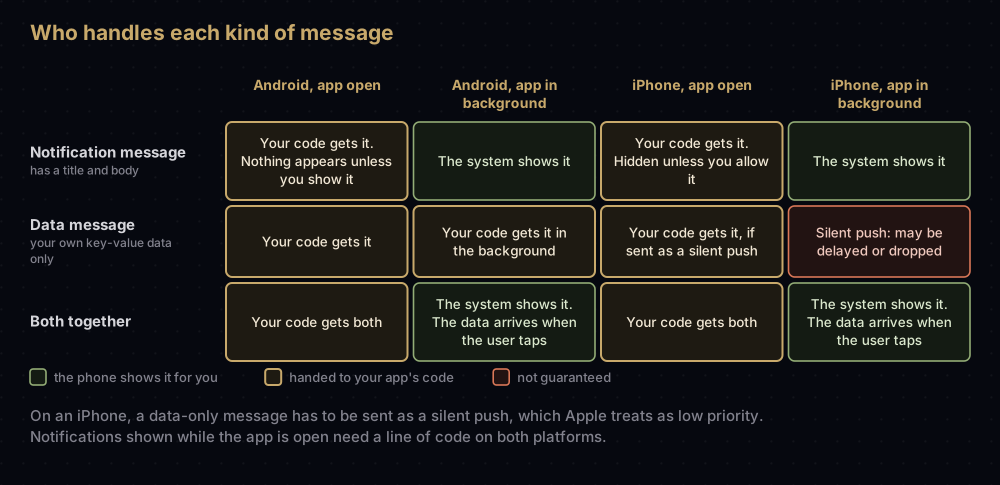
- A notification message has a title and body. When the app is in the background, the phone shows it without running any of the app's code. This is the reliable choice for anything a person should see.
- A data message carries only the app's own key-value pairs. The app's code decides what to do with it. It suits things like "refresh the inbox", but on an iPhone it is the unreliable choice.
- A message can carry both. In the background, the system shows the notification, and the app receives the data when the user taps it.
On Android, Firebase documents exactly where each one goes:
| App state | Notification message | Data message | Both |
|---|---|---|---|
| Open | onMessageReceived | onMessageReceived | onMessageReceived |
| In the background | System tray | onMessageReceived | System tray; data arrives with the tap |
Android and iPhone side by side
| Android | iPhone | |
|---|---|---|
| Who delivers the message | Google Play services | APNs |
| Setup the developer does with the platform | Add the app to the Firebase project | Upload an APNs key to Firebase, and turn on Push Notifications in Xcode |
| Permission prompt | Since Android 13 | Always |
| Notification while the app is open | Not shown unless the app shows it | Not shown unless the app allows it |
| Data-only messages in the background | Delivered to the app's code | Silent push, not guaranteed |
| Waiting while offline | Up to 28 days, 100 messages | Latest message only |
| After a force stop (Android, from Settings) or force quit (iPhone, app switcher) | Nothing arrives until the app is reopened | Silent pushes stop until the app is reopened |
| Works without Google Play | No | Not needed |
| Images | Shown by the SDK | Needs a Notification Service Extension |
Where a message can get lost
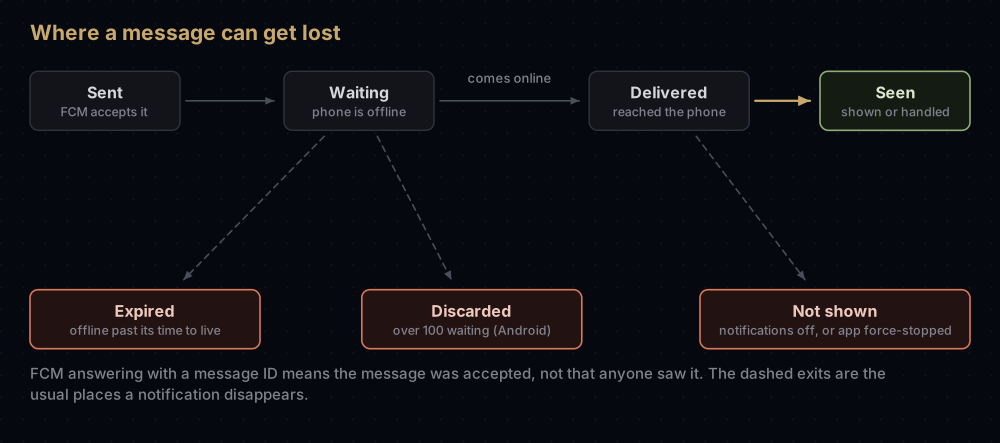
When FCM answers a send request with a message ID, that means accepted for delivery, nothing more. Apple calls APNs a best-effort service, and FCM is not meant for anything life-critical. Messages can arrive out of order, too.
To see what actually happened, Firebase offers three views:
- Reports in the Firebase console (needs Google Analytics) show sends and opens for every platform, plus receipts and impressions for Android. They can lag by up to a day.
- Aggregated delivery data, through the FCM Data API, covers Android only and explains drops, such as "too many pending messages" or "device inactive".
- BigQuery export sends message data to BigQuery for deeper digging, on every platform.
For Flutter developers
The firebase_messaging plugin wraps all of the above. The four entry points map to the app states:
| Handler | Runs when |
|---|---|
FirebaseMessaging.onMessage | A message arrives while the app is open |
FirebaseMessaging.onBackgroundMessage | A message arrives while the app is in the background |
FirebaseMessaging.onMessageOpenedApp | The user taps a notification and the app comes back from the background |
getInitialMessage() | The user taps a notification and the app starts from closed |
The background handler must be a top-level function, not a method or a closure, and needs an annotation so release builds keep it:
@pragma('vm:entry-point')
Future<void> onBackgroundMessage(RemoteMessage message) async {
  // Only needed if this handler uses other Firebase services, such as Firestore.
  await Firebase.initializeApp();
  // Keep the work short: the system may stop long-running tasks.
}

Future<void> main() async {
  WidgetsFlutterBinding.ensureInitialized();
  await Firebase.initializeApp();
  FirebaseMessaging.onBackgroundMessage(onBackgroundMessage);
  runApp(const MyApp());
}
Two defaults surprise almost everyone. Notifications that arrive while the app is open are not shown on either platform. On iOS, setForegroundNotificationPresentationOptions turns banners, badges and sounds on. On Android, the Firebase docs ask for a high-importance notification channel, and the plugin's own example app shows the notification itself using flutter_local_notifications.
The plugin relies on the iOS setup hooking that the Firebase SDK does by default, so leave it switched on in Flutter apps.
Common mistakes
- Testing data-only messages on an iPhone and expecting every one to arrive. They are silent pushes. Use a notification message for anything a person must see.
- Sending a data-only message to Apple devices at high priority. FCM rejects it. Set
apns-priorityto5. - Forgetting the APNs key in Firebase. Android works, iPhones get nothing, and nothing in the app explains why.
- Not asking for permission on Android 13 and later. The messages arrive, but nothing is shown.
- Expecting notifications to appear while the app is open. On both platforms, that takes code.
- Keeping dead addresses. When FCM returns
UNREGISTERED, delete that address. Sending to stale addresses wastes quota and muddies your delivery numbers. - Following a tutorial that asks for the server key. That was the legacy API. Use HTTP v1 with a service account, or an Admin SDK.
- Force-stopping or swiping away the app while testing. It changes what gets delivered, and makes a working setup look broken.
- Using push for alerts that must never be missed. Neither FCM nor APNs promises delivery.
Questions people ask
Is Firebase Cloud Messaging free?
Yes. Firebase lists Cloud Messaging as a no-cost product on every plan. You still pay for whatever sends the messages, such as your server or Cloud Functions.
Do iPhones use FCM or APNs?
Both, in a chain. Your server sends to FCM, and FCM sends every Apple message through APNs. Only Apple can deliver to an Apple device.
Can FCM work without Google Play services?
No. Firebase's Android setup requires a device with the Google Play Store app. Phones sold without Google's apps need a different push service.
Why don't notifications show when the app is open?
Because both platforms leave that decision to the app. On iOS, the app has to allow foreground presentation. On Android, the app has to build and show the notification itself.
Why are my data messages not arriving on iPhone?
On an iPhone, a data-only message is a silent background push. Apple treats it as low priority, may hold it back, and will not launch an app the user has force-quit. Send a notification message when a person needs to see something.
How long does FCM keep a message for a phone that is offline?
On Android, up to 28 days, and 4 weeks by default, set by the message's time to live. For iPhones, APNs keeps only the most recent message per app, for as long as the message's expiry allows. FCM sets that to 30 days unless you change it.
Does a message ID mean the notification was delivered?
No. It means FCM accepted the message. Delivery and display depend on the phone being reachable, the user's settings and the platform's rules.
What replaced the FCM server key?
The HTTP v1 API, which uses short-lived access tokens made from a Google Cloud service account. The legacy API that used server keys was retired, with its shutdown starting in July 2024.
What is the difference between an FCM token and a Firebase Installation ID?
Both identify one app on one phone. The registration token is the long-standing kind. Firebase is moving to the Firebase Installation ID, and both work while the change happens.
Where this comes from
Everything above was checked against the platform owners' own documentation in September 2026:
- FCM architectural overview and managing registrations from Firebase
- Receiving messages on Android and message lifespan from Firebase
- Pushing background updates to your app from Apple
- Optimize for Doze and App Standby from Android Developers
- Understanding message delivery from Firebase
Keep reading
- APNs explained: Apple's side of the journey in more depth.
- Creating an APNs auth key and adding it to Firebase: the one-time setup that makes iPhone delivery work.
- Where the FCM server key went: moving an old integration to the HTTP v1 API.
- What google-services.json and GoogleService-Info.plist hold: the config files that connect an app to Firebase.
- App signing explained: the keys and certificates behind every app that receives a push.