
google-services.json (Android) and GoogleService-Info.plist (iPhone, iPad and Mac) are small configuration files that tell the Firebase SDKs which Firebase project and which registered app they belong to. They hold identifiers: the project ID, the project number, the app's Firebase App ID, an API key, and sometimes OAuth client IDs for Google sign-in.
They are not secrets in the way a password is. Firebase's own documentation says their content "is considered public", and a copy ships inside every build of your app. Your data is protected by Firebase Security Rules, App Check and API key restrictions, not by hiding these files. The file that is secret is a different one: a service account key, which belongs only on servers.
This guide covers what each file contains, where it goes in Android, iOS and Flutter projects, what "not secret" really means, and why the file changes when you add a SHA fingerprint.
What these files are, in plain words
Think of the file as the address printed on an envelope. It tells the Firebase libraries inside your app where to send things: which project, which app, which storage bucket. Anyone who holds a copy of your app can read that address, just as a postman can read an envelope.
An address does not open a door. Whether someone may read or write your database is decided on Google's side, by the rules you set. That is why Firebase can treat the file as public.
The analogy breaks in one place. The API key inside the file identifies your project when calling some Google APIs, and those calls count against your project's quota. So while the key does not grant access to data, it still deserves restrictions, which are covered below.
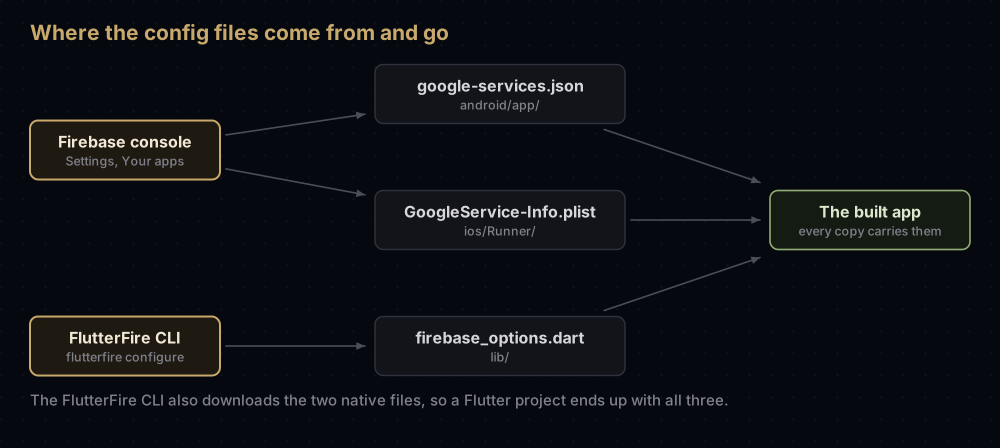
What is inside
The two native files hold the same kinds of value under different names. Flutter's generated firebase_options.dart holds them too, as Dart fields.
| Value | google-services.json | GoogleService-Info.plist | firebase_options.dart |
|---|---|---|---|
| Project ID | project_info.project_id | PROJECT_ID | projectId |
| Project number (the FCM Sender ID) | project_info.project_number | GCM_SENDER_ID | messagingSenderId |
| Firebase App ID | client_info.mobilesdk_app_id | GOOGLE_APP_ID | appId |
| API key | api_key.current_key | API_KEY | apiKey |
| Package name or bundle ID | client_info.android_client_info.package_name | BUNDLE_ID | iosBundleId (Apple only) |
| Storage bucket | project_info.storage_bucket | STORAGE_BUCKET | storageBucket |
| Realtime Database URL | project_info.firebase_url | DATABASE_URL | databaseURL |
| OAuth client IDs | oauth_client entries | CLIENT_ID, REVERSED_CLIENT_ID | androidClientId, iosClientId |
A few of those need a word of explanation:
- The Firebase App ID looks like
1:123456789012:android:0123456789abcdef. Firebase stresses that it is not your package name or bundle ID; it is Firebase's own identifier for the registered app. - The project number doubles as the FCM Sender ID. It is not the same as the project ID, which is the text name used in URLs.
- OAuth client IDs appear once Google sign-in is set up. On Android, the Gradle plugin turns the web client (the entry with
client_type3) into thedefault_web_client_idresource that sign-in code asks for. On Apple platforms,REVERSED_CLIENT_IDbecomes a URL scheme in Xcode.
What the Android file looks like
google-services.json has two top-level parts: project_info for the project, and a client array with one entry per Android app registered in the project. A trimmed example with placeholder values:
{
  "project_info": {
    "project_number": "123456789012",
    "project_id": "your-project-id"
  },
  "client": [
    {
      "client_info": {
        "mobilesdk_app_id": "1:123456789012:android:0123456789abcdef",
        "android_client_info": { "package_name": "com.example.app" }
      },
      "oauth_client": [
        { "client_id": "123456789012-example.apps.googleusercontent.com", "client_type": 3 }
      ],
      "api_key": [
        { "current_key": "AIzaSy-EXAMPLE-NOT-A-REAL-KEY" }
      ]
    }
  ]
}
Because every Android app in the project sits in that one array, a project with a debug and a release package name has both in the same file. The Google services Gradle plugin picks the entry whose package_name matches the app being built, and fails the build if none does.
The Apple file is a property list with one app's values. Each registered bundle ID gets its own GoogleService-Info.plist.
What Flutter generates
flutterfire configure writes lib/firebase_options.dart, a Dart class with one FirebaseOptions block per platform:
// lib/firebase_options.dart, trimmed. Generated by the FlutterFire CLI.
class DefaultFirebaseOptions {
  // `currentPlatform` (not shown) returns the block for the running platform.

  static const FirebaseOptions android = FirebaseOptions(
    apiKey: 'AIzaSy-EXAMPLE-NOT-A-REAL-KEY',
    appId: '1:123456789012:android:0123456789abcdef',
    messagingSenderId: '123456789012',
    projectId: 'your-project-id',
  );
}
The app passes DefaultFirebaseOptions.currentPlatform to Firebase.initializeApp(), and the generated code picks the right block.
Where each file goes
| Platform | File | Location |
|---|---|---|
| Android | google-services.json | The app module's root folder: app/ in a native project, android/app/ in Flutter |
| Android, per build type or flavour | google-services.json | For example app/src/release/ or app/src/release/free/ (plugin 2.2.0 and later) |
| iOS and macOS | GoogleService-Info.plist | The root of the Xcode project, added to all targets. FlutterFire writes it to ios/Runner/ (or macos/Runner/) |
| Flutter | firebase_options.dart | lib/ |
| Web | A config object, not a file | In your JavaScript |
Android
- In the Firebase console, register the app with its exact package name. Firebase warns that it is case-sensitive and cannot be changed after registration.
- Download
google-services.jsonand move it into the app module folder. Check the downloaded name has no extra characters such as(2). - Add the Google services Gradle plugin,
com.google.gms.google-services, to the project-level plugins block (withapply false) and apply it in the app module.
The plugin reads the file at build time and generates Android string resources from it, such as google_app_id, gcm_defaultSenderId, google_api_key and project_id. That is why the values end up inside the built APK or app bundle.
A separate file per build type lets debug and release builds talk to different Firebase projects. Google's plugin documentation describes this as the way to keep production in a project of its own.
iOS
- Register the app with its bundle ID.
- Download
GoogleService-Info.plistand move it into the root of the Xcode project. When Xcode asks, add it to all targets. - If the project has several bundle IDs (a separate staging app, for instance), register each one and give each its own plist.
Flutter
Install the FlutterFire CLI and run it from the project folder:
dart pub global activate flutterfire_cli
flutterfire configure
The command creates or matches a Firebase app for each platform you select, writes lib/firebase_options.dart, and, according to the FlutterFire CLI's own documentation, also writes android/app/google-services.json and ios/Runner/GoogleService-Info.plist. It records what it wrote in a firebase.json file, and flutterfire reconfigure rewrites everything later. Apple platforms can only be configured from a Mac.
Firebase asks you to run flutterfire configure again when you add a platform, or start using certain products, including Google sign-in, Crashlytics, Performance Monitoring and Realtime Database. The FlutterFire CLI's documentation also recommends keeping the native service files for Android and Apple rather than relying on Dart options alone.
To see the current values for any app without the CLI, the Firebase CLI prints them: firebase apps:sdkconfig ANDROID your-firebase-app-id (or IOS, or WEB).
Are they secret?
No, and Firebase says so plainly. Its setup pages call the contents "unique, but non-secret identifiers", and its project documentation says the whole config "is considered public", including the API key, project ID, database URL and storage bucket name.
What actually protects a Firebase app:
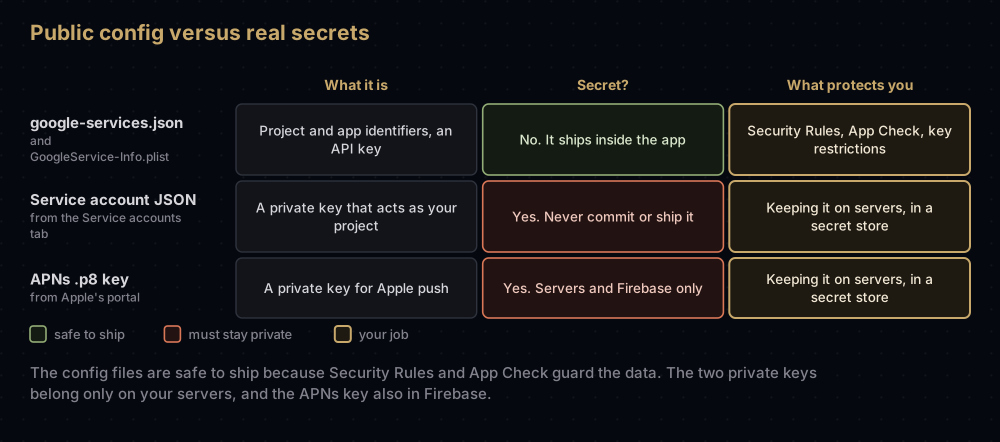
- Firebase Security Rules decide who may read and write Cloud Firestore, Realtime Database and Cloud Storage. Firebase is explicit that these, and not a hidden API key, secure that data.
- Firebase App Check checks that requests come from your authentic app, on an untampered device, using Play Integrity on Android and App Attest or DeviceCheck on Apple platforms (reCAPTCHA Enterprise is also available). Once you enforce it, requests without a valid attestation are rejected.
- API key restrictions limit what the key can be used for.
About the API key
Firebase's API keys page is the one to read if a code scanner or an email from Google Cloud has flagged your key. Its main points:
- Public by design. A Firebase API key identifies your project and app; it is not what authorises access. Firebase says none of the Firebase-related APIs use the key as authorisation.
- Restricted by default. Since May 2024, keys that Firebase creates are limited to Firebase-related APIs. During May 2024, Firebase also restricted the existing unrestricted keys it had created, to those APIs plus any the project already had enabled. They are named "Android key (auto created by Firebase)", "iOS key (auto created by Firebase)" and "Browser key (auto created by Firebase)".
- Keep other APIs off it. For Maps, Places or any other Google Cloud API, create a separate key with its own restrictions.
- Never the Gemini API. Firebase warns never to add the Gemini Developer API (the Generative Language API) to a publicly accessible key. The key for that must stay private.
- Watch password sign-in quotas. Someone holding your key can call Firebase Authentication's endpoints, so if you use email and password sign-in, Firebase suggests tightening the quota for
identitytoolkit.googleapis.comto match your real traffic.
If you remove APIs from a key's allowlist and start seeing API_KEY_SERVICE_BLOCKED or 403 errors, a Firebase service you use needs one of the APIs you removed.
Should the file go in git?
For a private app repository, committing it is fine: Firebase's API key page says its keys are OK to include in checked-in config files, and the file ships in the app anyway. For an open source project, Firebase recommends leaving it out, not for secrecy but because each person building the project should point it at their own Firebase project.
What must never go in git is a service account key, the JSON file from the Service accounts tab. It contains a private key and lets whoever holds it act as your project on Google's servers. Where the FCM server key went explains where that file belongs.
What changes when you add a SHA fingerprint
A SHA fingerprint is a short hash of the certificate that signed your Android app. Google services use it to recognise your app, which matters for Google sign-in and phone number sign-in. Fingerprints are safe to share.
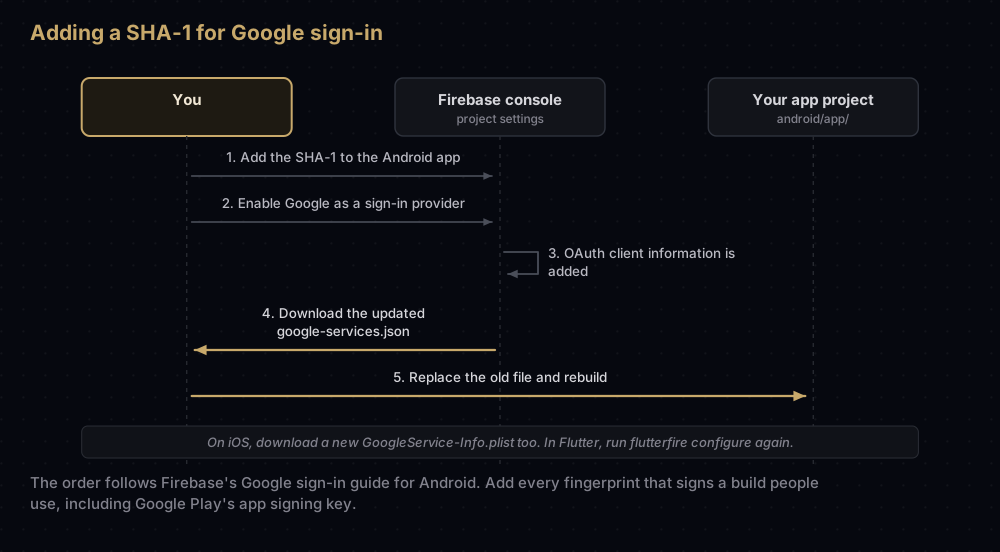
Firebase's Google sign-in guide for Android gives the order:
- Add your SHA-1 in the Firebase console: project Settings, General, the Your apps card, your Android app, then SHA certificate fingerprints.
- Enable Google as a sign-in provider under Authentication, in the Sign-in method tab.
- Download the updated
google-services.json, which Firebase says "now contains the OAuth client information required for Google sign-in", and replace the old file.
The same applies to other sign-in methods that rely on fingerprints. Phone number sign-in needs the SHA-1, and its Play Integrity check needs the SHA-256 as well. Firebase's launch checklist asks for the release SHA-1 before launch if you use phone sign-in or Google sign-in.
On Apple platforms, enabling Google sign-in also means downloading a fresh GoogleService-Info.plist, then adding its REVERSED_CLIENT_ID as a URL scheme in Xcode. In Flutter, run flutterfire configure again after starting to use Google sign-in.
Which fingerprints? Every key that signs a build people use: each developer's debug key, and, for apps on Google Play, the app signing key that Google holds, shown on the Play app signing page. The upload key alone is not enough for builds installed from the Play Store. Getting SHA-1 and SHA-256 fingerprints shows where each one comes from, and Google Sign-In error 10 covers the failure a missing one causes.
Why it fails
| Error or symptom | Cause |
|---|---|
File google-services.json is missing from module root folder. The Google Services Plugin cannot function without it | The file is not in the app module folder, or not in the build-type folder the build expects |
No matching client found for package name 'com.example.app', followed by the file's path | No client entry in the file matches the app's package name. Register that exact package name (including any suffix a build type adds) and download the file again |
R.string.gcm_defaultSenderId or similar cannot be found | The same mismatch: the package name in Gradle differs from the one registered in Firebase |
| A Flutter app throws "DefaultFirebaseOptions have not been configured for android" | flutterfire configure was run without that platform. Run it again and select it |
Google sign-in fails with ApiException: 10 | A SHA-1 is missing in Firebase, or the file predates adding it |
Firebase calls fail with API_KEY_SERVICE_BLOCKED or 403 | The API key's allowlist lacks an API that a Firebase service needs |
| The staging app writes into production data | Both builds use the production project's file. Use a separate project and file per environment |
Common mistakes
- Treating the file as a secret and building elaborate ways to hide it. It ships in the app. Put the effort into Security Rules and App Check.
- Treating the service account key as if it were this file. That one is secret, belongs only on servers, and must never be committed.
- Editing the file by hand. Firebase advises against it: invalid or missing values in required fields can cause serious problems for your users. Download a fresh copy instead.
- Forgetting to re-download after changing settings. New fingerprints and newly enabled sign-in providers change what the file should contain.
- Adding non-Firebase APIs to the auto-created key. Use a separate, restricted key for Maps and other services, and never put the Gemini API on a public key.
- One project for every environment. Separate Firebase projects, with separate files, keep test data and test keys away from production.
Questions people ask
Is google-services.json secret?
No. Firebase describes its contents as public, non-secret identifiers, and the file ships inside your app. Protect your data with Security Rules, App Check and API key restrictions.
Should I commit google-services.json to git?
In a private app repository, that is fine. In an open source project, Firebase recommends leaving it out so each person uses their own Firebase project. Never commit a service account key.
Where do I put google-services.json in a Flutter project?
In android/app/. Running flutterfire configure puts it there for you, along with ios/Runner/GoogleService-Info.plist and lib/firebase_options.dart.
What is GoogleService-Info.plist?
The Apple-platform version of the same config: project ID, sender ID, Firebase App ID, API key and, with Google sign-in, OAuth client IDs. It goes in the root of the Xcode project.
Do I still need google-services.json if I use firebase_options.dart?
flutterfire configure writes both, and the FlutterFire CLI's documentation recommends keeping the native files for Android and Apple platforms.
Do I need a new google-services.json after adding a SHA-1?
If you use Google sign-in, yes. Firebase's guide says the updated file contains the OAuth client information that sign-in needs.
Can someone misuse my Firebase API key?
They can use it to call APIs that accept it, which count against your project, such as the Authentication endpoints. They cannot get past your Security Rules with it. Keep the key restricted, and use App Check.
What is the difference between google-services.json and a service account JSON?
google-services.json is public app configuration that ships to users. A service account JSON contains a private key for servers and must stay secret.
Sources
- Understand Firebase projects: config files and objects, Firebase
- Learn about and manage API keys for Firebase, Firebase
- Google services Gradle plugin and JSON config file, Google
- Add Firebase to your Android project, to your Apple project and to your Flutter app, Firebase
- Authenticate with Google on Android, Firebase
- Firebase App Check, Firebase
- FlutterFire CLI README, FlutterFire
Keep reading
- Where the FCM server key went: the secret server-side credential, and how to use it.
- How to get SHA-1 and SHA-256 fingerprints: the values Firebase asks for.
- Google Sign-In error 10: the failure a missing fingerprint causes.
- Play App Signing: why Play Store builds carry a different fingerprint.
- How push notifications work: what the sender ID in these files is used for.